Udostępnianie tematów w innych raportach
Tłumaczenie maszynowe z angielskiego. Wyświetlany jest oryginał po angielsku.
You can share topics in several reports. That way, you can easily create any summary report based on topics from other reports.
Please note that a sufficient role is required to use this functionality.
Share a topic
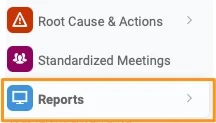
Open the Reports module
Go to the Reports module.
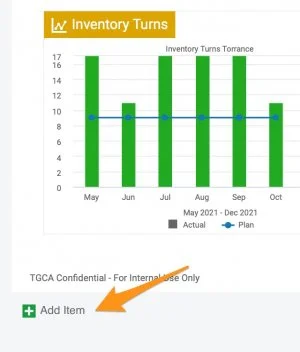
Add a topic
Click the green plus button Add item to create a topic.
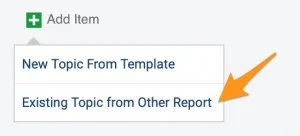
Choose a topic from another report
Choose Existing Topic from Other Report.
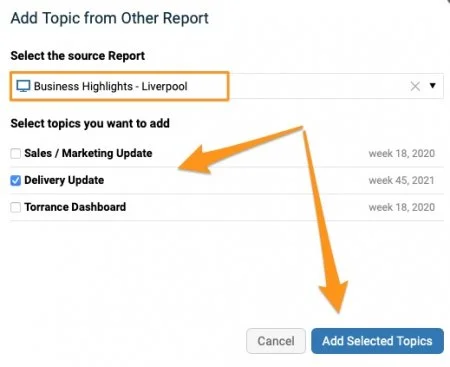
Select the topics
Select the source report and the topic(s) you want to add. Click the Add Selected Topics button.
Recognize a shared topic
An extra icon above the topic shows that it is included in multiple reports.

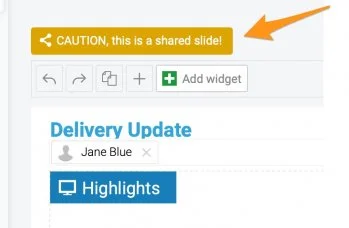
Mind the change alert
When a topic is modified, an alert notification is activated. Please note that any change is applied to all the reports where this topic is shared.
Unshare topics
Choose how to unshare
If you decide not to share topics any longer, you have several options:
-
Remove the slides (topics) from the report(s).
-
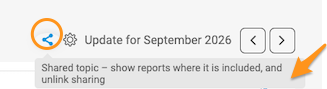
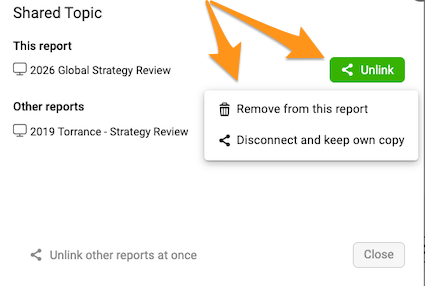
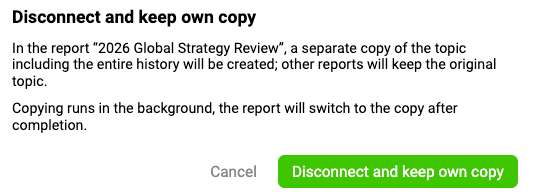
Disconnect and keep your own copy. Click the Share icon above your slide (topic). When you click the Unlink button, you can select the Disconnect and keep own copy option.
-
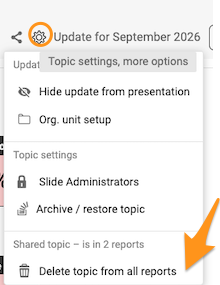
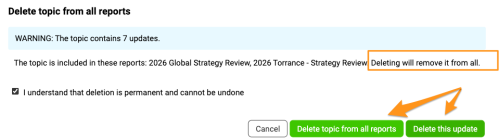
Remove the topic. Click the Settings icon above your topic (slide) and select Delete topic from all reports. You can then choose to remove only the update or all historical updates.
Please note that the selected update(s) are removed from ALL reports where the topic is shared.
Tematy możesz udostępniać w kilku raportach. Dzięki temu łatwo zbudujesz raport zbiorczy z tematów z innych raportów.
Do korzystania z tej funkcji potrzebujesz odpowiedniej roli.
Udostępnij temat
Otwórz moduł Raporty
Przejdź do modułu Raporty.
Dodaj temat
Kliknij zielony przycisk z plusem Dodaj element, aby utworzyć temat.
Wybierz temat z innego raportu
Wybierz Istniejący temat z innego raportu.
Wybierz tematy
Wybierz raport źródłowy i tematy, które chcesz dodać. Kliknij przycisk Dodaj wybrane tematy.
Rozpoznaj udostępniony temat
Dodatkowa ikona nad tematem pokazuje, że jest on częścią kilku raportów.
Zwróć uwagę na alert o zmianie
Gdy ktoś zmieni temat, pojawia się alert. Uwaga: każda zmiana obowiązuje we wszystkich raportach, w których ten temat jest udostępniony.
Zakończ udostępnianie tematów
Wybierz sposób
Jeśli nie chcesz już udostępniać tematów, masz kilka możliwości:
-
Usuń slajdy (tematy) z raportów.
-
Odłącz i zachowaj własną kopię. Kliknij ikonę Udostępnij nad slajdem (tematem). Po kliknięciu przycisku Odłącz możesz wybrać opcję Odłącz i zachowaj własną kopię.
-
Usuń temat. Kliknij ikonę Ustawienia nad tematem (slajdem) i wybierz Usuń temat ze wszystkich raportów. Potem zdecydujesz, czy usunąć tylko tę aktualizację, czy wszystkie wcześniejsze aktualizacje.
Wybrane aktualizacje znikną ze WSZYSTKICH raportów, w których temat jest udostępniony.
Potrzebujesz dalszej pomocy?
Napisz do nas. W dni robocze zwykle odpowiadamy w ciągu godziny.