Como configurar lembretes de RCCA por e-mail no dashboard
Tradução automática do inglês. Exibindo o original em inglês.
You can set up automatic email notifications that send RCCA reminders to the chosen responsible people according to your settings. Once an RCCA is triggered in your dashboard, the responsible people are reminded to initiate the RCCA.
Please note that your RCCA alert needs to be set up and the plan/forecast values need to be entered.
Set up the RCCA alert
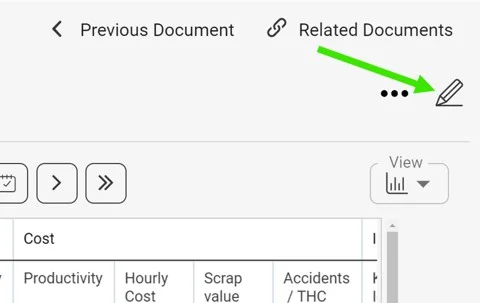
Open the dashboard settings
Click the edit pencil in the upper right corner above your dashboard.
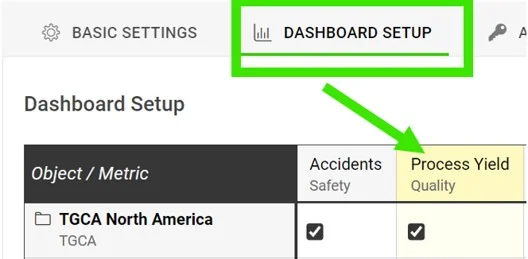
Select the metric
Go to the Dashboard Setup tab and click your metric.
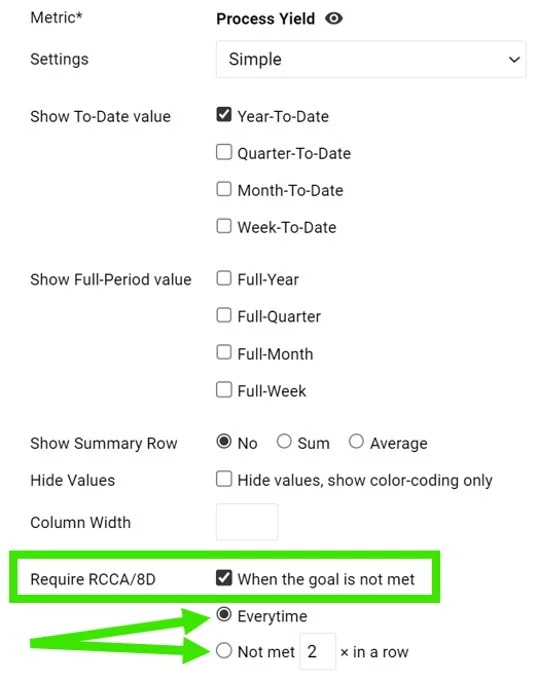
Require an RCCA when the goal is not met
In the Require RCCA / 8D field, tick When the goal is not met and choose your preference, e.g. every time, not met 3 times in a row, etc.
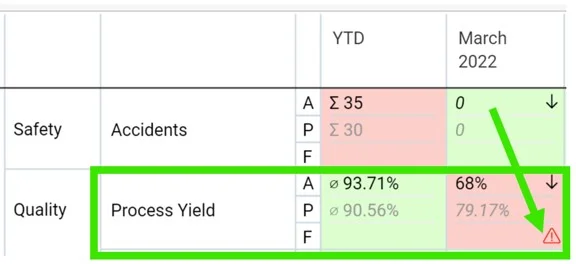
See the alert in the dashboard
Once this is set up and your plan/forecast values are entered, an RCCA alert (a flashing red triangle) is triggered in your dashboard when the goal is not met.
Set up email notifications
Add an RCCA notification
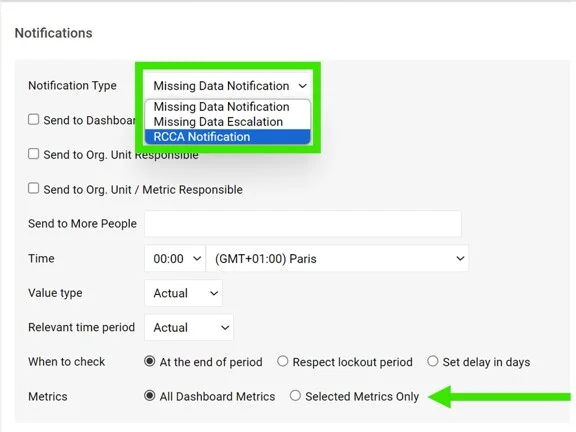
Go to your dashboard’s settings, open the Notifications tab, tick Add Notification and select RCCA notification from the drop-down menu. Reminders are sent to the responsible people according to your selection. Be sure to select specific metrics or all metrics, as applicable.

If you are using a dashboard template, you have to set up the notifications directly in your dashboard template.
Periods checked for existing RCCAs
The system checks whether there are any existing RCCA documents from your selected period (actual, last, before last). If there is no RCCA document for that period, the system checks the previous time periods too.
The time intervals are defined as follows:
- daily: current period + 6 previous days (a total of a week)
- weekly: current period + 2 previous weeks (a total of 3 weeks)
- monthly: current period + 1 previous month (a total of 2 months)
- quarterly: current period + 1 previous quarter (a total of 2 quarters)
- annual: current period + 1 previous year (a total of 2 years)
Você pode configurar notificações automáticas por e-mail que enviam lembretes de RCCA aos responsáveis escolhidos, conforme suas configurações. Quando um RCCA é acionado no dashboard, os responsáveis recebem um lembrete para iniciá-lo.
Para isso, o alerta de RCCA precisa estar configurado e os valores de plano/previsão precisam estar preenchidos.
Configurar o alerta de RCCA
Abrir as configurações do dashboard
Clique no lápis de edição no canto superior direito, acima do dashboard.
Selecionar a métrica
Abra a aba Configuração do dashboard e clique na métrica.
Exigir RCCA quando a meta não for atingida
No campo Exigir RCCA / 8D, marque Quando a meta não for atingida e escolha a opção desejada, por exemplo, toda vez, não atingida 3 vezes seguidas etc.
Ver o alerta no dashboard
Com isso configurado e os valores de plano/previsão preenchidos, um alerta de RCCA (um triângulo vermelho piscando) aparece no dashboard quando a meta não é atingida.
Configurar as notificações por e-mail
Adicionar uma notificação de RCCA
Abra as configurações do dashboard, vá até a aba Notificações, marque Adicionar notificação e selecione Notificação de RCCA no menu suspenso. Os lembretes são enviados aos responsáveis conforme sua seleção. Selecione métricas específicas ou todas as métricas, conforme o caso.
Se você usa um modelo de dashboard, configure as notificações diretamente no modelo.
Períodos verificados para RCCAs existentes
O sistema verifica se já existem documentos de RCCA do período selecionado (atual, anterior, penúltimo). Se não houver documento de RCCA para esse período, o sistema também verifica os períodos anteriores.
Os intervalos de tempo são os seguintes:
- diário: período atual + 6 dias anteriores (uma semana no total)
- semanal: período atual + 2 semanas anteriores (3 semanas no total)
- mensal: período atual + 1 mês anterior (2 meses no total)
- trimestral: período atual + 1 trimestre anterior (2 trimestres no total)
- anual: período atual + 1 ano anterior (2 anos no total)
Precisa de mais ajuda?
Escreva para nós. Em dias úteis, costumamos responder em até uma hora.