Cómo configurar recordatorios de RCCA por correo electrónico en el dashboard
Traducción automática del inglés. Se muestra el original en inglés.
You can set up automatic email notifications that send RCCA reminders to the chosen responsible people according to your settings. Once an RCCA is triggered in your dashboard, the responsible people are reminded to initiate the RCCA.
Please note that your RCCA alert needs to be set up and the plan/forecast values need to be entered.
Set up the RCCA alert
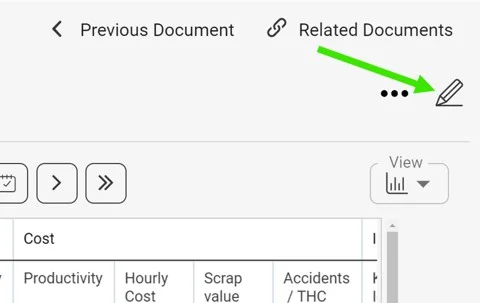
Open the dashboard settings
Click the edit pencil in the upper right corner above your dashboard.
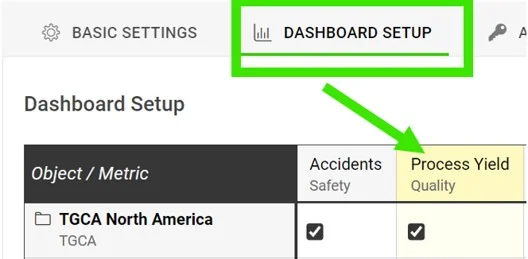
Select the metric
Go to the Dashboard Setup tab and click your metric.
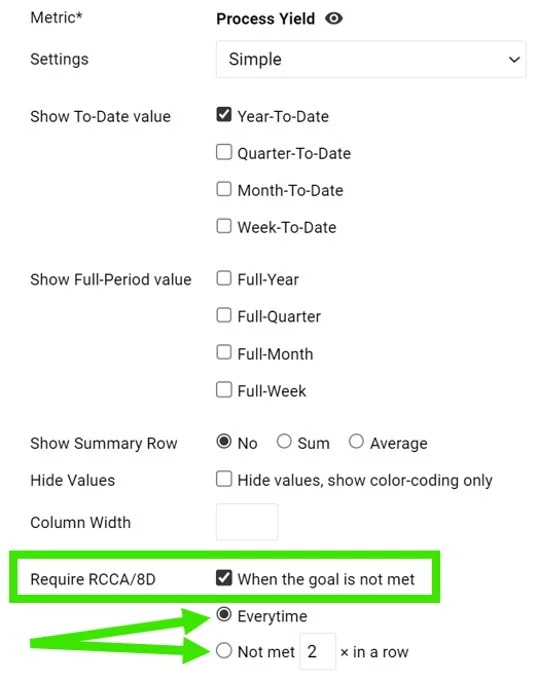
Require an RCCA when the goal is not met
In the Require RCCA / 8D field, tick When the goal is not met and choose your preference, e.g. every time, not met 3 times in a row, etc.
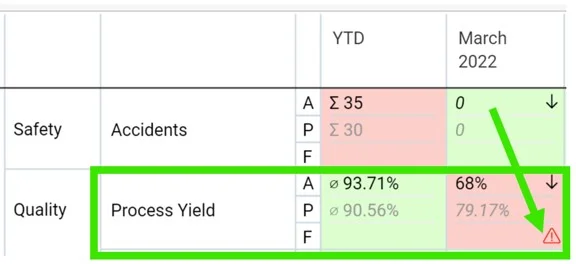
See the alert in the dashboard
Once this is set up and your plan/forecast values are entered, an RCCA alert (a flashing red triangle) is triggered in your dashboard when the goal is not met.
Set up email notifications
Add an RCCA notification
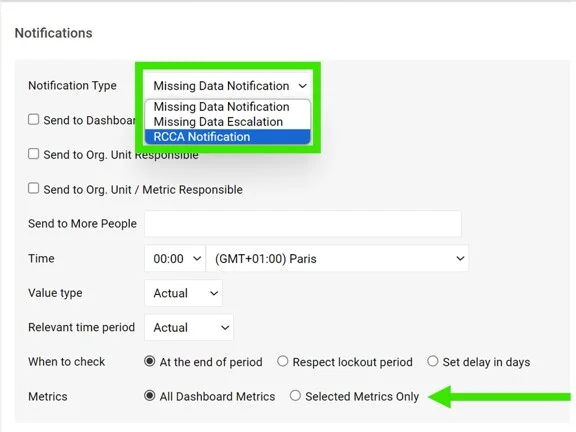
Go to your dashboard’s settings, open the Notifications tab, tick Add Notification and select RCCA notification from the drop-down menu. Reminders are sent to the responsible people according to your selection. Be sure to select specific metrics or all metrics, as applicable.

If you are using a dashboard template, you have to set up the notifications directly in your dashboard template.
Periods checked for existing RCCAs
The system checks whether there are any existing RCCA documents from your selected period (actual, last, before last). If there is no RCCA document for that period, the system checks the previous time periods too.
The time intervals are defined as follows:
- daily: current period + 6 previous days (a total of a week)
- weekly: current period + 2 previous weeks (a total of 3 weeks)
- monthly: current period + 1 previous month (a total of 2 months)
- quarterly: current period + 1 previous quarter (a total of 2 quarters)
- annual: current period + 1 previous year (a total of 2 years)
Puede configurar notificaciones automáticas por correo electrónico que envían recordatorios de RCCA a los responsables elegidos, según su configuración. Cuando se activa un RCCA en el dashboard, se recuerda a los responsables que deben iniciarlo.
Tenga en cuenta que la alerta de RCCA debe estar configurada y los valores de plan o pronóstico deben estar introducidos.
Configurar la alerta de RCCA
Abrir la configuración del dashboard
Haga clic en el lápiz de edición de la esquina superior derecha, encima del dashboard.
Seleccionar la métrica
Vaya a la pestaña Configuración del dashboard y haga clic en su métrica.
Exigir un RCCA cuando no se cumple el objetivo
En el campo Exigir RCCA / 8D, marque Cuando no se cumple el objetivo y elija su preferencia: por ejemplo, cada vez, o cuando no se cumple 3 veces seguidas, etc.
Ver la alerta en el dashboard
Con esta configuración y los valores de plan o pronóstico introducidos, cuando no se cumple el objetivo aparece una alerta de RCCA (un triángulo rojo intermitente) en el dashboard.
Configurar las notificaciones por correo electrónico
Agregar una notificación de RCCA
Abra la configuración del dashboard, vaya a la pestaña Notificaciones, marque Agregar notificación y seleccione Notificación de RCCA en el menú desplegable. Los recordatorios se envían a los responsables según su selección. Asegúrese de seleccionar métricas concretas o todas las métricas, según corresponda.
Si usa una plantilla de dashboard, debe configurar las notificaciones directamente en esa plantilla.
Periodos en los que se buscan RCCA existentes
El sistema comprueba si existen documentos RCCA del periodo seleccionado (actual, anterior o el previo al anterior). Si no hay ningún documento RCCA para ese periodo, el sistema revisa también los periodos anteriores.
Los intervalos de tiempo se definen así:
- diario: periodo actual + 6 días anteriores (una semana en total)
- semanal: periodo actual + 2 semanas anteriores (3 semanas en total)
- mensual: periodo actual + 1 mes anterior (2 meses en total)
- trimestral: periodo actual + 1 trimestre anterior (2 trimestres en total)
- anual: periodo actual + 1 año anterior (2 años en total)
¿Necesita más ayuda?
Escríbanos. En días laborables solemos responder en menos de una hora.