Jak ustawić przypomnienia e-mail o RCCA w dashboardzie
Tłumaczenie maszynowe z angielskiego. Wyświetlany jest oryginał po angielsku.
You can set up automatic email notifications that send RCCA reminders to the chosen responsible people according to your settings. Once an RCCA is triggered in your dashboard, the responsible people are reminded to initiate the RCCA.
Please note that your RCCA alert needs to be set up and the plan/forecast values need to be entered.
Set up the RCCA alert
Open the dashboard settings
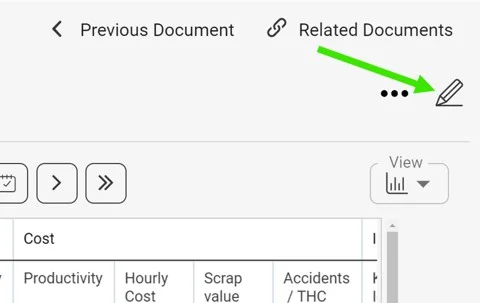
Click the edit pencil in the upper right corner above your dashboard.
Select the metric
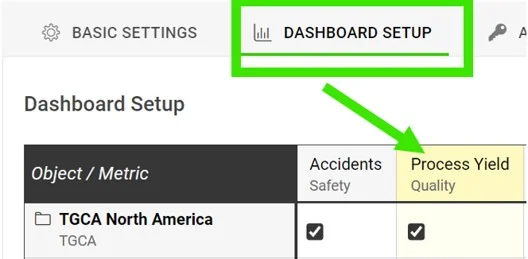
Go to the Dashboard Setup tab and click your metric.
Require an RCCA when the goal is not met
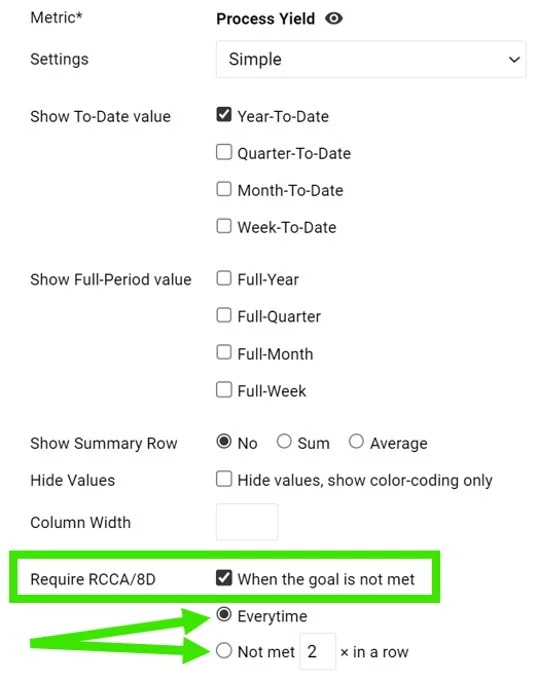
In the Require RCCA / 8D field, tick When the goal is not met and choose your preference, e.g. every time, not met 3 times in a row, etc.
See the alert in the dashboard
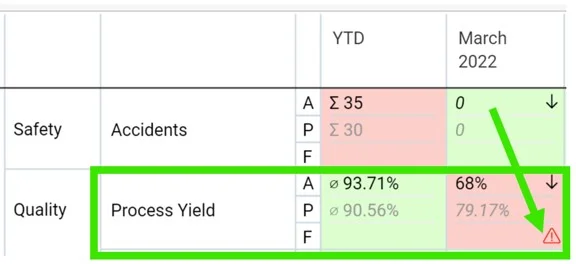
Once this is set up and your plan/forecast values are entered, an RCCA alert (a flashing red triangle) is triggered in your dashboard when the goal is not met.
Set up email notifications
Add an RCCA notification
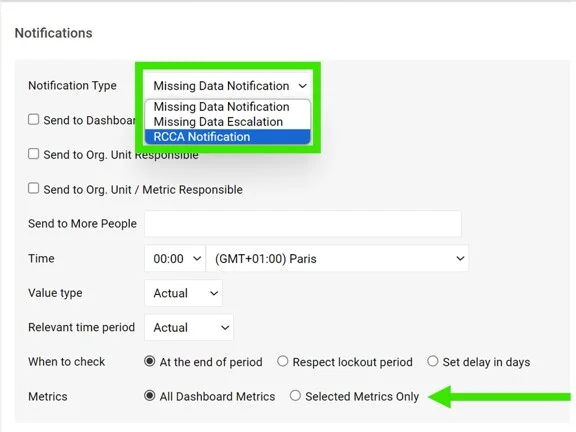
Go to your dashboard’s settings, open the Notifications tab, tick Add Notification and select RCCA notification from the drop-down menu. Reminders are sent to the responsible people according to your selection. Be sure to select specific metrics or all metrics, as applicable.

If you are using a dashboard template, you have to set up the notifications directly in your dashboard template.
Periods checked for existing RCCAs
The system checks whether there are any existing RCCA documents from your selected period (actual, last, before last). If there is no RCCA document for that period, the system checks the previous time periods too.
The time intervals are defined as follows:
- daily: current period + 6 previous days (a total of a week)
- weekly: current period + 2 previous weeks (a total of 3 weeks)
- monthly: current period + 1 previous month (a total of 2 months)
- quarterly: current period + 1 previous quarter (a total of 2 quarters)
- annual: current period + 1 previous year (a total of 2 years)
Możesz ustawić automatyczne powiadomienia e-mail, które zgodnie z twoimi ustawieniami przypominają wybranym osobom odpowiedzialnym o RCCA. Gdy w dashboardzie pojawi się alert RCCA, osoby odpowiedzialne dostaną przypomnienie, żeby rozpocząć RCCA.
Warunek: alert RCCA musi być ustawiony, a wartości planu/prognozy wpisane.
Ustaw alert RCCA
Otwórz ustawienia dashboardu
Kliknij ołówek edycji w prawym górnym rogu nad dashboardem.
Wybierz wskaźnik
Przejdź na kartę Konfiguracja dashboardu i kliknij wskaźnik.
Wymagaj RCCA, gdy cel nie jest osiągnięty
W polu Wymagaj RCCA / 8D zaznacz Gdy cel nie jest osiągnięty i wybierz wariant, np. za każdym razem, 3 razy z rzędu itd.
Zobacz alert w dashboardzie
Gdy to ustawisz i wpiszesz wartości planu/prognozy, w dashboardzie pojawi się alert RCCA (migający czerwony trójkąt) za każdym razem, gdy cel nie zostanie osiągnięty.
Ustaw powiadomienia e-mail
Dodaj powiadomienie RCCA
Otwórz ustawienia dashboardu, przejdź na kartę Powiadomienia, zaznacz Dodaj powiadomienie i wybierz z listy rozwijanej Powiadomienie RCCA. Przypomnienia trafią do osób odpowiedzialnych zgodnie z twoim wyborem. Pamiętaj, aby wybrać konkretne wskaźniki albo wszystkie wskaźniki, zależnie od potrzeb.
Jeśli korzystasz z szablonu dashboardu, powiadomienia ustaw bezpośrednio w tym szablonie.
Okresy sprawdzane pod kątem istniejących RCCA
System sprawdza, czy istnieją dokumenty RCCA z wybranego okresu (bieżącego, ostatniego, przedostatniego). Jeśli dla tego okresu nie ma dokumentu RCCA, system sprawdza też wcześniejsze okresy.
Przedziały czasu są określone tak:
- dzienny: bieżący okres + 6 poprzednich dni (łącznie tydzień)
- tygodniowy: bieżący okres + 2 poprzednie tygodnie (łącznie 3 tygodnie)
- miesięczny: bieżący okres + 1 poprzedni miesiąc (łącznie 2 miesiące)
- kwartalny: bieżący okres + 1 poprzedni kwartał (łącznie 2 kwartały)
- roczny: bieżący okres + 1 poprzedni rok (łącznie 2 lata)
Potrzebujesz dalszej pomocy?
Napisz do nas. W dni robocze zwykle odpowiadamy w ciągu godziny.