Configurer des rappels RCCA par e-mail dans votre tableau de bord
Traduction automatique de l'anglais. Original en anglais affiché.
You can set up automatic email notifications that send RCCA reminders to the chosen responsible people according to your settings. Once an RCCA is triggered in your dashboard, the responsible people are reminded to initiate the RCCA.
Please note that your RCCA alert needs to be set up and the plan/forecast values need to be entered.
Set up the RCCA alert
Open the dashboard settings
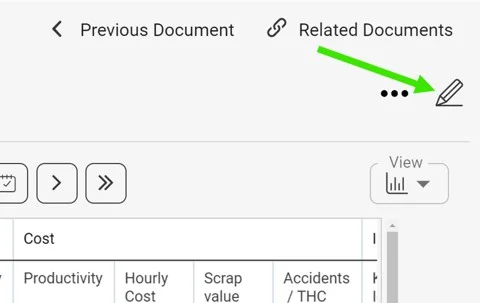
Click the edit pencil in the upper right corner above your dashboard.
Select the metric
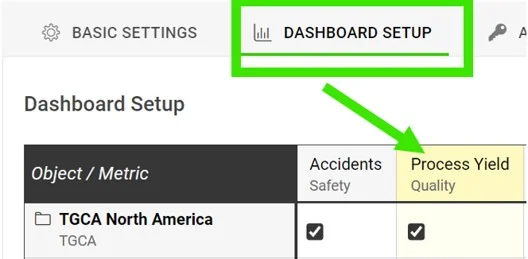
Go to the Dashboard Setup tab and click your metric.
Require an RCCA when the goal is not met
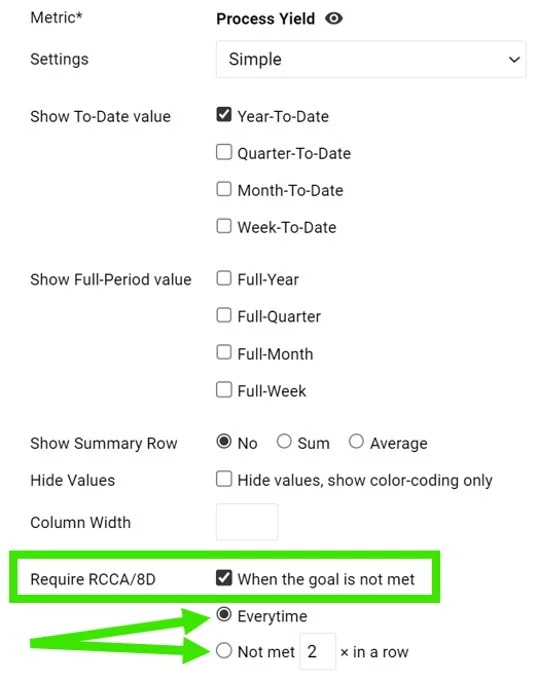
In the Require RCCA / 8D field, tick When the goal is not met and choose your preference, e.g. every time, not met 3 times in a row, etc.
See the alert in the dashboard
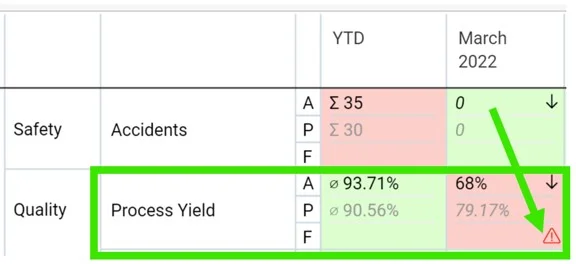
Once this is set up and your plan/forecast values are entered, an RCCA alert (a flashing red triangle) is triggered in your dashboard when the goal is not met.
Set up email notifications
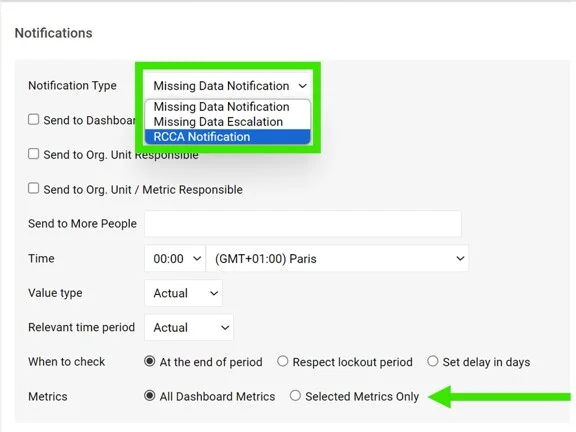
Add an RCCA notification
Go to your dashboard’s settings, open the Notifications tab, tick Add Notification and select RCCA notification from the drop-down menu. Reminders are sent to the responsible people according to your selection. Be sure to select specific metrics or all metrics, as applicable.

If you are using a dashboard template, you have to set up the notifications directly in your dashboard template.
Periods checked for existing RCCAs
The system checks whether there are any existing RCCA documents from your selected period (actual, last, before last). If there is no RCCA document for that period, the system checks the previous time periods too.
The time intervals are defined as follows:
- daily: current period + 6 previous days (a total of a week)
- weekly: current period + 2 previous weeks (a total of 3 weeks)
- monthly: current period + 1 previous month (a total of 2 months)
- quarterly: current period + 1 previous quarter (a total of 2 quarters)
- annual: current period + 1 previous year (a total of 2 years)
Vous pouvez configurer des notifications automatiques par e-mail qui envoient des rappels RCCA aux responsables choisis, selon vos paramètres. Dès qu’une RCCA est déclenchée dans votre tableau de bord, les responsables reçoivent un rappel pour la lancer.
Pour cela, l’alerte RCCA doit être configurée et les valeurs de plan/prévision doivent être saisies.
Configurer l’alerte RCCA
Ouvrir les paramètres du tableau de bord
Cliquez sur le crayon de modification en haut à droite, au-dessus du tableau de bord.
Sélectionner l’indicateur
Ouvrez l’onglet Configuration du tableau de bord et cliquez sur votre indicateur.
Exiger une RCCA si l’objectif n’est pas atteint
Dans le champ Exiger RCCA / 8D, cochez Si l’objectif n’est pas atteint et choisissez votre préférence : à chaque fois, non atteint 3 fois de suite, etc.
Voir l’alerte dans le tableau de bord
Une fois ce réglage fait et les valeurs de plan/prévision saisies, une alerte RCCA (un triangle rouge clignotant) se déclenche dans le tableau de bord lorsque l’objectif n’est pas atteint.
Configurer les notifications par e-mail
Ajouter une notification RCCA
Ouvrez les paramètres du tableau de bord, onglet Notifications, cochez Ajouter une notification et sélectionnez Notification RCCA dans la liste déroulante. Les rappels sont envoyés aux responsables selon votre sélection. Pensez à sélectionner certains indicateurs ou tous les indicateurs, selon le cas.
Si vous utilisez un modèle de tableau de bord, configurez les notifications directement dans ce modèle.
Périodes vérifiées pour les RCCA existantes
Le système vérifie s’il existe déjà des documents RCCA pour la période choisie (actuelle, précédente, avant-dernière). S’il n’en trouve aucun pour cette période, il vérifie aussi les périodes antérieures.
Les intervalles de temps sont définis ainsi :
- quotidien : période actuelle + 6 jours précédents (une semaine au total)
- hebdomadaire : période actuelle + 2 semaines précédentes (3 semaines au total)
- mensuel : période actuelle + 1 mois précédent (2 mois au total)
- trimestriel : période actuelle + 1 trimestre précédent (2 trimestres au total)
- annuel : période actuelle + 1 année précédente (2 ans au total)
Besoin d'aide supplémentaire ?
Écrivez-nous. Les jours ouvrés, nous répondons en général en moins d'une heure.