Ako nastaviť e-mailové pripomienky RCCA v dashboarde
Strojový preklad z angličtiny. Zobrazený je anglický originál.
You can set up automatic email notifications that send RCCA reminders to the chosen responsible people according to your settings. Once an RCCA is triggered in your dashboard, the responsible people are reminded to initiate the RCCA.
Please note that your RCCA alert needs to be set up and the plan/forecast values need to be entered.
Set up the RCCA alert
Open the dashboard settings
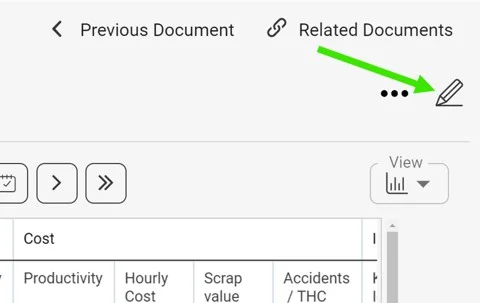
Click the edit pencil in the upper right corner above your dashboard.
Select the metric
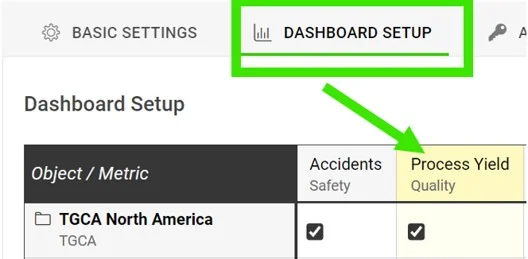
Go to the Dashboard Setup tab and click your metric.
Require an RCCA when the goal is not met
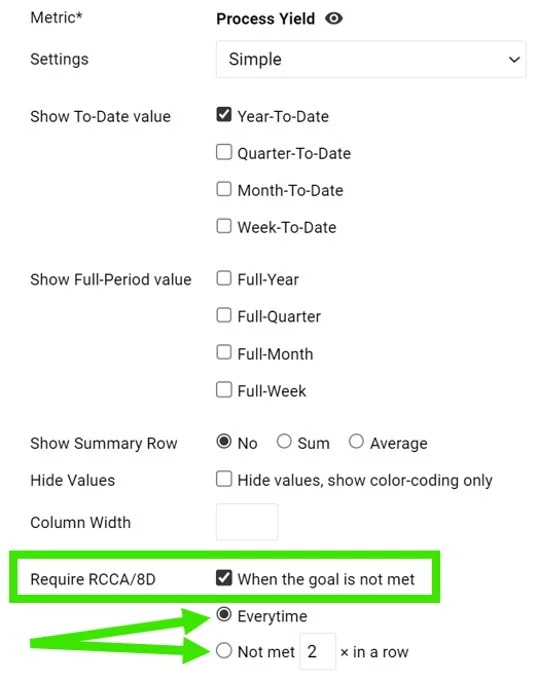
In the Require RCCA / 8D field, tick When the goal is not met and choose your preference, e.g. every time, not met 3 times in a row, etc.
See the alert in the dashboard
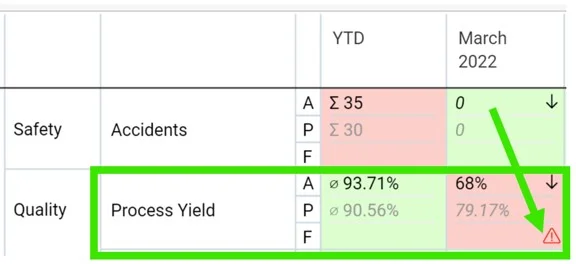
Once this is set up and your plan/forecast values are entered, an RCCA alert (a flashing red triangle) is triggered in your dashboard when the goal is not met.
Set up email notifications
Add an RCCA notification
Go to your dashboard’s settings, open the Notifications tab, tick Add Notification and select RCCA notification from the drop-down menu. Reminders are sent to the responsible people according to your selection. Be sure to select specific metrics or all metrics, as applicable.

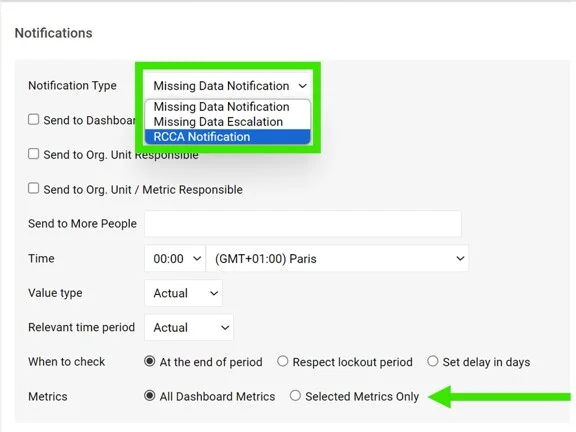
If you are using a dashboard template, you have to set up the notifications directly in your dashboard template.
Periods checked for existing RCCAs
The system checks whether there are any existing RCCA documents from your selected period (actual, last, before last). If there is no RCCA document for that period, the system checks the previous time periods too.
The time intervals are defined as follows:
- daily: current period + 6 previous days (a total of a week)
- weekly: current period + 2 previous weeks (a total of 3 weeks)
- monthly: current period + 1 previous month (a total of 2 months)
- quarterly: current period + 1 previous quarter (a total of 2 quarters)
- annual: current period + 1 previous year (a total of 2 years)
Môžete nastaviť automatické e-mailové notifikácie, ktoré podľa vašich nastavení posielajú pripomienky RCCA vybraným zodpovedným osobám. Keď sa v dashboarde spustí RCCA, zodpovedným osobám príde pripomienka, aby RCCA založili.
Podmienkou je nastavený alert RCCA a zadané hodnoty plánu/prognózy.
Nastavenie alertu RCCA
Otvorte nastavenia dashboardu
Kliknite na ceruzku v pravom hornom rohu nad dashboardom.
Vyberte metriku
Prejdite na kartu Nastavenie dashboardu a kliknite na metriku.
Vyžadujte RCCA pri nesplnení cieľa
V poli Vyžadovať RCCA / 8D začiarknite Keď nie je splnený cieľ a zvoľte, kedy presne, napr. zakaždým, pri trojnásobnom nesplnení po sebe atď.
Pozrite si alert v dashboarde
Keď je to nastavené a hodnoty plánu/prognózy sú zadané, pri nesplnení cieľa sa v dashboarde zobrazí alert RCCA (blikajúci červený trojuholník).
Nastavenie e-mailových notifikácií
Pridajte notifikáciu RCCA
Otvorte nastavenia dashboardu, prejdite na kartu Notifikácie, začiarknite Pridať notifikáciu a v rozbaľovacom menu vyberte Notifikácia RCCA. Pripomienky sa posielajú zodpovedným osobám podľa vášho výberu. Nezabudnite vybrať konkrétne metriky alebo všetky metriky, podľa potreby.
Ak používate šablónu dashboardu, notifikácie musíte nastaviť priamo v šablóne.
Obdobia, v ktorých sa hľadajú existujúce RCCA
Systém overí, či existujú dokumenty RCCA z vybraného obdobia (aktuálneho, posledného, predposledného). Ak za dané obdobie žiadny dokument RCCA nie je, prezrie aj predchádzajúce obdobia.
Časové intervaly sú takéto:
- denne: aktuálne obdobie + 6 predchádzajúcich dní (spolu týždeň)
- týždenne: aktuálne obdobie + 2 predchádzajúce týždne (spolu 3 týždne)
- mesačne: aktuálne obdobie + 1 predchádzajúci mesiac (spolu 2 mesiace)
- štvrťročne: aktuálne obdobie + 1 predchádzajúci štvrťrok (spolu 2 štvrťroky)
- ročne: aktuálne obdobie + 1 predchádzajúci rok (spolu 2 roky)
Potrebujete ďalšiu pomoc?
Napíšte nám. V pracovné dni zvyčajne odpovedáme do hodiny.