So richten Sie RCCA-Erinnerungen per E-Mail im Dashboard ein
Maschinelle Übersetzung aus dem Englischen. Englisches Original wird angezeigt.
You can set up automatic email notifications that send RCCA reminders to the chosen responsible people according to your settings. Once an RCCA is triggered in your dashboard, the responsible people are reminded to initiate the RCCA.
Please note that your RCCA alert needs to be set up and the plan/forecast values need to be entered.
Set up the RCCA alert
Open the dashboard settings
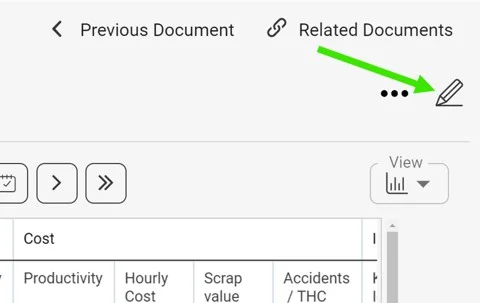
Click the edit pencil in the upper right corner above your dashboard.
Select the metric
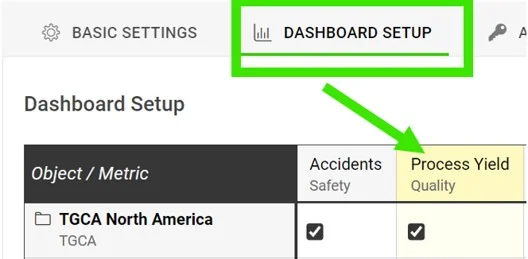
Go to the Dashboard Setup tab and click your metric.
Require an RCCA when the goal is not met
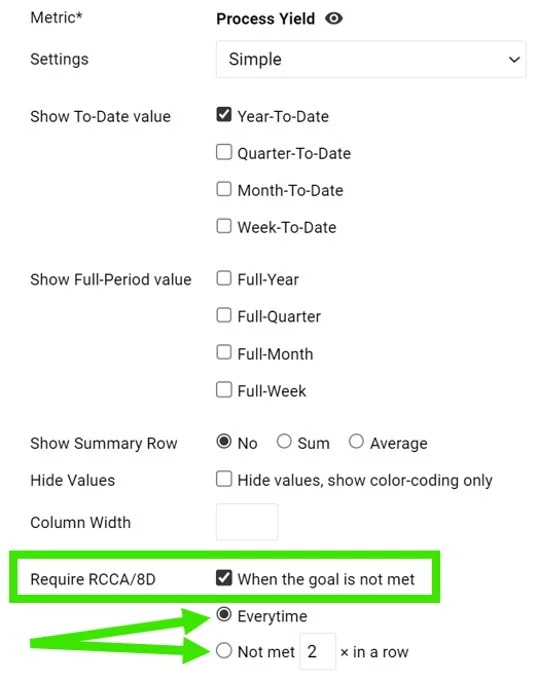
In the Require RCCA / 8D field, tick When the goal is not met and choose your preference, e.g. every time, not met 3 times in a row, etc.
See the alert in the dashboard
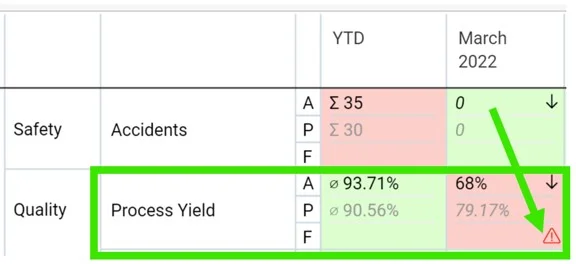
Once this is set up and your plan/forecast values are entered, an RCCA alert (a flashing red triangle) is triggered in your dashboard when the goal is not met.
Set up email notifications
Add an RCCA notification
Go to your dashboard’s settings, open the Notifications tab, tick Add Notification and select RCCA notification from the drop-down menu. Reminders are sent to the responsible people according to your selection. Be sure to select specific metrics or all metrics, as applicable.

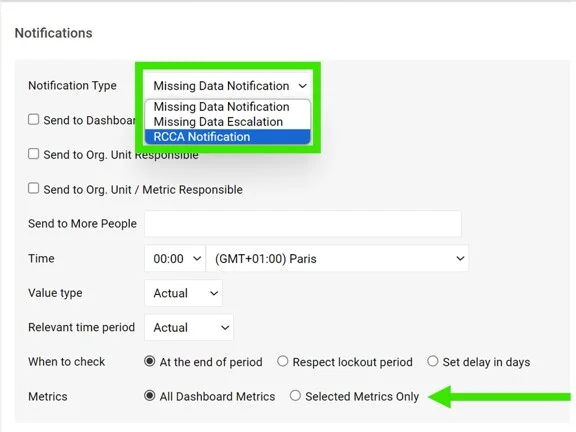
If you are using a dashboard template, you have to set up the notifications directly in your dashboard template.
Periods checked for existing RCCAs
The system checks whether there are any existing RCCA documents from your selected period (actual, last, before last). If there is no RCCA document for that period, the system checks the previous time periods too.
The time intervals are defined as follows:
- daily: current period + 6 previous days (a total of a week)
- weekly: current period + 2 previous weeks (a total of 3 weeks)
- monthly: current period + 1 previous month (a total of 2 months)
- quarterly: current period + 1 previous quarter (a total of 2 quarters)
- annual: current period + 1 previous year (a total of 2 years)
Sie können automatische E-Mail-Benachrichtigungen einrichten, die den gewählten verantwortlichen Personen gemäß Ihren Einstellungen RCCA-Erinnerungen senden. Sobald in Ihrem Dashboard eine RCCA ausgelöst wird, werden die verantwortlichen Personen daran erinnert, die RCCA zu starten.
Voraussetzung: Ihr RCCA-Alert ist eingerichtet und die Plan-/Prognosewerte sind eingegeben.
RCCA-Alert einrichten
Dashboard-Einstellungen öffnen
Klicken Sie oben rechts über Ihrem Dashboard auf das Stiftsymbol.
Kennzahl auswählen
Öffnen Sie die Registerkarte Dashboard-Einrichtung und klicken Sie auf Ihre Kennzahl.
RCCA bei verfehltem Ziel verlangen
Aktivieren Sie im Feld RCCA / 8D erforderlich die Option Wenn das Ziel nicht erreicht wird und legen Sie fest, wann, z. B. jedes Mal, dreimal in Folge verfehlt usw.
Alert im Dashboard sehen
Sobald dies eingerichtet ist und Ihre Plan-/Prognosewerte eingegeben sind, wird in Ihrem Dashboard bei verfehltem Ziel ein RCCA-Alert (ein blinkendes rotes Dreieck) ausgelöst.
E-Mail-Benachrichtigungen einrichten
RCCA-Benachrichtigung hinzufügen
Öffnen Sie die Einstellungen Ihres Dashboards, wechseln Sie zur Registerkarte Benachrichtigungen, aktivieren Sie Benachrichtigung hinzufügen und wählen Sie im Dropdown-Menü RCCA-Benachrichtigung. Die Erinnerungen gehen gemäß Ihrer Auswahl an die verantwortlichen Personen. Wählen Sie je nach Bedarf bestimmte Kennzahlen oder alle Kennzahlen aus.
Wenn Sie eine Dashboard-Vorlage verwenden, müssen Sie die Benachrichtigungen direkt in der Dashboard-Vorlage einrichten.
Geprüfte Zeiträume für vorhandene RCCAs
Das System prüft, ob es RCCA-Dokumente aus dem gewählten Zeitraum (aktuell, letzter, vorletzter) gibt. Gibt es für diesen Zeitraum kein RCCA-Dokument, prüft das System auch die vorherigen Zeiträume.
Die Zeitintervalle sind wie folgt festgelegt:
- täglich: aktueller Zeitraum + 6 vorherige Tage (insgesamt eine Woche)
- wöchentlich: aktueller Zeitraum + 2 vorherige Wochen (insgesamt 3 Wochen)
- monatlich: aktueller Zeitraum + 1 vorheriger Monat (insgesamt 2 Monate)
- quartalsweise: aktueller Zeitraum + 1 vorheriges Quartal (insgesamt 2 Quartale)
- jährlich: aktueller Zeitraum + 1 vorheriges Jahr (insgesamt 2 Jahre)
Brauchen Sie weitere Hilfe?
Schreiben Sie uns. An Werktagen antworten wir meist innerhalb einer Stunde.