Como editar uma X-matrix
Tradução automática do inglês. Exibindo o original em inglês.
You edit the X-matrix right where you read it. You need the right to edit the plan; without it the Edit buttons are not shown.
Edit the matrix
- Click Edit above the matrix.
- Change what you need (see below).
- Click Done.
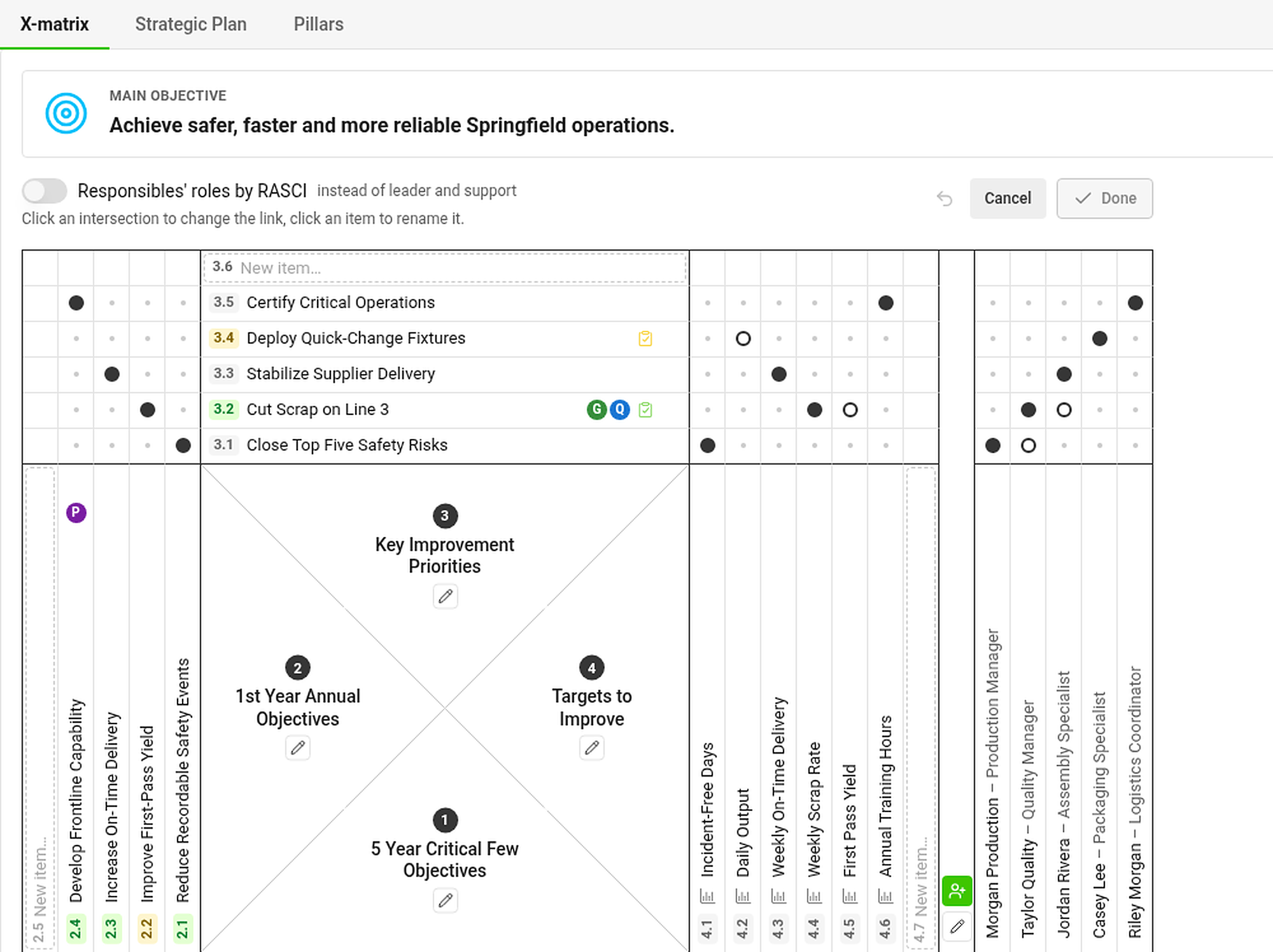
| I want to… | Do this |
|---|---|
| Add an item | Type into the New item… slot at the end of a list and press Enter. The item is added and the next slot is ready. Press Esc to add nothing. |
| Rename an item | Click its label, type, and press Enter (or click away). Esc cancels. |
| Link two items | Click the cell where they cross. Each click cycles: no link → primary (filled dot) → secondary (hollow dot) → no link. |
| Switch from leader/support to RASCI | Turn on Responsibles’ roles by RASCI above the matrix. |
| Change the main objective | Click Edit in the Main objective panel. |
Titles are limited to 120 characters (KPIs to 60). Shorter goals are easier to remember and the matrix stays readable.
Edit a whole list
Click the pencil under the name of a list (for example 1st Year Annual Objectives) to open the whole list in a window.
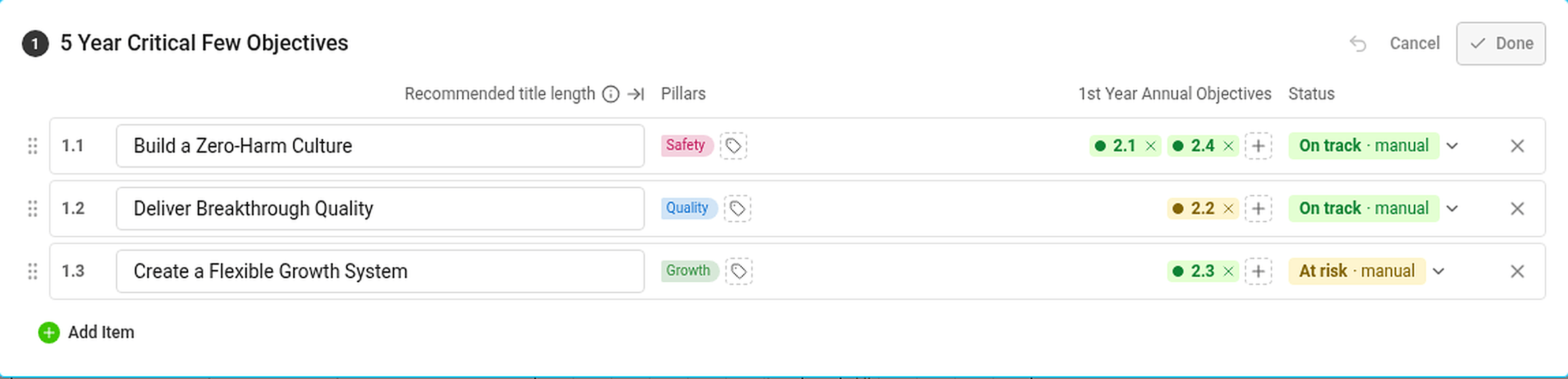
Here you can rename items, drag the handle to change their order, add tags and pillars, choose the linked items from other lists, set a status by hand (see how statuses work), add new items with Add Item and delete items with ✕. Done closes the window; Cancel returns the list to how it was when you opened it.
Deleting an item also deletes its links. Documents linked to it (projects, metric dashboards) are not deleted.
When are my changes saved?
You do not need a Save button. Your changes are saved when you:
- click Done,
- click outside the part you are editing,
- start editing another part of the page,
- switch to another tab, or
- leave the page.
If saving fails, the part stays open with your changes so nothing is lost. While you edit, only one part of the page is in edit mode at a time: the matrix, the main objective with the plan hierarchy, one pillar box or one section.
Changed your mind?
- Step back (the arrow next to Cancel, or Ctrl+Z / ⌘+Z) undoes the last change. Changes made less than half a second apart count as one step.
- Cancel throws away all changes of the part you are editing – after a confirmation, if there is anything to lose.
Edit one section at a time
Sections below the matrix (for example Targets to Improve and Responsibles) have their own Edit button next to the heading. They work the same way: edit, then Done.
Você edita a X-matrix no mesmo lugar em que a lê. É preciso ter permissão para editar o plano; sem ela, os botões Editar não aparecem.
Edite a matriz
- Clique em Editar acima da matriz.
- Altere o que for necessário (veja abaixo).
- Clique em Concluído.
| Quero… | Faça assim |
|---|---|
| Adicionar um item | Digite no campo Novo item… no fim de uma lista e pressione Enter. O item é adicionado e o próximo campo fica pronto. Pressione Esc para não adicionar nada. |
| Renomear um item | Clique no rótulo, digite e pressione Enter (ou clique fora). Esc cancela. |
| Vincular dois itens | Clique na célula em que eles se cruzam. Cada clique alterna: sem vínculo → principal (ponto cheio) → secundário (ponto vazado) → sem vínculo. |
| Trocar líder/apoio por RASCI | Ative Papéis dos responsáveis por RASCI acima da matriz. |
| Alterar o objetivo principal | Clique em Editar no painel Objetivo principal. |
Os títulos têm no máximo 120 caracteres (os KPIs, 60). Objetivos mais curtos são mais fáceis de lembrar e a matriz continua legível.
Edite uma lista inteira
Clique no lápis abaixo do nome de uma lista (por exemplo, Objetivos anuais do 1º ano) para abrir a lista inteira em uma janela.
Aqui você pode renomear itens, arrastar a alça para mudar a ordem, adicionar tags e pilares, escolher os itens vinculados de outras listas, definir um status manualmente (veja como os status funcionam), adicionar itens com Adicionar item e excluir itens com ✕. Concluído fecha a janela; Cancelar devolve a lista ao estado em que estava quando você a abriu.
Excluir um item também exclui os vínculos dele. Os documentos vinculados a ele (projetos, dashboards de KPI) não são excluídos.
Quando minhas alterações são salvas?
Não é preciso um botão Salvar. As alterações são salvas quando você:
- clica em Concluído,
- clica fora da parte que está editando,
- começa a editar outra parte da página,
- muda para outra guia ou
- sai da página.
Se o salvamento falhar, a parte continua aberta com suas alterações, para que nada se perca. Durante a edição, só uma parte da página fica no modo de edição por vez: a matriz, o objetivo principal com a hierarquia de planos, um quadro de pilar ou uma seção.
Mudou de ideia?
- Voltar (a seta ao lado de Cancelar, ou Ctrl+Z / ⌘+Z) desfaz a última alteração. Alterações feitas com menos de meio segundo de intervalo contam como um só passo.
- Cancelar descarta todas as alterações da parte que você está editando – após uma confirmação, se houver algo a perder.
Edite uma seção de cada vez
As seções abaixo da matriz (por exemplo, Indicadores e metas e Responsáveis) têm um botão Editar próprio ao lado do título. Elas funcionam da mesma forma: edite e clique em Concluído.
Precisa de mais ajuda?
Escreva para nós. Em dias úteis, costumamos responder em até uma hora.