Como exportar uma X-matrix para PDF, PowerPoint ou PNG
Tradução automática do inglês. Exibindo o original em inglês.
Take your plan to the meeting. Click the download icon next to the title of the plan.
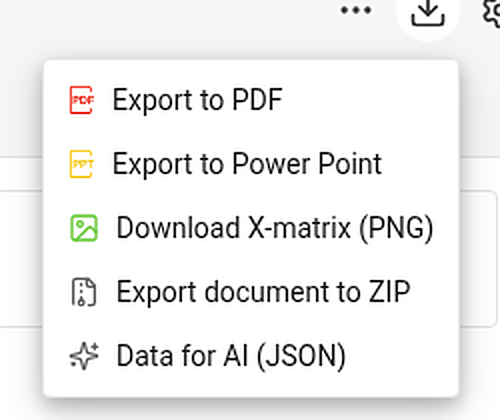
| Item | What you get |
|---|---|
| Export to PDF | A landscape PDF: a title page with the main objective, overall status and plan hierarchy, then the views you choose, then the overall status and every section – KPIs with their monthly values. |
| Export to Power Point | A 16:9 presentation: a title slide, a picture of each chosen view and, with the sections, editable tables with the codes colored by status. |
| Download X-matrix (PNG) | A picture of the matrix with its main objective and legend. |
| Export document to ZIP and Data for AI (JSON) | Whole-document exports. They appear only if your administrator has switched them on for your TeamGuru. |
Choose what to print
PDF and PowerPoint first ask what the file should contain.
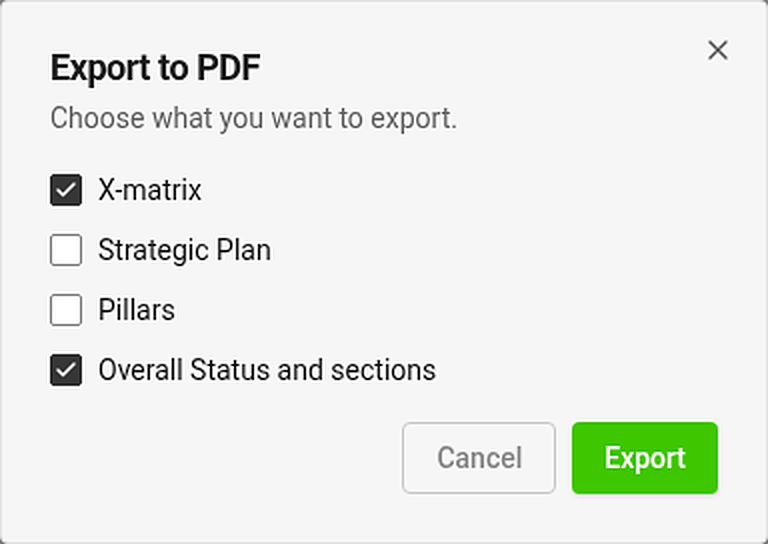
Tick any of the views – X-matrix, Strategic Plan, Pillars – and Overall Status and sections. The view you are looking at is ticked for you. Export is disabled while nothing is ticked.
Each chosen view is printed on its own page. A view that is too tall for a page is shrunk to fit (down to 60 %); if it would need to be smaller, it continues on more pages at its normal size.
Where is my file?
The export runs in the background and the file arrives in your async jobs tray. While an export of the same kind is running, its menu item is disabled.
Good to know
- Export is available once the plan has at least one 5-year or annual goal.
- You can export only what you may open. Documents and values you may not see are printed as hidden.
- Exports always contain the whole matrix, even if you have filtered the page to selected items.
- Print the page directly (Ctrl/⌘ + P) and the menus and buttons are left out.
Leve o seu plano para a reunião. Clique no ícone de download ao lado do título do plano.
| Item | O que você recebe |
|---|---|
| Exportar para PDF | Um PDF em paisagem: uma página de rosto com o objetivo principal, o status geral e a hierarquia de planos, depois as visões que você escolher e, por fim, o status geral e todas as seções – os KPIs com os valores mensais. |
| Exportar para PowerPoint | Uma apresentação 16:9: um slide de título, uma imagem de cada visão escolhida e, com as seções, tabelas editáveis com os códigos coloridos por status. |
| Baixar X-matrix (PNG) | Uma imagem da matriz com o objetivo principal e a legenda. |
| Exportar documento para ZIP e Dados para IA (JSON) | Exportações do documento inteiro. Só aparecem se o administrador as tiver ativado no seu TeamGuru. |
Escolha o que imprimir
No PDF e no PowerPoint, o sistema pergunta primeiro o que o arquivo deve conter.
Marque qualquer uma das visões – X-matrix, Plano estratégico, Pilares – e Status geral e seções. A visão que você está vendo já vem marcada. Exportar fica desativado enquanto nada estiver marcado.
Cada visão escolhida é impressa em uma página própria. Uma visão alta demais para uma página é reduzida para caber (até 60 %); se precisasse ficar menor que isso, ela continua em mais páginas no tamanho normal.
Onde está o meu arquivo?
A exportação é feita em segundo plano e o arquivo chega à sua bandeja de tarefas assíncronas. Enquanto uma exportação do mesmo tipo estiver em andamento, o item correspondente do menu fica desativado.
Bom saber
- A exportação fica disponível quando o plano tem pelo menos um objetivo de 5 anos ou anual.
- Você só pode exportar o que tem permissão para abrir. Documentos e valores que você não pode ver são impressos como ocultos.
- As exportações sempre contêm a matriz inteira, mesmo que você tenha filtrado a página para itens selecionados.
- Ao imprimir a página diretamente (Ctrl/⌘ + P), os menus e botões ficam de fora.
Precisa de mais ajuda?
Escreva para nós. Em dias úteis, costumamos responder em até uma hora.