Exporter une X-Matrix en PDF, PowerPoint ou PNG
Traduction automatique de l'anglais. Original en anglais affiché.
Take your plan to the meeting. Click the download icon next to the title of the plan.
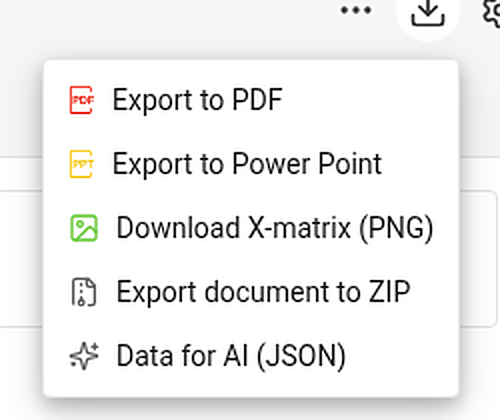
| Item | What you get |
|---|---|
| Export to PDF | A landscape PDF: a title page with the main objective, overall status and plan hierarchy, then the views you choose, then the overall status and every section – KPIs with their monthly values. |
| Export to Power Point | A 16:9 presentation: a title slide, a picture of each chosen view and, with the sections, editable tables with the codes colored by status. |
| Download X-matrix (PNG) | A picture of the matrix with its main objective and legend. |
| Export document to ZIP and Data for AI (JSON) | Whole-document exports. They appear only if your administrator has switched them on for your TeamGuru. |
Choose what to print
PDF and PowerPoint first ask what the file should contain.
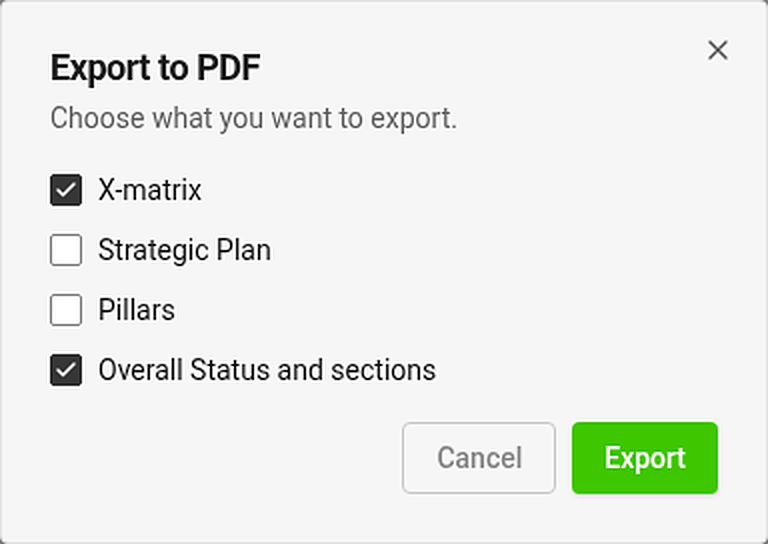
Tick any of the views – X-matrix, Strategic Plan, Pillars – and Overall Status and sections. The view you are looking at is ticked for you. Export is disabled while nothing is ticked.
Each chosen view is printed on its own page. A view that is too tall for a page is shrunk to fit (down to 60 %); if it would need to be smaller, it continues on more pages at its normal size.
Where is my file?
The export runs in the background and the file arrives in your async jobs tray. While an export of the same kind is running, its menu item is disabled.
Good to know
- Export is available once the plan has at least one 5-year or annual goal.
- You can export only what you may open. Documents and values you may not see are printed as hidden.
- Exports always contain the whole matrix, even if you have filtered the page to selected items.
- Print the page directly (Ctrl/⌘ + P) and the menus and buttons are left out.
Emportez votre plan en réunion. Cliquez sur l’icône de téléchargement à côté du titre du plan.
| Option | Ce que vous obtenez |
|---|---|
| Exporter en PDF | Un PDF au format paysage : une page de titre avec l’objectif principal, le statut global et la hiérarchie des plans, puis les vues choisies, puis le statut global et chaque section, dont les KPI avec leurs valeurs mensuelles. |
| Exporter vers PowerPoint | Une présentation 16:9 : une diapositive de titre, une image de chaque vue choisie et, avec les sections, des tableaux modifiables dont les codes sont colorés selon leur statut. |
| Télécharger la X-Matrix (PNG) | Une image de la matrice avec son objectif principal et sa légende. |
| Exporter le document en ZIP et Données pour l’IA (JSON) | Exports du document complet. Ils n’apparaissent que si votre administrateur les a activés pour votre TeamGuru. |
Choisir ce qui est imprimé
Pour le PDF et PowerPoint, l’application vous demande d’abord ce que doit contenir le fichier.
Cochez une ou plusieurs vues (X-Matrix, Plan stratégique, Piliers) et Statut global et sections. La vue que vous consultez est déjà cochée. Exporter reste désactivé tant que rien n’est coché.
Chaque vue choisie est imprimée sur sa propre page. Une vue trop haute pour une page est réduite pour tenir (jusqu’à 60 %) ; s’il fallait la réduire davantage, elle se poursuit sur plusieurs pages à sa taille normale.
Où est mon fichier ?
L’export s’exécute en arrière-plan et le fichier arrive dans votre panneau des tâches asynchrones. Tant qu’un export du même type est en cours, l’option correspondante du menu est désactivée.
Bon à savoir
- L’export est disponible dès que le plan contient au moins un objectif à 5 ans ou un objectif annuel.
- Vous ne pouvez exporter que ce que vous êtes autorisé à ouvrir. Les documents et valeurs que vous ne pouvez pas voir sont imprimés comme masqués.
- Les exports contiennent toujours la matrice complète, même si vous avez filtré la page sur des éléments choisis.
- Si vous imprimez directement la page (Ctrl/⌘ + P), les menus et les boutons sont exclus.
Besoin d'aide supplémentaire ?
Écrivez-nous. Les jours ouvrés, nous répondons en général en moins d'une heure.