Jak wyeksportować X-Matrix do PDF, PowerPoint lub PNG
Tłumaczenie maszynowe z angielskiego. Wyświetlany jest oryginał po angielsku.
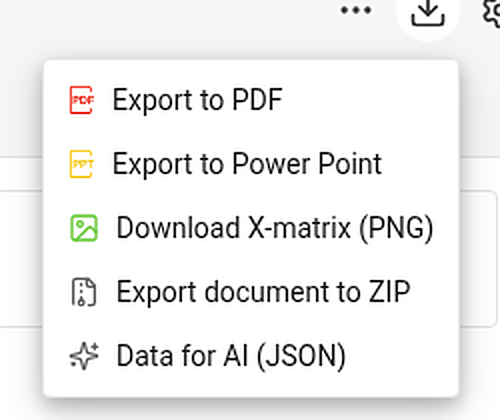
Take your plan to the meeting. Click the download icon next to the title of the plan.
| Item | What you get |
|---|---|
| Export to PDF | A landscape PDF: a title page with the main objective, overall status and plan hierarchy, then the views you choose, then the overall status and every section – KPIs with their monthly values. |
| Export to Power Point | A 16:9 presentation: a title slide, a picture of each chosen view and, with the sections, editable tables with the codes colored by status. |
| Download X-matrix (PNG) | A picture of the matrix with its main objective and legend. |
| Export document to ZIP and Data for AI (JSON) | Whole-document exports. They appear only if your administrator has switched them on for your TeamGuru. |
Choose what to print
PDF and PowerPoint first ask what the file should contain.
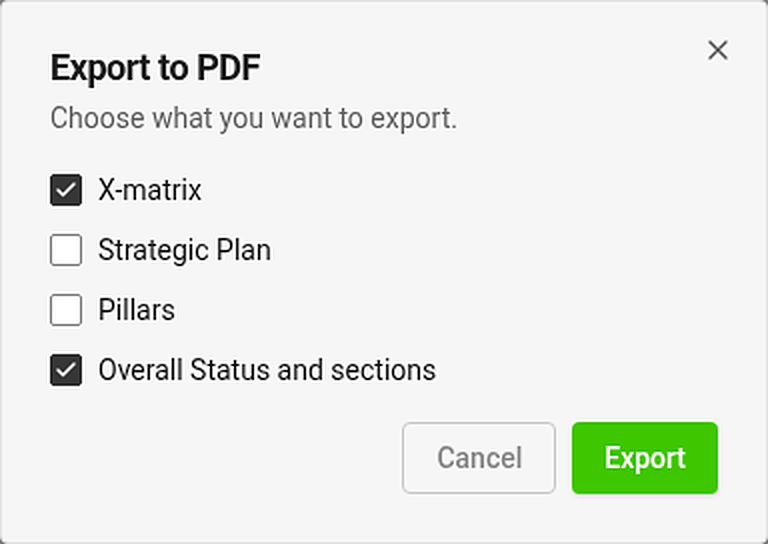
Tick any of the views – X-matrix, Strategic Plan, Pillars – and Overall Status and sections. The view you are looking at is ticked for you. Export is disabled while nothing is ticked.
Each chosen view is printed on its own page. A view that is too tall for a page is shrunk to fit (down to 60 %); if it would need to be smaller, it continues on more pages at its normal size.
Where is my file?
The export runs in the background and the file arrives in your async jobs tray. While an export of the same kind is running, its menu item is disabled.
Good to know
- Export is available once the plan has at least one 5-year or annual goal.
- You can export only what you may open. Documents and values you may not see are printed as hidden.
- Exports always contain the whole matrix, even if you have filtered the page to selected items.
- Print the page directly (Ctrl/⌘ + P) and the menus and buttons are left out.
Zabierz plan na spotkanie. Kliknij ikonę pobierania obok tytułu planu.
| Pozycja | Co otrzymujesz |
|---|---|
| Eksportuj do PDF | Plik PDF w orientacji poziomej: strona tytułowa z celem głównym, statusem ogólnym i hierarchią planów, potem wybrane widoki, a na końcu status ogólny i wszystkie sekcje, w tym KPI z wartościami miesięcznymi. |
| Eksportuj do Power Point | Prezentacja 16:9: slajd tytułowy, obraz każdego wybranego widoku, a jeśli wybierzesz sekcje, także edytowalne tabele z kodami w kolorach statusów. |
| Pobierz X-Matrix (PNG) | Obraz matrycy z celem głównym i legendą. |
| Eksportuj dokument do ZIP i Dane dla AI (JSON) | Eksport całego dokumentu. Te opcje pojawiają się tylko wtedy, gdy administrator włączył je w twoim TeamGuru. |
Wybierz, co wydrukować
Przy eksporcie do PDF i PowerPoint najpierw wybierasz, co ma zawierać plik.
Zaznacz dowolne widoki (X-Matrix, Plan strategiczny, Filary) oraz Status ogólny i sekcje. Widok, który właśnie oglądasz, jest zaznaczony automatycznie. Przycisk Eksportuj jest nieaktywny, dopóki nic nie jest zaznaczone.
Każdy wybrany widok trafia na osobną stronę. Widok za wysoki na jedną stronę zostaje pomniejszony, aby się zmieścił (do 60 %); jeśli musiałby być jeszcze mniejszy, ciągnie się na kolejnych stronach w normalnym rozmiarze.
Gdzie jest mój plik?
Eksport działa w tle, a plik trafia do zasobnika zadań asynchronicznych. Dopóki trwa eksport tego samego rodzaju, odpowiednia pozycja menu jest nieaktywna.
Warto wiedzieć
- Eksport jest dostępny, gdy plan ma co najmniej jeden cel 5-letni lub roczny.
- Możesz eksportować tylko to, co możesz otworzyć. Dokumenty i wartości, których nie widzisz, są drukowane jako ukryte.
- Eksport zawsze zawiera całą matrycę, nawet jeśli przefiltrowano stronę do wybranych elementów.
- Wydrukuj stronę bezpośrednio (Ctrl/⌘ + P), a menu i przyciski zostaną pominięte.
Potrzebujesz dalszej pomocy?
Napisz do nas. W dni robocze zwykle odpowiadamy w ciągu godziny.