So exportieren Sie eine X-Matrix als PDF, PowerPoint oder PNG
Maschinelle Übersetzung aus dem Englischen. Englisches Original wird angezeigt.
Take your plan to the meeting. Click the download icon next to the title of the plan.
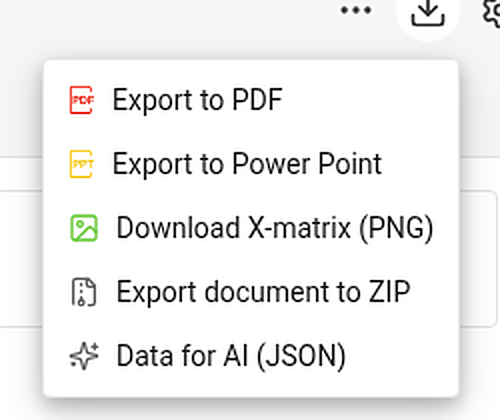
| Item | What you get |
|---|---|
| Export to PDF | A landscape PDF: a title page with the main objective, overall status and plan hierarchy, then the views you choose, then the overall status and every section – KPIs with their monthly values. |
| Export to Power Point | A 16:9 presentation: a title slide, a picture of each chosen view and, with the sections, editable tables with the codes colored by status. |
| Download X-matrix (PNG) | A picture of the matrix with its main objective and legend. |
| Export document to ZIP and Data for AI (JSON) | Whole-document exports. They appear only if your administrator has switched them on for your TeamGuru. |
Choose what to print
PDF and PowerPoint first ask what the file should contain.
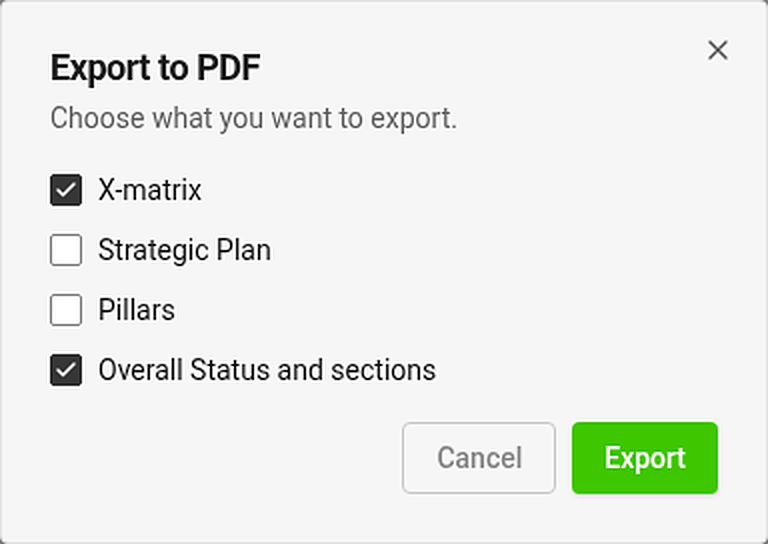
Tick any of the views – X-matrix, Strategic Plan, Pillars – and Overall Status and sections. The view you are looking at is ticked for you. Export is disabled while nothing is ticked.
Each chosen view is printed on its own page. A view that is too tall for a page is shrunk to fit (down to 60 %); if it would need to be smaller, it continues on more pages at its normal size.
Where is my file?
The export runs in the background and the file arrives in your async jobs tray. While an export of the same kind is running, its menu item is disabled.
Good to know
- Export is available once the plan has at least one 5-year or annual goal.
- You can export only what you may open. Documents and values you may not see are printed as hidden.
- Exports always contain the whole matrix, even if you have filtered the page to selected items.
- Print the page directly (Ctrl/⌘ + P) and the menus and buttons are left out.
Nehmen Sie Ihren Plan mit ins Meeting. Klicken Sie auf das Download-Symbol neben dem Titel des Plans.
| Menüpunkt | Was Sie erhalten |
|---|---|
| Als PDF exportieren | Ein PDF im Querformat: eine Titelseite mit Hauptziel, Gesamtstatus und Planhierarchie, dann die gewählten Ansichten, dann der Gesamtstatus und alle Abschnitte – KPIs mit ihren Monatswerten. |
| Nach PowerPoint exportieren | Eine Präsentation im Format 16:9: eine Titelfolie, ein Bild jeder gewählten Ansicht und mit den Abschnitten bearbeitbare Tabellen, deren Codes nach Status eingefärbt sind. |
| X-Matrix herunterladen (PNG) | Ein Bild der Matrix mit Hauptziel und Legende. |
| Dokument als ZIP exportieren und Daten für KI (JSON) | Exporte des gesamten Dokuments. Sie erscheinen nur, wenn Ihr Administrator sie für Ihr TeamGuru aktiviert hat. |
Inhalt auswählen
Bei PDF und PowerPoint werden Sie zuerst gefragt, was die Datei enthalten soll.
Wählen Sie beliebige Ansichten – X-Matrix, Strategieplan, Säulen – und Gesamtstatus und Abschnitte. Die Ansicht, die Sie gerade sehen, ist bereits ausgewählt. Solange nichts ausgewählt ist, ist Exportieren deaktiviert.
Jede gewählte Ansicht kommt auf eine eigene Seite. Eine Ansicht, die zu hoch für eine Seite ist, wird verkleinert (bis auf 60 %); müsste sie noch kleiner werden, wird sie in normaler Größe auf weiteren Seiten fortgesetzt.
Wo ist meine Datei?
Der Export läuft im Hintergrund, und die Datei landet in Ihrer Ablage für Hintergrundaufträge. Solange ein Export derselben Art läuft, ist der zugehörige Menüpunkt deaktiviert.
Gut zu wissen
- Der Export ist verfügbar, sobald der Plan mindestens ein 5-Jahres- oder Jahresziel hat.
- Sie können nur exportieren, was Sie öffnen dürfen. Dokumente und Werte, die Sie nicht sehen dürfen, werden als verborgen gedruckt.
- Exporte enthalten immer die ganze Matrix, auch wenn Sie die Seite auf ausgewählte Elemente gefiltert haben.
- Wenn Sie die Seite direkt drucken (Ctrl/⌘ + P), werden Menüs und Schaltflächen weggelassen.
Brauchen Sie weitere Hilfe?
Schreiben Sie uns. An Werktagen antworten wir meist innerhalb einer Stunde.