Cómo exportar una X-matrix a PDF, PowerPoint o PNG
Traducción automática del inglés. Se muestra el original en inglés.
Take your plan to the meeting. Click the download icon next to the title of the plan.
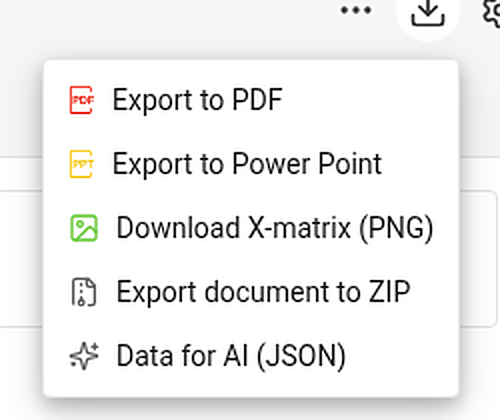
| Item | What you get |
|---|---|
| Export to PDF | A landscape PDF: a title page with the main objective, overall status and plan hierarchy, then the views you choose, then the overall status and every section – KPIs with their monthly values. |
| Export to Power Point | A 16:9 presentation: a title slide, a picture of each chosen view and, with the sections, editable tables with the codes colored by status. |
| Download X-matrix (PNG) | A picture of the matrix with its main objective and legend. |
| Export document to ZIP and Data for AI (JSON) | Whole-document exports. They appear only if your administrator has switched them on for your TeamGuru. |
Choose what to print
PDF and PowerPoint first ask what the file should contain.
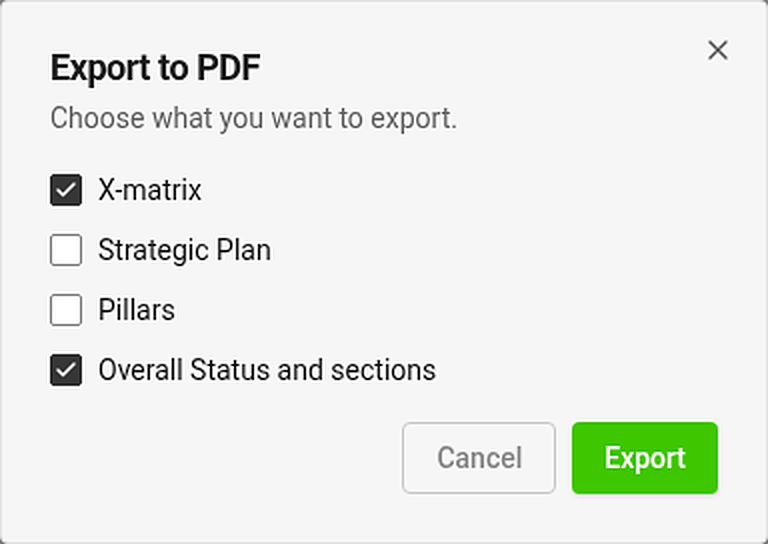
Tick any of the views – X-matrix, Strategic Plan, Pillars – and Overall Status and sections. The view you are looking at is ticked for you. Export is disabled while nothing is ticked.
Each chosen view is printed on its own page. A view that is too tall for a page is shrunk to fit (down to 60 %); if it would need to be smaller, it continues on more pages at its normal size.
Where is my file?
The export runs in the background and the file arrives in your async jobs tray. While an export of the same kind is running, its menu item is disabled.
Good to know
- Export is available once the plan has at least one 5-year or annual goal.
- You can export only what you may open. Documents and values you may not see are printed as hidden.
- Exports always contain the whole matrix, even if you have filtered the page to selected items.
- Print the page directly (Ctrl/⌘ + P) and the menus and buttons are left out.
Lleve su plan a la reunión. Haga clic en el icono de descarga junto al título del plan.
| Opción | Qué obtiene |
|---|---|
| Exportar a PDF | Un PDF horizontal: una portada con el objetivo principal, el estado general y la jerarquía de planes; después, las vistas que elija; y después, el estado general y todas las secciones, con los KPI y sus valores mensuales. |
| Exportar a PowerPoint | Una presentación 16:9: una diapositiva de título, una imagen de cada vista elegida y, con las secciones, tablas editables con los códigos coloreados según su estado. |
| Descargar X-matrix (PNG) | Una imagen de la matriz con su objetivo principal y su leyenda. |
| Exportar documento a ZIP y Datos para IA (JSON) | Exportaciones del documento completo. Solo aparecen si su administrador las ha activado para su TeamGuru. |
Elegir qué imprimir
PDF y PowerPoint preguntan primero qué debe contener el archivo.
Marque cualquiera de las vistas (X-matrix, Plan estratégico, Pilares) y Estado general y secciones. La vista que está mirando ya aparece marcada. Exportar está desactivado mientras no haya nada marcado.
Cada vista elegida se imprime en su propia página. Una vista demasiado alta para una página se reduce para que quepa (hasta el 60 %); si tuviera que ser más pequeña, continúa en más páginas a su tamaño normal.
¿Dónde está mi archivo?
La exportación se ejecuta en segundo plano y el archivo llega a su bandeja de tareas asíncronas. Mientras se ejecuta una exportación del mismo tipo, su opción del menú está desactivada.
Conviene saber
- La exportación está disponible cuando el plan tiene al menos un objetivo a 5 años o un objetivo anual.
- Solo puede exportar lo que puede abrir. Los documentos y valores que no puede ver se imprimen como ocultos.
- Las exportaciones siempre contienen la matriz completa, aunque haya filtrado la página por elementos seleccionados.
- Si imprime la página directamente (Ctrl/⌘ + P), los menús y botones no se incluyen.
¿Necesita más ayuda?
Escríbanos. En días laborables solemos responder en menos de una hora.