Reports Subscriptions and Automation Setup
- Subscriptions keep your team updated with automatic email notifications of your report.
- Automation copies slide updates for a new period from the previous period automatically. You can specify when the update happens.
Subscribe to the report by email
-
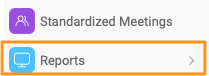
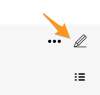
Open the report settings. Go to your report and click the Edit pencil.
-
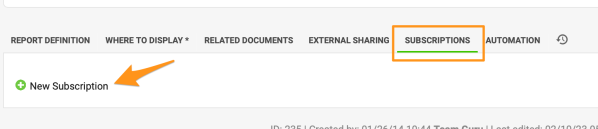
Add a subscription. Go to the Subscription tab and click + New Subscription.
-
Define the subscription. Define the settings of your subscription.
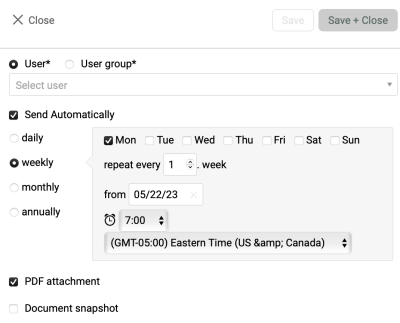
Please note: if you want to send an email with the current time period, the default view of your report must be set to Actual. If you want to receive an email for the prior period, set the default view to Last.
Create slide updates automatically
-
Open the report settings. Go to your report and click the Edit pencil.
-
Turn on the automation. Go to the Automation tab and tick the Create new slide updates automatically box.
-
Define the automation settings. Define your settings.
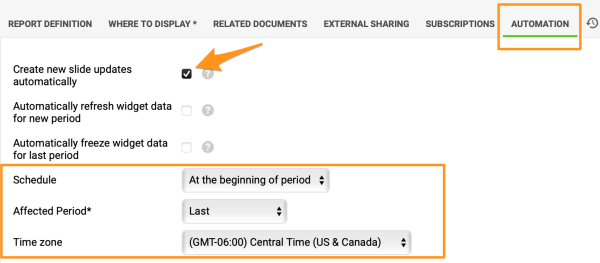
Please note: unlike subscriptions, the automation doesn’t depend on the default view of your report.
Choose when updates are created
At the beginning of period
Example of the At the beginning of period option:
- It is week 10 and you want a new update to be created when week 11 starts. In this case, choose Actual as the Affected Period.
- It is week 10 and you don’t want the new update to be created until week 11 ends. In this case, choose Last as the Affected Period. We then recommend setting the default view of your report to Last, so that users are not taken to week 11 before the automatic update has been created. This helps avoid confusion.
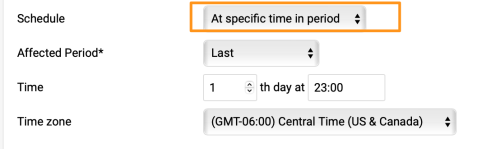
At specific time in period
With the At specific time in period option, the number of days is based on your report’s update interval (daily, weekly, etc.).
Update the slide content manually
Open the report menu
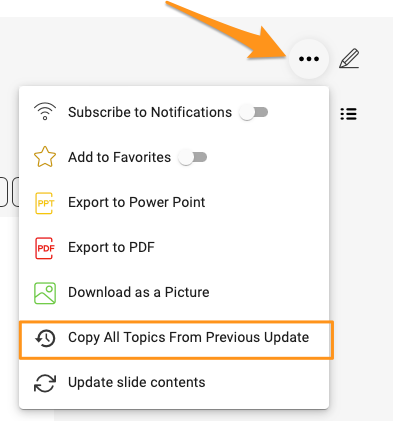
Important: to update the slide content in a report with automation set up, click the ellipsis (…) icon in the upper right corner above your report and choose one of these options:
-
Copy all topics from the previous update. Choose Copy All Topics From Previous Update if the update didn’t happen automatically (e.g. the document owner is deactivated). This creates the content of the slides.
-
Update the slide contents. Choose Update slide contents from the submenu if the slides were created automatically, but you want to update the content of the action and project overview widgets.
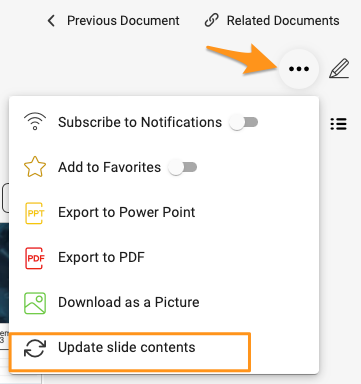
The slides’ content is then updated with the latest information according to the automation setup.
Still need help?
Write to us. We usually reply within an hour on business days.