Configurar suscripciones y automatización de informes
Traducción automática del inglés. Se muestra el original en inglés.
- Subscriptions keep your team updated with automatic email notifications of your report.
- Automation copies slide updates for a new period from the previous period automatically. You can specify when the update happens.
Subscribe to the report by email
-
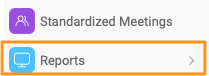
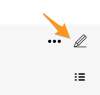
Open the report settings. Go to your report and click the Edit pencil.
-
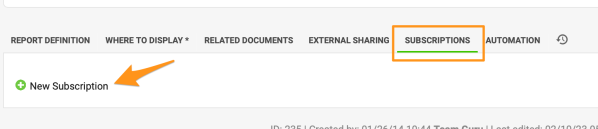
Add a subscription. Go to the Subscription tab and click + New Subscription.
-
Define the subscription. Define the settings of your subscription.
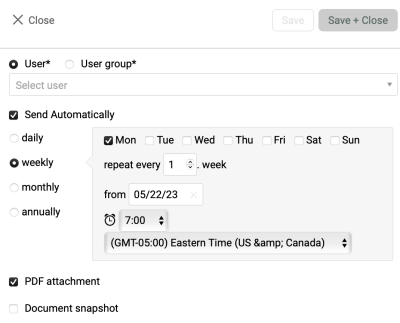
Please note: if you want to send an email with the current time period, the default view of your report must be set to Actual. If you want to receive an email for the prior period, set the default view to Last.
Create slide updates automatically
-
Open the report settings. Go to your report and click the Edit pencil.
-
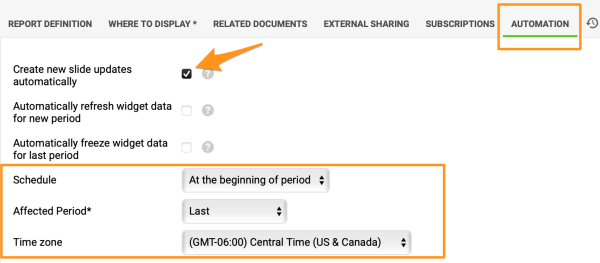
Turn on the automation. Go to the Automation tab and tick the Create new slide updates automatically box.
-
Define the automation settings. Define your settings.
Please note: unlike subscriptions, the automation doesn’t depend on the default view of your report.
Choose when updates are created
At the beginning of period
Example of the At the beginning of period option:
- It is week 10 and you want a new update to be created when week 11 starts. In this case, choose Actual as the Affected Period.
- It is week 10 and you don’t want the new update to be created until week 11 ends. In this case, choose Last as the Affected Period. We then recommend setting the default view of your report to Last, so that users are not taken to week 11 before the automatic update has been created. This helps avoid confusion.
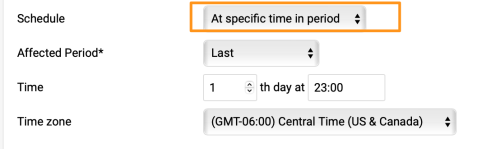
At specific time in period
With the At specific time in period option, the number of days is based on your report’s update interval (daily, weekly, etc.).
Update the slide content manually
Open the report menu
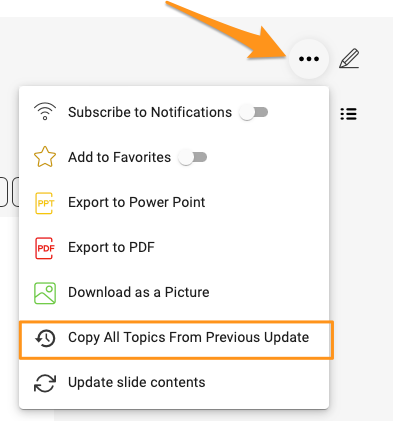
Important: to update the slide content in a report with automation set up, click the ellipsis (…) icon in the upper right corner above your report and choose one of these options:
-
Copy all topics from the previous update. Choose Copy All Topics From Previous Update if the update didn’t happen automatically (e.g. the document owner is deactivated). This creates the content of the slides.
-
Update the slide contents. Choose Update slide contents from the submenu if the slides were created automatically, but you want to update the content of the action and project overview widgets.
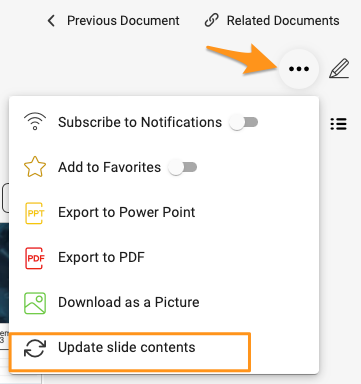
The slides’ content is then updated with the latest information according to the automation setup.
- Las suscripciones mantienen informado a su equipo con notificaciones automáticas por correo electrónico de su informe.
- La automatización copia automáticamente las actualizaciones de diapositivas del periodo anterior a un nuevo periodo. Usted decide cuándo se realiza la actualización.
Suscribirse al informe por correo electrónico
-
Abra la configuración del informe. Vaya a su informe y haga clic en el lápiz de edición.
-
Agregue una suscripción. Vaya a la pestaña Suscripción y haga clic en + Nueva suscripción.
-
Defina la suscripción. Defina la configuración de su suscripción.
Importante: si quiere enviar un correo electrónico con el periodo actual, la vista predeterminada de su informe debe ser Actual. Si quiere recibir un correo electrónico del periodo anterior, configure la vista predeterminada como Último.
Crear actualizaciones de diapositivas automáticamente
-
Abra la configuración del informe. Vaya a su informe y haga clic en el lápiz de edición.
-
Active la automatización. Vaya a la pestaña Automatización y marque la casilla Crear nuevas actualizaciones de diapositivas automáticamente.
-
Defina la configuración de la automatización. Defina su configuración.
Tenga en cuenta que, a diferencia de las suscripciones, la automatización no depende de la vista predeterminada de su informe.
Elegir cuándo se crean las actualizaciones
Al inicio del periodo
Ejemplo de la opción Al inicio del periodo:
- Es la semana 10 y quiere que se cree una actualización nueva cuando empiece la semana 11. En ese caso, elija Actual como Periodo afectado.
- Es la semana 10 y no quiere que se cree la actualización nueva hasta que termine la semana 11. En ese caso, elija Último como Periodo afectado. Le recomendamos entonces configurar la vista predeterminada del informe como Último, para que los usuarios no lleguen a la semana 11 antes de que se haya creado la actualización automática. Así se evitan confusiones.
En un momento concreto del periodo
Con la opción En un momento concreto del periodo, el número de días se basa en el intervalo de actualización de su informe (diario, semanal, etc.).
Actualizar el contenido de las diapositivas manualmente
Abrir el menú del informe
Importante: para actualizar el contenido de las diapositivas de un informe con automatización, haga clic en el icono de puntos suspensivos (…) en la esquina superior derecha, encima del informe, y elija una de estas opciones:
-
Copie todos los temas de la actualización anterior. Elija Copiar todos los temas de la actualización anterior si la actualización no se realizó automáticamente (por ejemplo, porque el responsable del documento está desactivado). Así se crea el contenido de las diapositivas.
-
Actualice el contenido de las diapositivas. Elija Actualizar contenido de las diapositivas en el submenú si las diapositivas se crearon automáticamente, pero quiere actualizar el contenido de los widgets de resumen de acciones y proyectos.
Así, el contenido de las diapositivas se actualiza con la información más reciente según la configuración de la automatización.
¿Necesita más ayuda?
Escríbanos. En días laborables solemos responder en menos de una hora.