报告订阅和自动化设置
本文由英文机器翻译。 当前显示英文原文。
- Subscriptions keep your team updated with automatic email notifications of your report.
- Automation copies slide updates for a new period from the previous period automatically. You can specify when the update happens.
Subscribe to the report by email
-
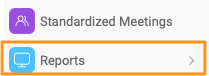
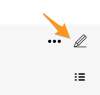
Open the report settings. Go to your report and click the Edit pencil.
-
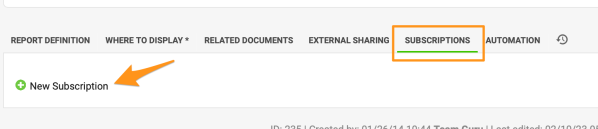
Add a subscription. Go to the Subscription tab and click + New Subscription.
-
Define the subscription. Define the settings of your subscription.
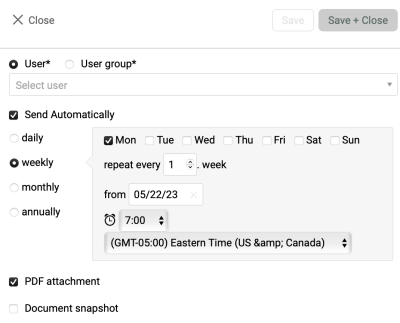
Please note: if you want to send an email with the current time period, the default view of your report must be set to Actual. If you want to receive an email for the prior period, set the default view to Last.
Create slide updates automatically
-
Open the report settings. Go to your report and click the Edit pencil.
-
Turn on the automation. Go to the Automation tab and tick the Create new slide updates automatically box.
-
Define the automation settings. Define your settings.
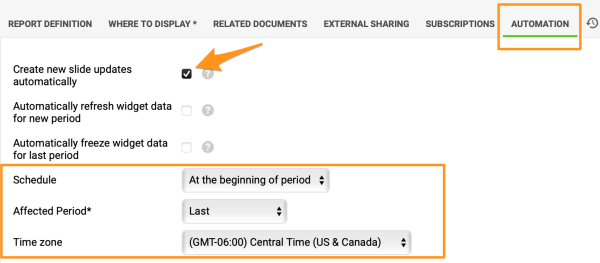
Please note: unlike subscriptions, the automation doesn’t depend on the default view of your report.
Choose when updates are created
At the beginning of period
Example of the At the beginning of period option:
- It is week 10 and you want a new update to be created when week 11 starts. In this case, choose Actual as the Affected Period.
- It is week 10 and you don’t want the new update to be created until week 11 ends. In this case, choose Last as the Affected Period. We then recommend setting the default view of your report to Last, so that users are not taken to week 11 before the automatic update has been created. This helps avoid confusion.
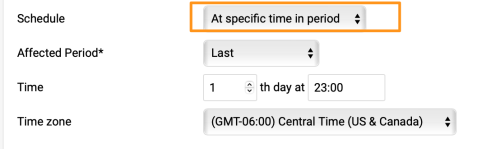
At specific time in period
With the At specific time in period option, the number of days is based on your report’s update interval (daily, weekly, etc.).
Update the slide content manually
Open the report menu
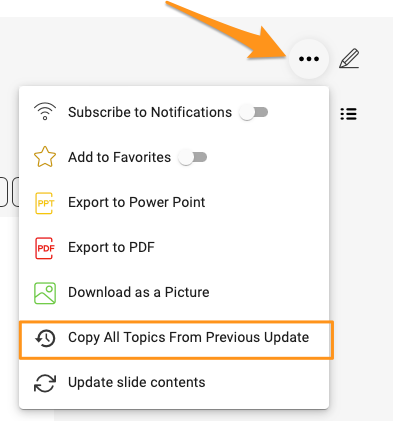
Important: to update the slide content in a report with automation set up, click the ellipsis (…) icon in the upper right corner above your report and choose one of these options:
-
Copy all topics from the previous update. Choose Copy All Topics From Previous Update if the update didn’t happen automatically (e.g. the document owner is deactivated). This creates the content of the slides.
-
Update the slide contents. Choose Update slide contents from the submenu if the slides were created automatically, but you want to update the content of the action and project overview widgets.
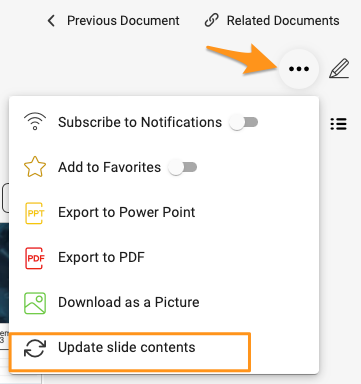
The slides’ content is then updated with the latest information according to the automation setup.
- 订阅通过自动电子邮件通知,让团队及时了解报告的最新内容。
- 自动化会自动从上一周期复制幻灯片更新,生成新周期的更新。您可以指定更新的时间。
通过电子邮件订阅报告
-
打开报告设置。 进入报告,点击编辑铅笔图标。
-
添加订阅。 进入订阅选项卡,点击 + 新建订阅。
-
定义订阅。 定义订阅的各项设置。
请注意: 如果要发送当前时间段的电子邮件,报告的默认视图必须设为当前。如果要接收上一周期的电子邮件,请将默认视图设为上一期。
自动创建幻灯片更新
-
打开报告设置。 进入报告,点击编辑铅笔图标。
-
开启自动化。 进入自动化选项卡,勾选自动创建新的幻灯片更新复选框。
-
定义自动化设置。 定义各项设置。
请注意:与订阅不同,自动化不受报告默认视图的影响。
选择创建更新的时间
在周期开始时
在周期开始时选项示例:
- 当前是第10周,您希望在第11周开始时创建新的更新。此时,请将受影响周期设为当前。
- 当前是第10周,您希望等到第11周结束后再创建新的更新。此时,请将受影响周期设为上一期。我们建议同时将报告的默认视图设为上一期,以免用户在自动更新创建之前就进入第11周。这样可以避免混淆。
在周期内的特定时间
选择在周期内的特定时间选项时,天数取决于报告的更新间隔(每天、每周等)。
手动更新幻灯片内容
打开报告菜单
重要: 要更新已设置自动化的报告中的幻灯片内容,请点击报告上方右上角的省略号(…)图标,然后选择以下选项之一:
-
从上次更新复制所有主题。 如果更新未自动进行(例如文档负责人已被停用),请选择从上次更新复制所有主题。这会生成幻灯片的内容。
-
更新幻灯片内容。 如果幻灯片已自动创建,但您想更新行动和项目概览组件的内容,请在子菜单中选择更新幻灯片内容。
随后,幻灯片内容会根据自动化设置更新为最新信息。
还需要帮助吗?
请给我们留言。工作日我们通常会在一小时内回复。