Stav školení v Matici kompetencií
Strojový preklad z angličtiny. Zobrazený je anglický originál.
TeamGuru’s Training Status helps you manage, plan and monitor the existing and desired skills of your employees in a consolidated view across all locations or skill matrices.
You can easily review the status using various filters, such as expired skills, skills in progress, skills by matrix owner, your own skills and much more.
Open the training status
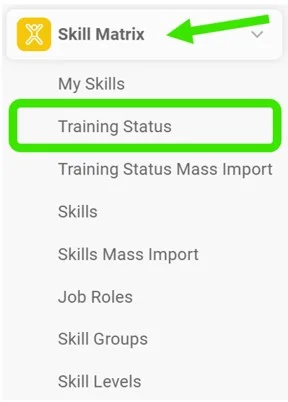
Go to the Skill Matrix module and choose Training Status in the submenu.
Select the filters
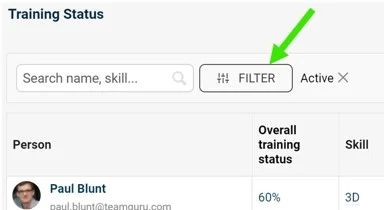
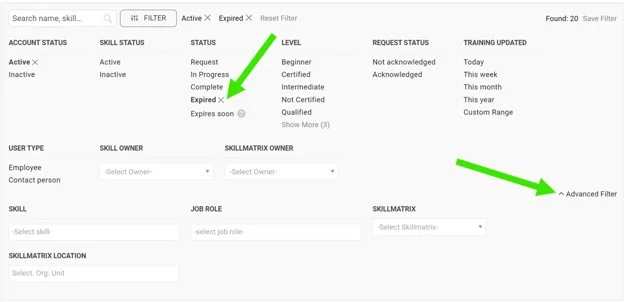
Select the filters you need: click the Filter button and choose from the available options. More options are available under the advanced filter.
Review the employees
You can then review the list of employees matching your filter selection.

Take further actions
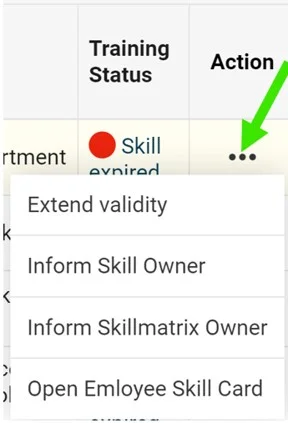
Depending on your selection, you can take additional actions by clicking the three dots next to the employee.
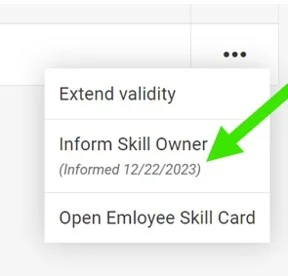
For example, when you select expired skills, you can choose to Extend validity, inform the skill owner or the skill matrix owner, or open the employee’s training card.
Inform the owner
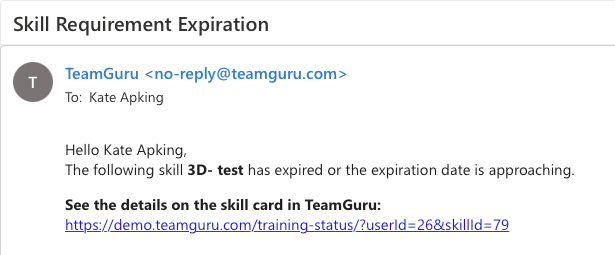
If you select the inform option, the skill owner or the skill matrix owner receives an email notification.
See the notification mark
Once the notification is sent, it is also marked next to the action taken.
Stav školení v TeamGuru vám pomáha riadiť, plánovať a sledovať súčasné aj požadované zručnosti zamestnancov v jednom prehľade naprieč všetkými lokalitami alebo maticami kompetencií.
Stav si ľahko prezriete pomocou rôznych filtrov, napríklad podľa zručností s uplynutou platnosťou, rozpracovaných zručností, zručností podľa vlastníka matice, vašich vlastných zručností a mnohých ďalších.
Otvorte stav školení
Prejdite do modulu Matica kompetencií a v podmenu vyberte Stav školení.
Vyberte filtre
Nastavte filtre, ktoré potrebujete: kliknite na tlačidlo Filter a vyberte z ponúkaných možností. Ďalšie možnosti nájdete v rozšírenom filtri.
Prezrite si zamestnancov
Potom uvidíte zoznam zamestnancov, ktorí zodpovedajú zvoleným filtrom.
Vykonajte ďalšie kroky
Podľa vášho výberu môžete vykonať ďalšie kroky kliknutím na tri bodky vedľa zamestnanca.
Ak si napríklad vyberiete zručnosti s uplynutou platnosťou, môžete zvoliť Predĺžiť platnosť, informovať vlastníka zručnosti alebo vlastníka matice kompetencií, prípadne otvoriť kartu školení zamestnanca.
Informujte vlastníka
Ak zvolíte možnosť informovať, vlastník zručnosti alebo vlastník matice kompetencií dostane upozornenie e-mailom.
Pozrite si značku upozornenia
Po odoslaní upozornenia sa to vyznačí aj vedľa vykonaného kroku.
Potrebujete ďalšiu pomoc?
Napíšte nám. V pracovné dni zvyčajne odpovedáme do hodiny.