Add Live Button to Online Meeting
Make it easier for your team and add a direct link to your online meeting: they simply click and join.
Add a link for every meeting
Open the meeting settings
To add a link that is the same for every meeting, click the edit pencil in the upper right corner and go to your meeting’s settings.

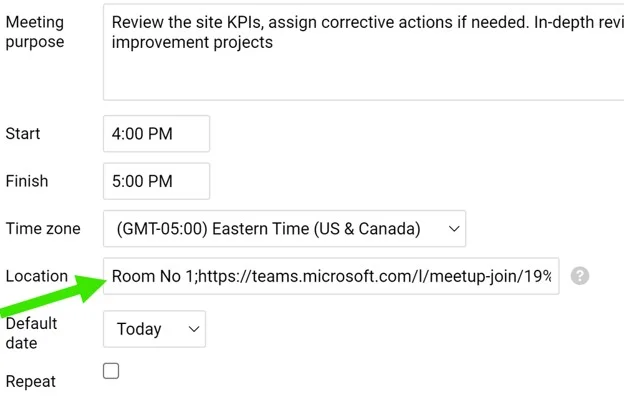
Enter the meeting link
Enter the meeting room or the URL of the online meeting in the Location field.
Join from the meeting
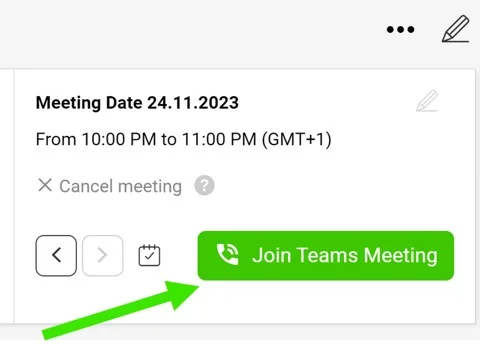
After you save your settings, the live button Join Teams Meeting is displayed in your standardized meeting.
Add a link to a single meeting
Edit the meeting date
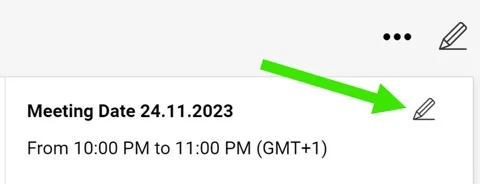
To add a link to a specific meeting only, select the meeting’s date and click its Edit pencil.
Insert the link
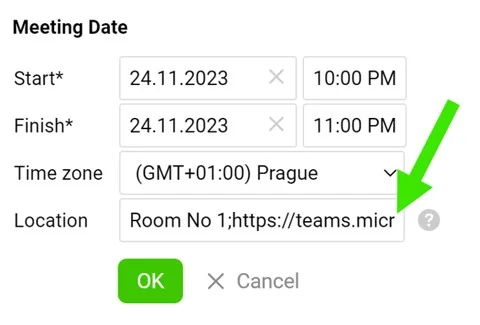
Insert the URL (or the meeting room) in the Location field and save. Your button is then displayed.
Still need help?
Write to us. We usually reply within an hour on business days.