Agregar un botón para unirse a la reunión en línea
Traducción automática del inglés. Se muestra el original en inglés.
Make it easier for your team and add a direct link to your online meeting: they simply click and join.
Add a link for every meeting
Open the meeting settings
To add a link that is the same for every meeting, click the edit pencil in the upper right corner and go to your meeting’s settings.

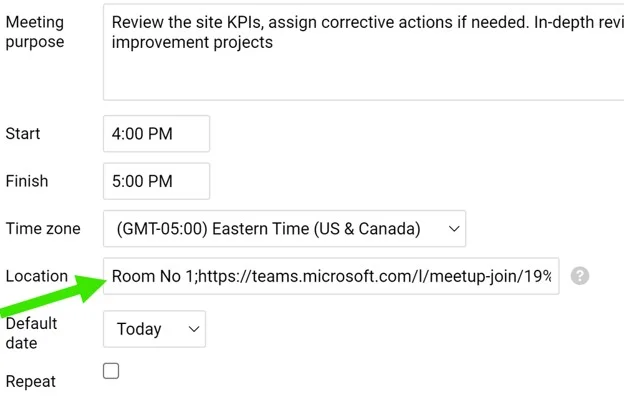
Enter the meeting link
Enter the meeting room or the URL of the online meeting in the Location field.
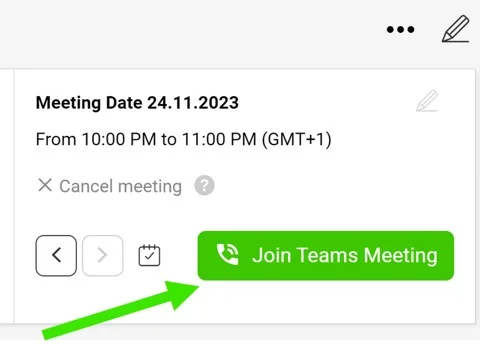
Join from the meeting
After you save your settings, the live button Join Teams Meeting is displayed in your standardized meeting.
Add a link to a single meeting
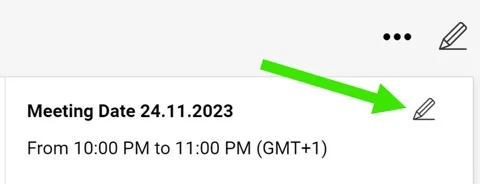
Edit the meeting date
To add a link to a specific meeting only, select the meeting’s date and click its Edit pencil.
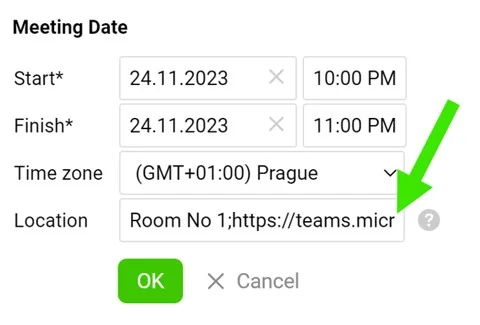
Insert the link
Insert the URL (or the meeting room) in the Location field and save. Your button is then displayed.
Facilite las cosas a su equipo y agregue un enlace directo a su reunión en línea: basta con hacer clic para unirse.
Agregar un enlace para todas las reuniones
Abrir la configuración de la reunión
Para agregar un enlace que sea el mismo en todas las reuniones, haga clic en el lápiz de edición de la esquina superior derecha y abra la configuración de la reunión.
Introducir el enlace de la reunión
Introduzca la sala de reuniones o la URL de la reunión en línea en el campo Ubicación.
Unirse desde la reunión
Después de guardar la configuración, aparece el botón Unirse a la reunión de Teams en su reunión estandarizada.
Agregar un enlace a una sola reunión
Editar la fecha de la reunión
Para agregar un enlace solo a una reunión concreta, seleccione la fecha de la reunión y haga clic en su lápiz Editar.
Insertar el enlace
Introduzca la URL (o la sala de reuniones) en el campo Ubicación y guarde. El botón aparecerá entonces.
¿Necesita más ayuda?
Escríbanos. En días laborables solemos responder en menos de una hora.