Przycisk dołączania do spotkania online
Tłumaczenie maszynowe z angielskiego. Wyświetlany jest oryginał po angielsku.
Make it easier for your team and add a direct link to your online meeting: they simply click and join.
Add a link for every meeting
Open the meeting settings
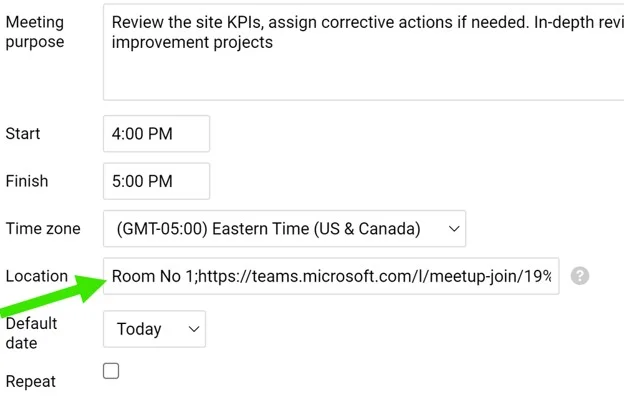
To add a link that is the same for every meeting, click the edit pencil in the upper right corner and go to your meeting’s settings.

Enter the meeting link
Enter the meeting room or the URL of the online meeting in the Location field.
Join from the meeting
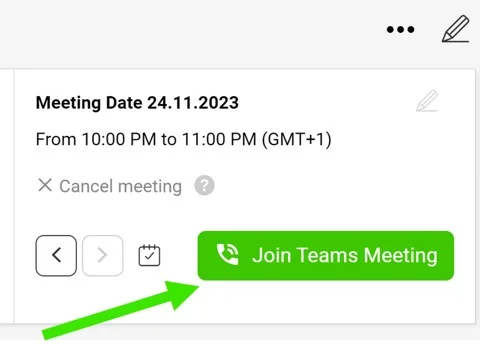
After you save your settings, the live button Join Teams Meeting is displayed in your standardized meeting.
Add a link to a single meeting
Edit the meeting date
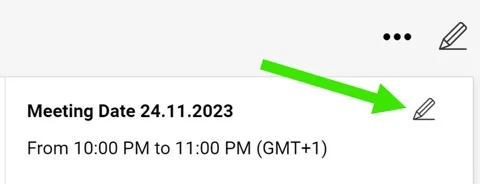
To add a link to a specific meeting only, select the meeting’s date and click its Edit pencil.
Insert the link
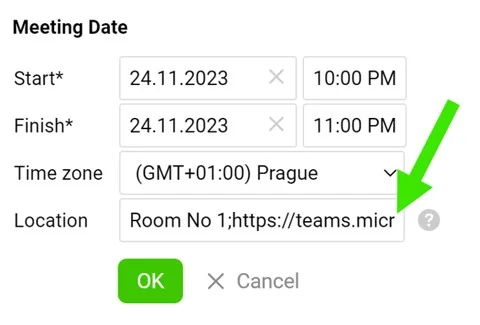
Insert the URL (or the meeting room) in the Location field and save. Your button is then displayed.
Ułatw zespołowi udział w spotkaniu online i dodaj bezpośredni link: wystarczy kliknąć, żeby dołączyć.
Dodaj link do wszystkich spotkań
Otwórz ustawienia spotkania
Aby dodać link, który będzie taki sam dla każdego spotkania, kliknij ołówek edycji w prawym górnym rogu i przejdź do ustawień spotkania.
Wpisz link do spotkania
W polu Miejsce wpisz salę spotkań lub adres URL spotkania online.
Dołącz ze spotkania
Po zapisaniu ustawień w standaryzowanym spotkaniu pojawi się przycisk Dołącz do spotkania w Teams.
Dodaj link do jednego spotkania
Edytuj termin spotkania
Aby dodać link tylko do konkretnego spotkania, wybierz datę spotkania i kliknij przy niej ołówek Edytuj.
Wstaw link
Wstaw adres URL (lub salę spotkań) w polu Miejsce i zapisz. Przycisk pojawi się w spotkaniu.
Potrzebujesz dalszej pomocy?
Napisz do nas. W dni robocze zwykle odpowiadamy w ciągu godziny.