为在线会议添加实时加入按钮
本文由英文机器翻译。 当前显示英文原文。
Make it easier for your team and add a direct link to your online meeting: they simply click and join.
Add a link for every meeting
Open the meeting settings
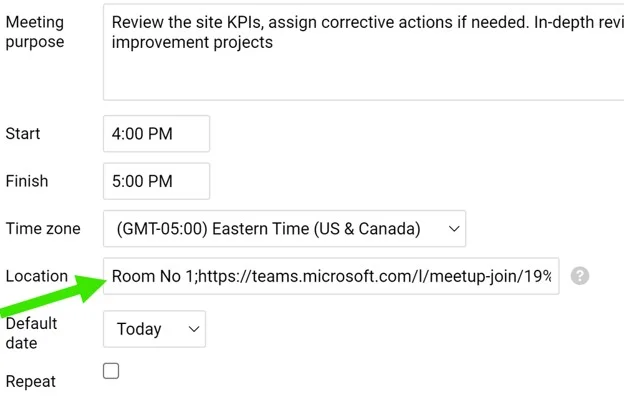
To add a link that is the same for every meeting, click the edit pencil in the upper right corner and go to your meeting’s settings.

Enter the meeting link
Enter the meeting room or the URL of the online meeting in the Location field.
Join from the meeting
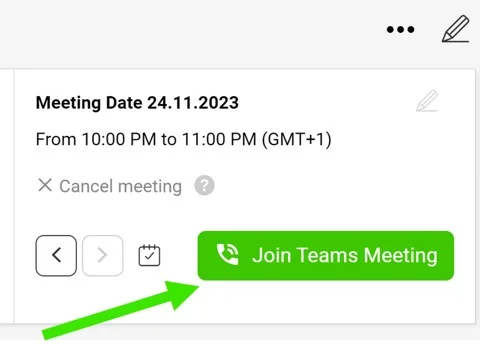
After you save your settings, the live button Join Teams Meeting is displayed in your standardized meeting.
Add a link to a single meeting
Edit the meeting date
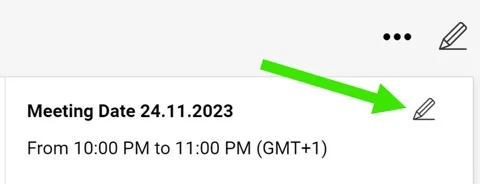
To add a link to a specific meeting only, select the meeting’s date and click its Edit pencil.
Insert the link
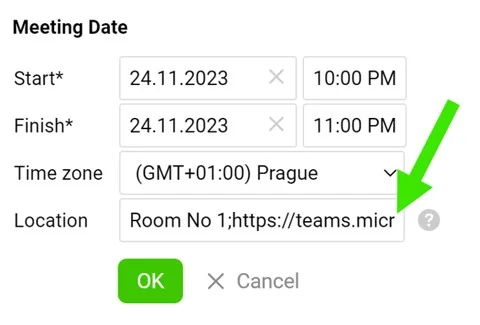
Insert the URL (or the meeting room) in the Location field and save. Your button is then displayed.
为团队添加在线会议的直达链接,让大家一键即可加入会议。
为每次会议添加链接
打开会议设置
要添加每次会议都相同的链接,请点击右上角的编辑铅笔图标,进入会议设置。
输入会议链接
在地点字段中输入会议室或在线会议的URL。
从会议中加入
保存设置后,标准化会议中会显示实时按钮加入Teams会议。
为单次会议添加链接
编辑会议日期
如果只想为某次会议添加链接,请选择该会议的日期,并点击其编辑铅笔图标。
插入链接
在地点字段中插入URL(或会议室)并保存。随后即会显示该按钮。
还需要帮助吗?
请给我们留言。工作日我们通常会在一小时内回复。