How to set up a new standardized meeting
Set up a new standardized meeting with its leader, agenda, attendees and related documents.
Create the meeting
-
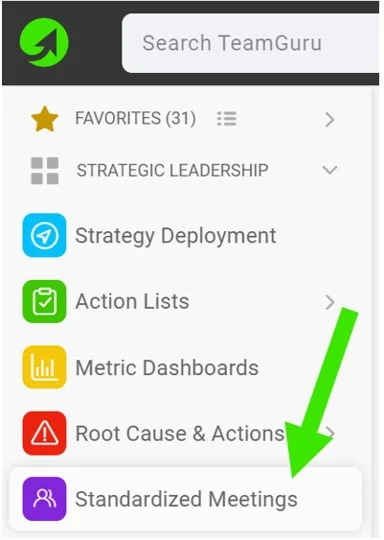
Create a new meeting. Go to your Standardized Meetings module and click the Create New button.

-
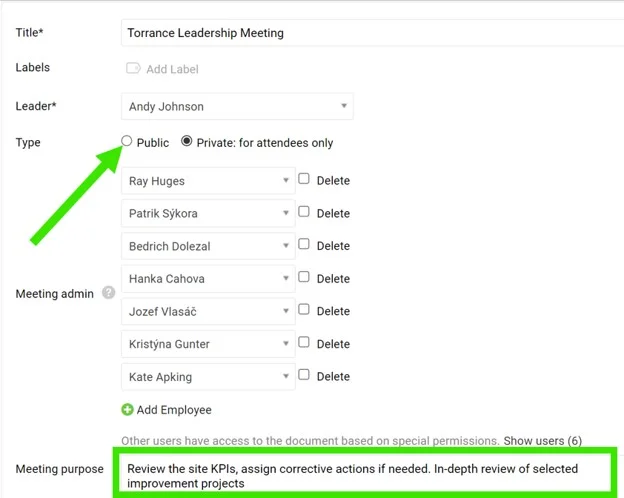
Define the leader and administrators. Define the meeting Leader and Administrators. They will be able to create agenda points and track attendance.
-
Make it public. Select the Public option as the document type if the document should be accessible to all users with appropriate rights to the organization folder.
-
Or limit it to selected users. Select the Private option as the document type if the document should be accessible to selected users only.
-
Define the purpose. Define the meeting purpose and other details.
-
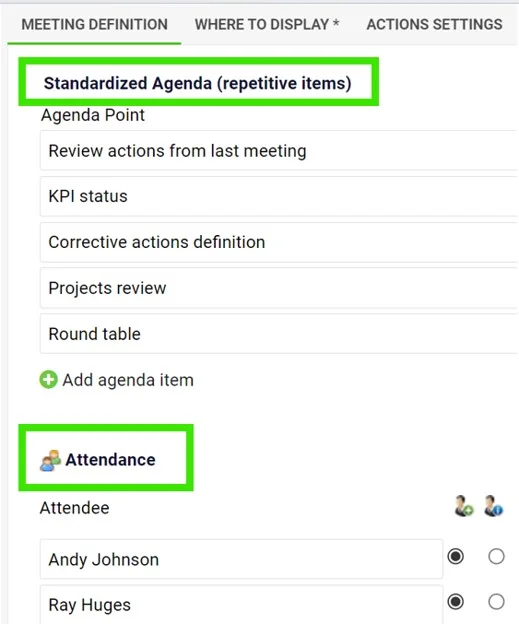
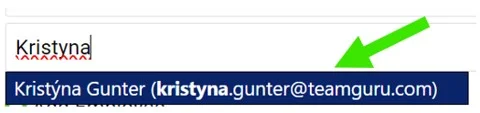
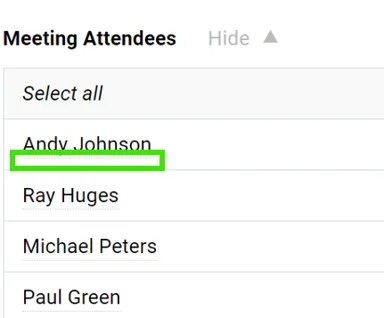
Define the agenda and attendees. Define a standardized Agenda (recurring items) and the Attendees. You can choose existing TeamGuru users with an email address (notifications will be sent to them); dots under the name indicate that an existing user has been added. If you enter only the attendee’s first and last name, the person will not have access to your meeting document.
-
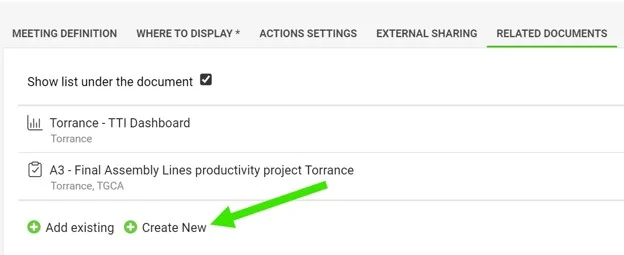
Add related documents. You can also add quick links to other documents in TeamGuru (e.g. a metric dashboard, X-Matrix or A3 project) in the Related Documents section.
-
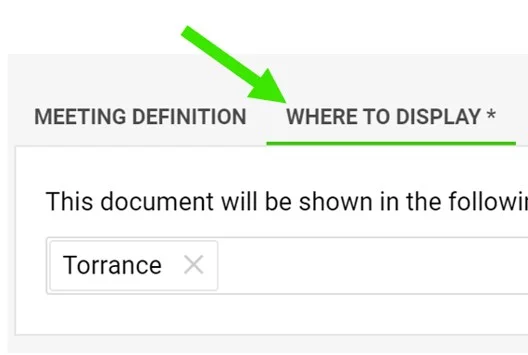
Set where to display it. Set up the Where to Display folder to define where the meeting is saved and displayed.
-
Save the meeting. Click Save & View.
Run the meeting
-
Track attendance and the agenda. Keep a record of the attendees and the meeting agenda.
-
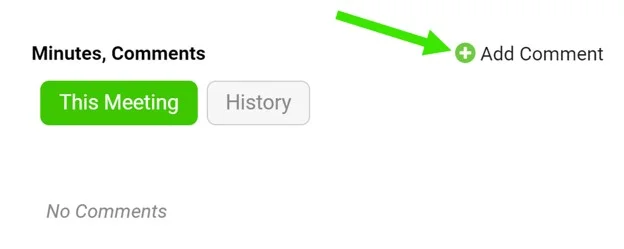
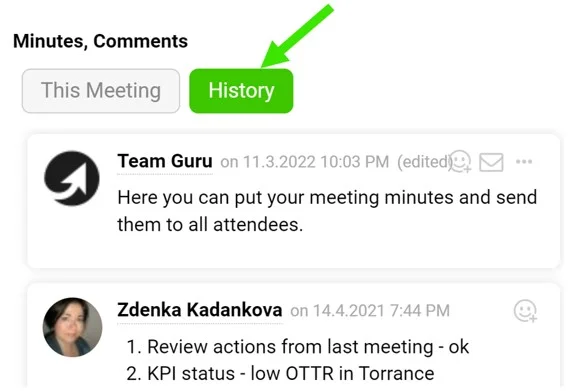
Write the meeting minutes. Use the comment feed for your meeting minutes.
-
Assign tasks. Assign a task directly from the meeting.
Video guide: creating a new standardized meeting
Still need help?
Write to us. We usually reply within an hour on business days.