Ako nastaviť novú štandardizovanú poradu
Strojový preklad z angličtiny. Zobrazený je anglický originál.
Set up a new standardized meeting with its leader, agenda, attendees and related documents.
Create the meeting
-
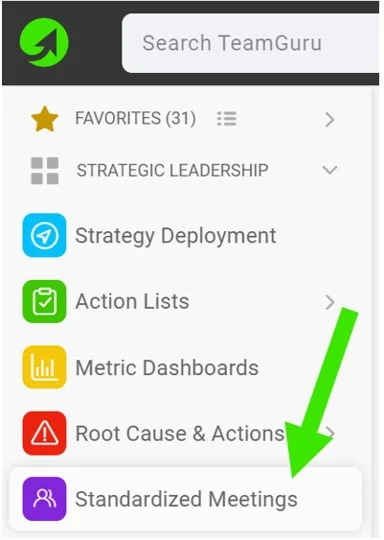
Create a new meeting. Go to your Standardized Meetings module and click the Create New button.
-
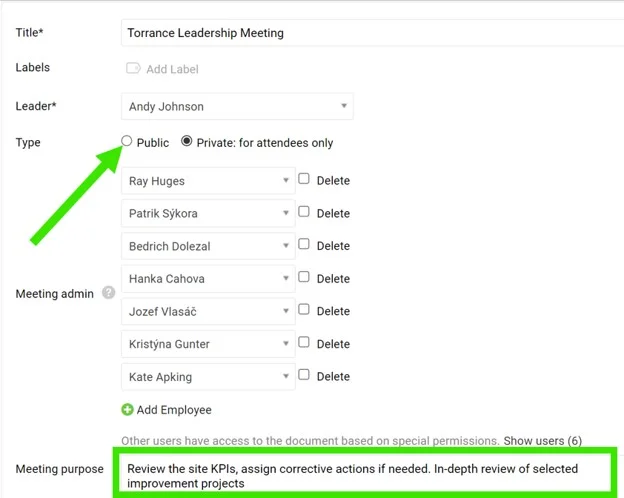
Define the leader and administrators. Define the meeting Leader and Administrators. They will be able to create agenda points and track attendance.
-
Make it public. Select the Public option as the document type if the document should be accessible to all users with appropriate rights to the organization folder.
-
Or limit it to selected users. Select the Private option as the document type if the document should be accessible to selected users only.
-
Define the purpose. Define the meeting purpose and other details.
-
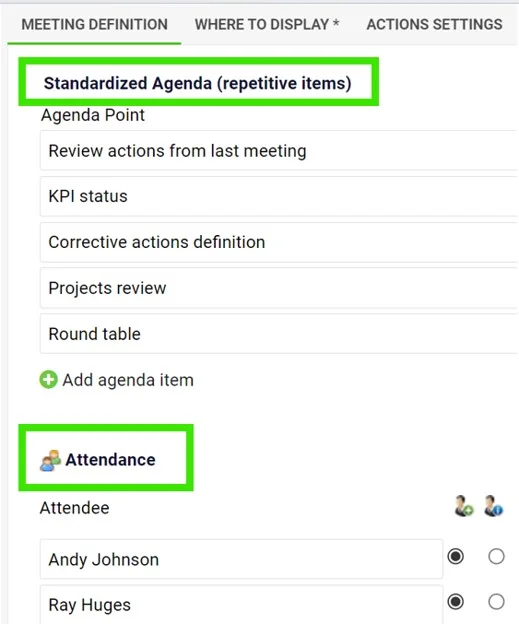
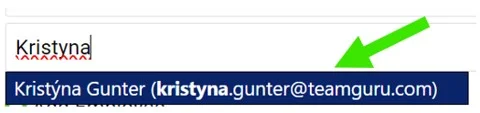
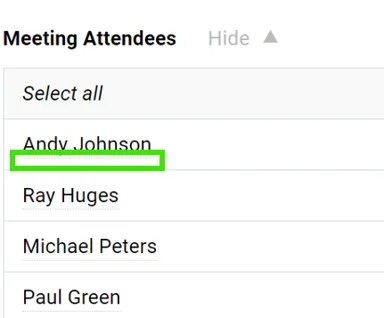
Define the agenda and attendees. Define a standardized Agenda (recurring items) and the Attendees. You can choose existing TeamGuru users with an email address (notifications will be sent to them); dots under the name indicate that an existing user has been added. If you enter only the attendee’s first and last name, the person will not have access to your meeting document.
-
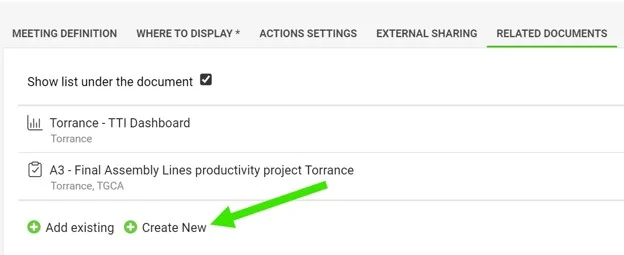
Add related documents. You can also add quick links to other documents in TeamGuru (e.g. a metric dashboard, X-Matrix or A3 project) in the Related Documents section.
-
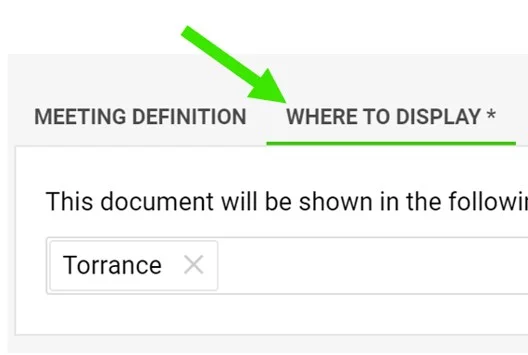
Set where to display it. Set up the Where to Display folder to define where the meeting is saved and displayed.
-
Save the meeting. Click Save & View.
Run the meeting
-
Track attendance and the agenda. Keep a record of the attendees and the meeting agenda.
-
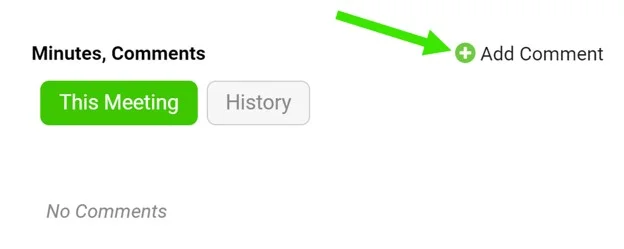
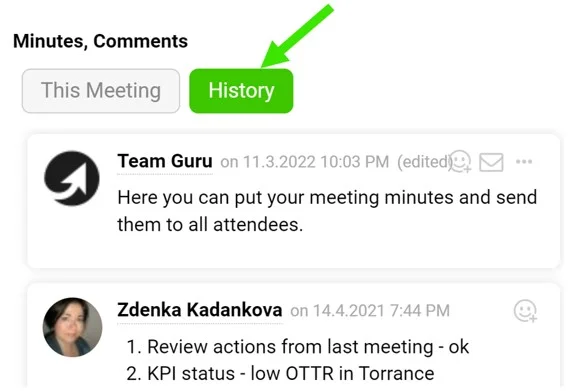
Write the meeting minutes. Use the comment feed for your meeting minutes.
-
Assign tasks. Assign a task directly from the meeting.
Video guide: creating a new standardized meeting
Nastavte novú štandardizovanú poradu s vedúcim, programom, účastníkmi a súvisiacimi dokumentmi.
Vytvorenie porady
-
Vytvorte novú poradu. Otvorte modul Štandardizované porady a kliknite na tlačidlo Vytvoriť nový.
-
Určte vedúceho a administrátorov. Určte Vedúceho porady a Administrátorov. Môžu vytvárať body programu a sledovať dochádzku.
-
Sprístupnite ju všetkým. Ako typ dokumentu zvoľte Verejný, ak má byť dokument dostupný všetkým používateľom s príslušnými oprávneniami k priečinku organizačnej štruktúry.
-
Alebo ju obmedzte na vybraných používateľov. Ako typ dokumentu zvoľte Súkromný, ak má byť dokument dostupný iba vybraným používateľom.
-
Určte účel. Zadajte účel porady a ďalšie podrobnosti.
-
Určte program a účastníkov. Zadajte štandardný Program (opakujúce sa body) a Účastníkov. Môžete vybrať existujúcich používateľov TeamGuru s e-mailovou adresou (budú dostávať upozornenia); bodky pod menom znamenajú, že ste pridali existujúceho používateľa. Ak zadáte iba meno a priezvisko účastníka, táto osoba nebude mať k dokumentu porady prístup.
-
Pridajte súvisiace dokumenty. V sekcii Súvisiace dokumenty môžete pridať aj rýchle odkazy na iné dokumenty v TeamGuru (napr. KPI dashboard, X-Matrix alebo projekt A3).
-
Nastavte, kde sa má zobrazovať. V časti Kde zobraziť zvoľte priečinok, do ktorého sa porada uloží a v ktorom sa bude zobrazovať.
-
Uložte poradu. Kliknite na Uložiť a zobraziť.
Priebeh porady
-
Sledujte dochádzku a program. Zaznamenávajte účastníkov a program porady.
-
Píšte zápisnicu. Zápisnicu z porady píšte do komentárov.
-
Prideľte úlohy. Prideľte úlohu priamo z porady.
Video návod: vytvorenie novej štandardizovanej porady
Potrebujete ďalšiu pomoc?
Napíšte nám. V pracovné dni zvyčajne odpovedáme do hodiny.