如何创建新的标准化会议
本文由英文机器翻译。 当前显示英文原文。
Set up a new standardized meeting with its leader, agenda, attendees and related documents.
Create the meeting
-
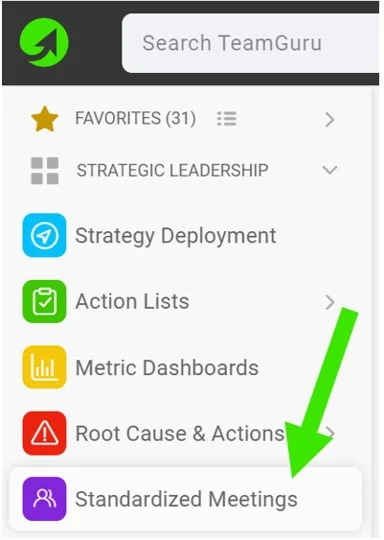
Create a new meeting. Go to your Standardized Meetings module and click the Create New button.

-
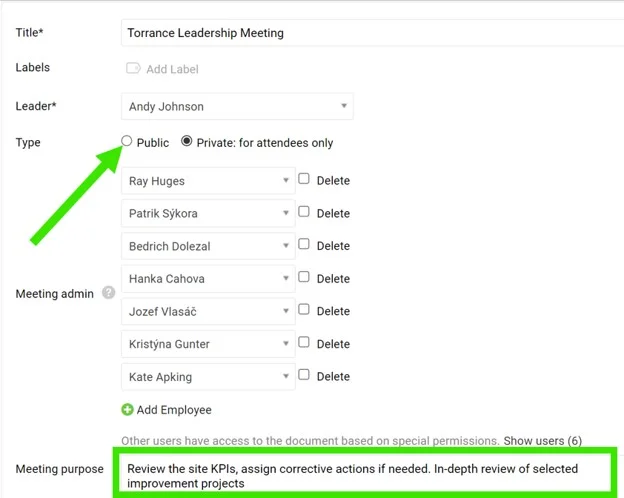
Define the leader and administrators. Define the meeting Leader and Administrators. They will be able to create agenda points and track attendance.
-
Make it public. Select the Public option as the document type if the document should be accessible to all users with appropriate rights to the organization folder.
-
Or limit it to selected users. Select the Private option as the document type if the document should be accessible to selected users only.
-
Define the purpose. Define the meeting purpose and other details.
-
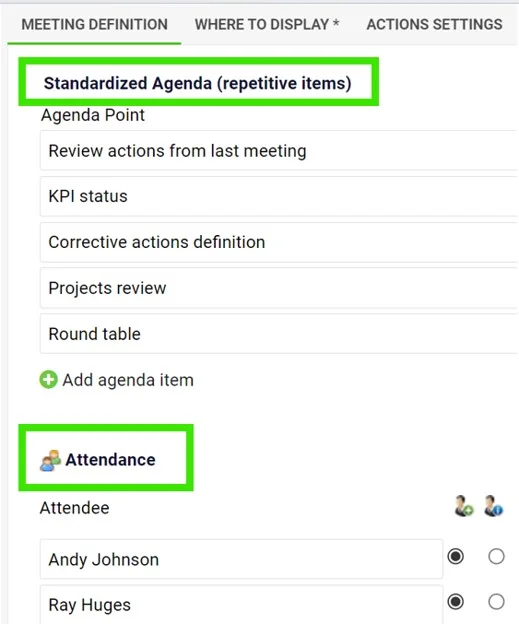
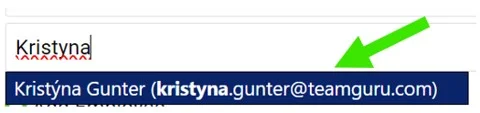
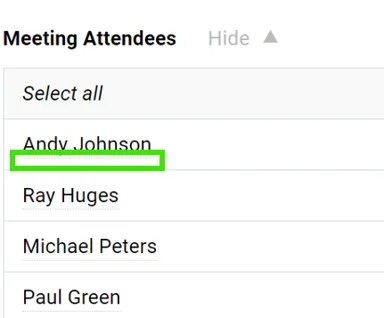
Define the agenda and attendees. Define a standardized Agenda (recurring items) and the Attendees. You can choose existing TeamGuru users with an email address (notifications will be sent to them); dots under the name indicate that an existing user has been added. If you enter only the attendee’s first and last name, the person will not have access to your meeting document.
-
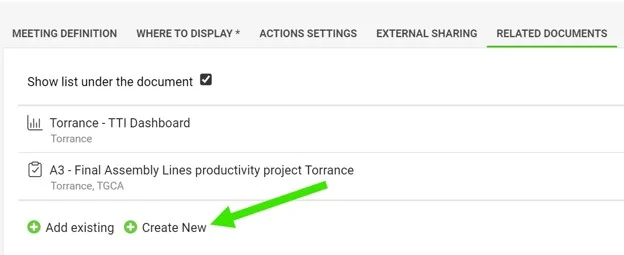
Add related documents. You can also add quick links to other documents in TeamGuru (e.g. a metric dashboard, X-Matrix or A3 project) in the Related Documents section.
-
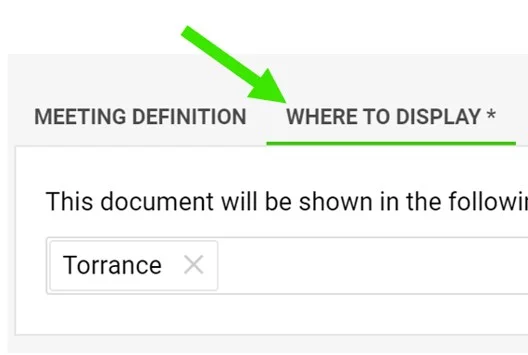
Set where to display it. Set up the Where to Display folder to define where the meeting is saved and displayed.
-
Save the meeting. Click Save & View.
Run the meeting
-
Track attendance and the agenda. Keep a record of the attendees and the meeting agenda.
-
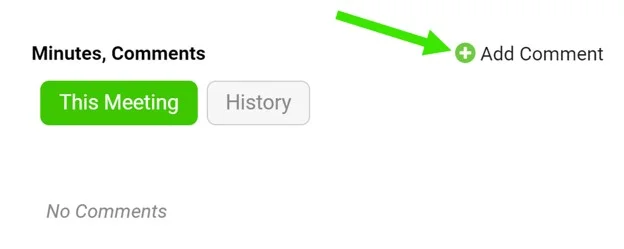
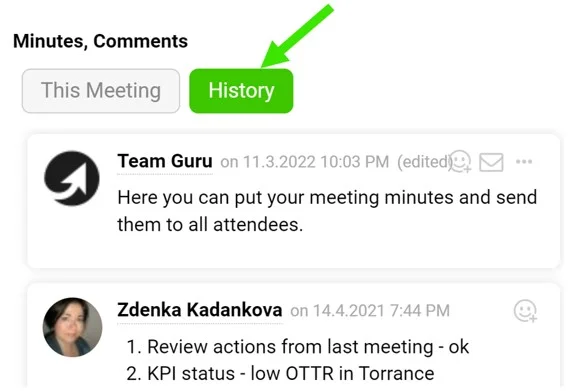
Write the meeting minutes. Use the comment feed for your meeting minutes.
-
Assign tasks. Assign a task directly from the meeting.
Video guide: creating a new standardized meeting
创建新的标准化会议,并设置会议负责人、议程、参会人员和相关文档。
创建会议
-
新建会议。 打开 标准化会议 模块,点击 新建 按钮。
-
指定负责人和管理员。 指定会议的 负责人 和 管理员。他们可以创建议程项并记录出勤情况。
-
设为公开。 如果该文档应对组织文件夹具有相应权限的所有用户开放,请将文档类型设为 公开。
-
或仅限部分用户。 如果该文档只应对选定的用户开放,请将文档类型设为 私有。
-
填写会议目的。 填写会议目的及其他详细信息。
-
设置议程和参会人员。 设置标准化的 议程(固定议题)和 参会人员。您可以选择已有电子邮件地址的TeamGuru用户(系统会向他们发送通知);姓名下方的圆点表示已添加现有用户。如果只输入参会人员的姓名,此人将无法访问您的会议文档。
-
添加相关文档。 您还可以在 相关文档 部分添加指向TeamGuru中其他文档的快捷链接(例如指标仪表板、X-Matrix或A3项目)。
-
设置显示位置。 设置 显示位置 文件夹,确定会议的保存和显示位置。
-
保存会议。 点击 保存并查看。
召开会议
-
记录出勤和议程。 记录参会人员和会议议程。
-
撰写会议纪要。 使用评论区记录会议纪要。
-
分配任务。 直接在会议中分配任务。
视频教程:创建新的标准化会议
还需要帮助吗?
请给我们留言。工作日我们通常会在一小时内回复。