How to assign a task directly from a meeting. How to create a meeting and an action list linkage.
The Standardized Meetings module gives you two options for assigning a task directly from a meeting document: create a new action as part of the Standardized Meeting document, or create a new (or use an existing) action list in the Action Lists module and link it to your Standardized Meeting as a related document.
Add an action in the meeting
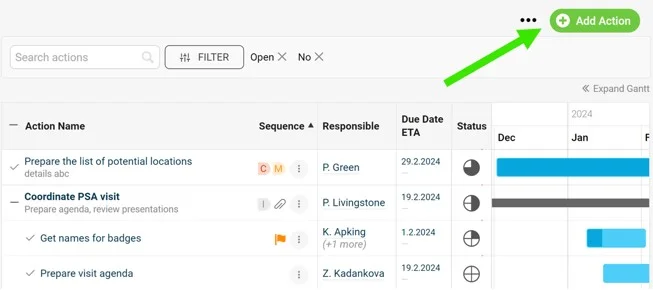
Create the action directly from the meeting document, as shown below.
Link an action list to the meeting
-
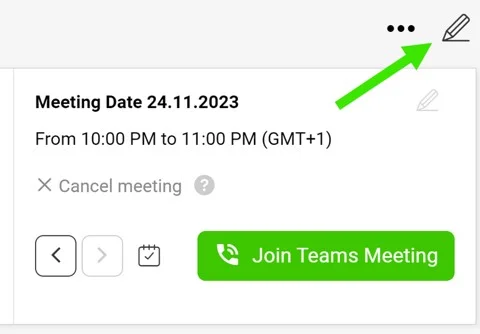
Open the edit screen. Go to the meeting document edit screen via the pencil icon in the upper right corner.
-
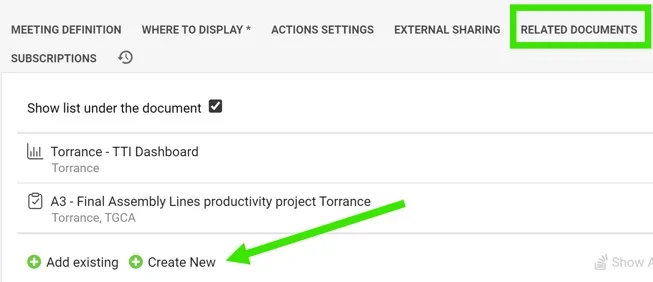
Go to Related Documents. Scroll down to the Related Documents tab.
-
Add a document. Click the Add document button.
-
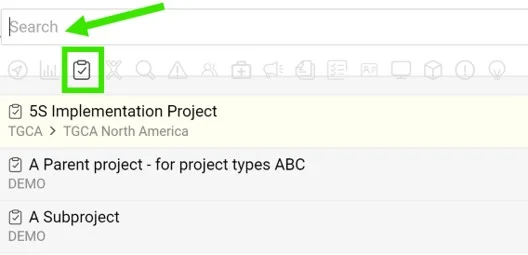
Select the document type. Select the Action lists icon as the document type.
-
Pick or create the action list. Select Existing if your action list has already been created and search for it by its title, or select Create new to get a new one.
-
Save. Save and go to the meeting document.
-
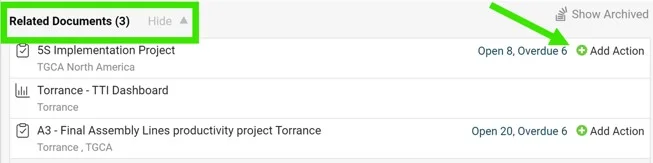
Find the linked action list. Your action list appears at the bottom as a Related Document.
-
Assign the tasks. When you assign a new task, you can either click the action list name to open the action list document, or click the Add Action button to assign the task directly from the meeting document. The new task is added to the action list document automatically.
Still need help?
Write to us. We usually reply within an hour on business days.