Cómo configurar una nueva reunión estandarizada
Traducción automática del inglés. Se muestra el original en inglés.
Set up a new standardized meeting with its leader, agenda, attendees and related documents.
Create the meeting
-
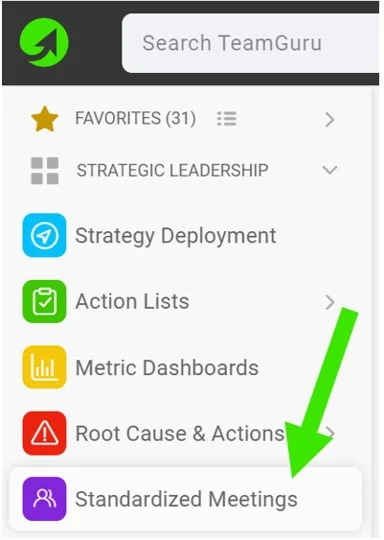
Create a new meeting. Go to your Standardized Meetings module and click the Create New button.

-
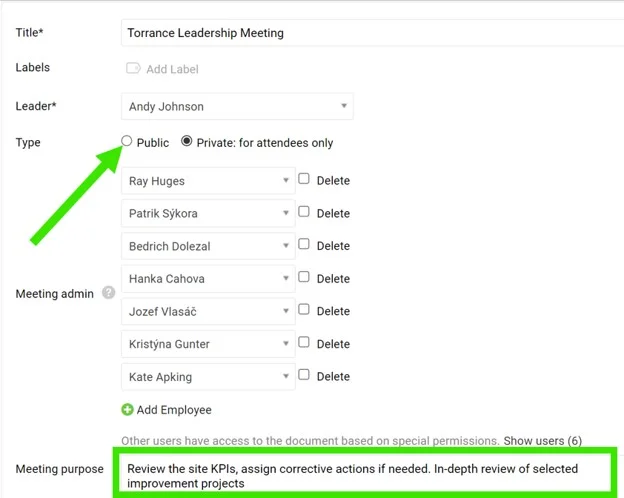
Define the leader and administrators. Define the meeting Leader and Administrators. They will be able to create agenda points and track attendance.
-
Make it public. Select the Public option as the document type if the document should be accessible to all users with appropriate rights to the organization folder.
-
Or limit it to selected users. Select the Private option as the document type if the document should be accessible to selected users only.
-
Define the purpose. Define the meeting purpose and other details.
-
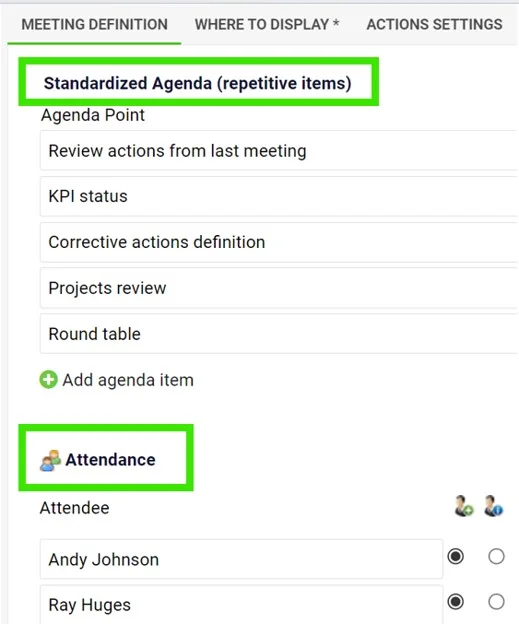
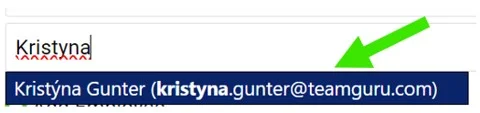
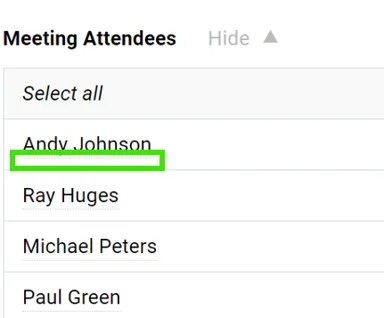
Define the agenda and attendees. Define a standardized Agenda (recurring items) and the Attendees. You can choose existing TeamGuru users with an email address (notifications will be sent to them); dots under the name indicate that an existing user has been added. If you enter only the attendee’s first and last name, the person will not have access to your meeting document.
-
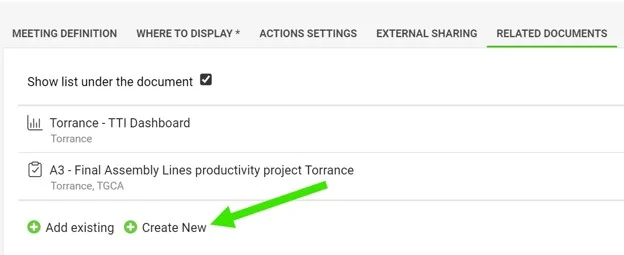
Add related documents. You can also add quick links to other documents in TeamGuru (e.g. a metric dashboard, X-Matrix or A3 project) in the Related Documents section.
-
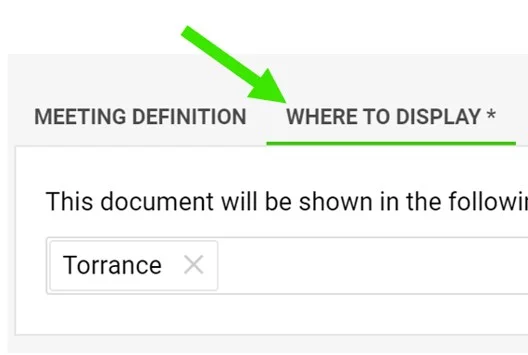
Set where to display it. Set up the Where to Display folder to define where the meeting is saved and displayed.
-
Save the meeting. Click Save & View.
Run the meeting
-
Track attendance and the agenda. Keep a record of the attendees and the meeting agenda.
-
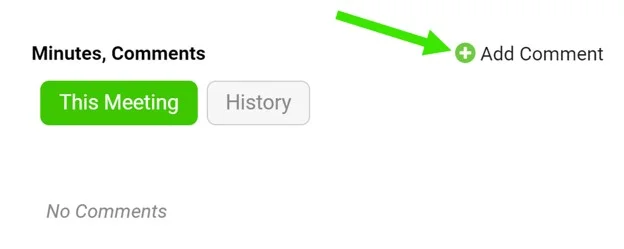
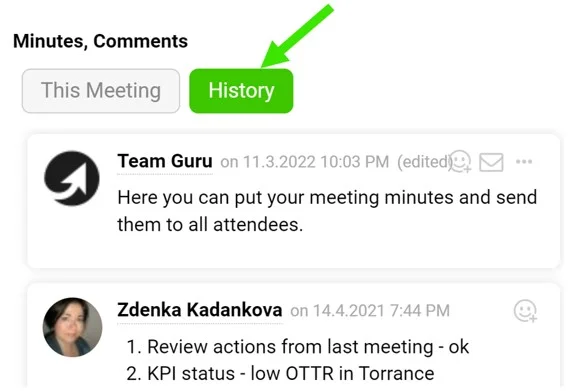
Write the meeting minutes. Use the comment feed for your meeting minutes.
-
Assign tasks. Assign a task directly from the meeting.
Video guide: creating a new standardized meeting
Configure una nueva reunión estandarizada con su líder, agenda, asistentes y documentos relacionados.
Crear la reunión
-
Cree una nueva reunión. Abra el módulo Reuniones estandarizadas y haga clic en el botón Crear nuevo.
-
Defina el líder y los administradores. Indique el Líder y los Administradores de la reunión. Ellos podrán crear puntos de agenda y registrar la asistencia.
-
Hágala pública. Elija Público como tipo de documento si el documento debe estar disponible para todos los usuarios con los permisos adecuados sobre la carpeta de la organización.
-
O limítela a usuarios seleccionados. Elija Privado como tipo de documento si el documento solo debe estar disponible para los usuarios seleccionados.
-
Defina el propósito. Indique el propósito de la reunión y los demás detalles.
-
Defina la agenda y los asistentes. Defina una Agenda estandarizada (puntos recurrentes) y los Asistentes. Puede elegir usuarios existentes de TeamGuru con correo electrónico (recibirán notificaciones); los puntos debajo del nombre indican que se agregó un usuario existente. Si solo escribe el nombre y el apellido del asistente, esa persona no tendrá acceso al documento de la reunión.
-
Agregue documentos relacionados. En la sección Documentos relacionados también puede agregar accesos rápidos a otros documentos de TeamGuru (por ejemplo, un dashboard de KPI, una X-Matrix o un proyecto A3).
-
Indique dónde se muestra. Configure la carpeta Dónde mostrar para definir dónde se guarda y se muestra la reunión.
-
Guarde la reunión. Haga clic en Guardar y ver.
Realizar la reunión
-
Registre la asistencia y la agenda. Lleve el registro de los asistentes y la agenda de la reunión.
-
Escriba la minuta. Use el hilo de comentarios para la minuta de la reunión.
-
Asigne tareas. Asigne una tarea directamente desde la reunión.
Video: cómo crear una nueva reunión estandarizada
¿Necesita más ayuda?
Escríbanos. En días laborables solemos responder en menos de una hora.