如何关联TeamGuru文档:相关文档
本文由英文机器翻译。 当前显示英文原文。
All TeamGuru documents can be linked together for quick access to one another. You manage the links on the Related Documents tab of the document edit screen, and you can create as many as you need.
Link documents
-
Open the document edit screen. Click the Edit icon.
-
Go to the Related Documents tab. Select the Related Documents tab.
-
Find the document to link. Select a module and find your document in the directory (or create a new one).
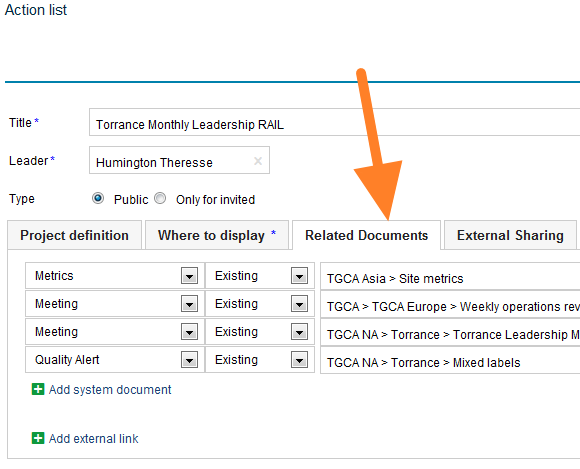
-
See your related documents. The linked documents are listed as related documents.
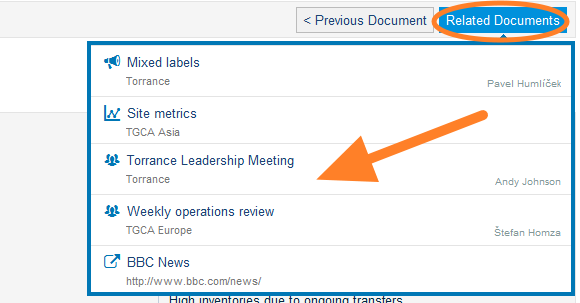
Note: If you need to add a link to an external document or a website, look here.
Display related documents as a list
Choose the display option
Related documents can also be displayed as a list underneath the main document. To do this, select the Display as option as shown below:
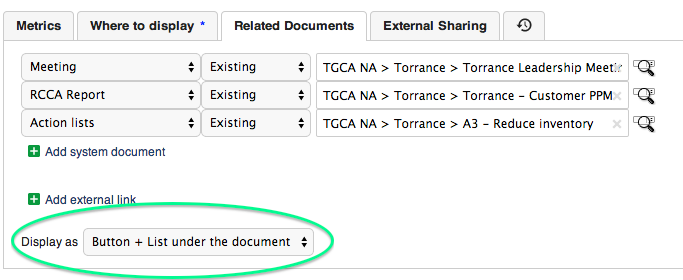
See the list under the document
The related documents are then listed in this format:
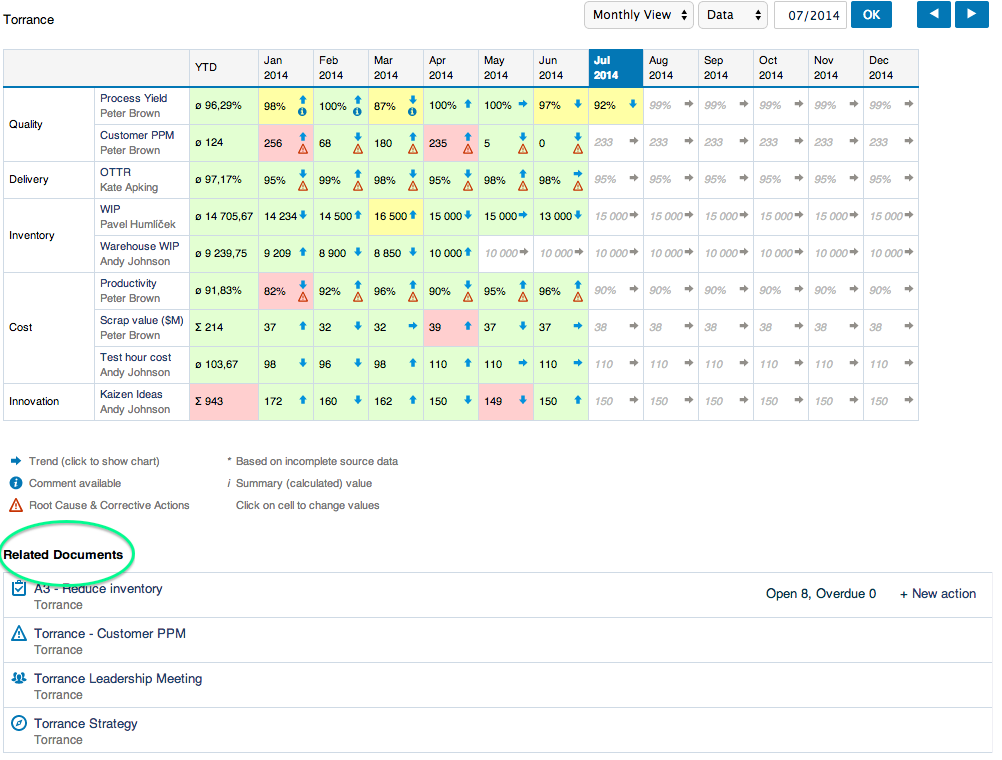
所有TeamGuru文档都可以相互关联,方便快速跳转。您可以在文档编辑界面的 相关文档 选项卡中管理这些链接,数量不限。
关联文档
-
打开文档编辑界面。 点击 编辑 图标。
-
进入相关文档选项卡。 选择 相关文档 选项卡。
-
找到要关联的文档。 选择一个模块,在目录中找到您的文档(或新建一个)。
-
查看相关文档。 已关联的文档会以相关文档的形式列出。
注意: 如需添加指向外部文档或网站的链接,请参阅此处。
以列表形式显示相关文档
选择显示方式
相关文档也可以以列表形式显示在主文档下方。为此,请按下图选择 显示方式 选项:
在文档下方查看列表
相关文档随即以如下形式列出:
还需要帮助吗?
请给我们留言。工作日我们通常会在一小时内回复。