How to create a new supplier and his login details?
-
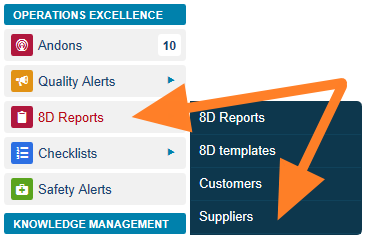
Open the suppliers. Go to the 8D Reports module and the Suppliers submenu.
-
Edit or add a supplier. The list of your suppliers is displayed. You can either edit an existing supplier by clicking the Edit icon

or create a new one by clicking the Add icon.

-
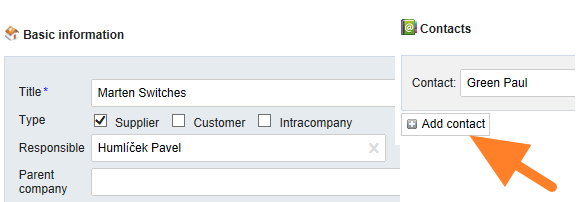
Fill in the company details. Fill in the company details and create a contact person.
-
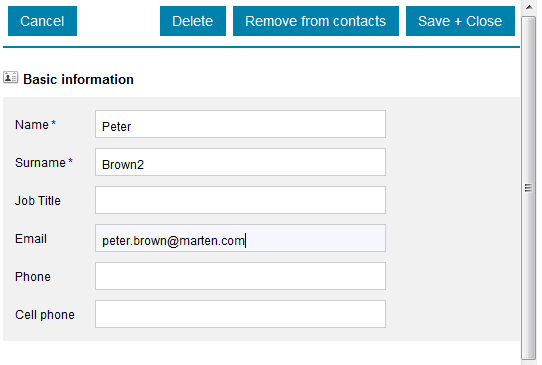
Fill in the contact person. Fill in the contact person’s details: name, surname and email.
-
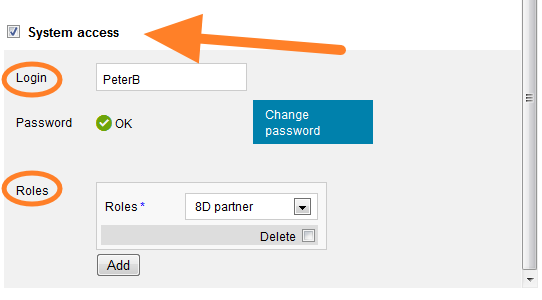
Give the contact system access. Tick the System access box and select 8D partner as the user’s role.
-
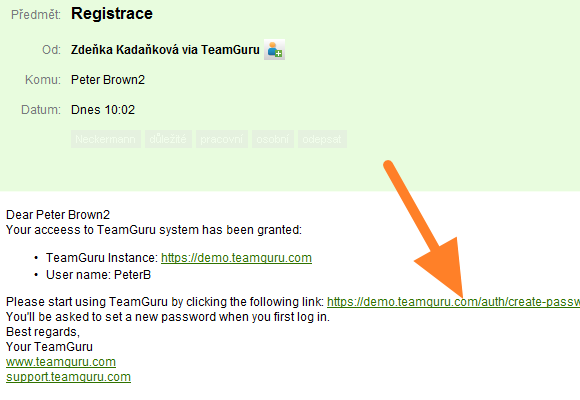
The supplier receives the login details. The supplier receives a registration email with the login details.
-
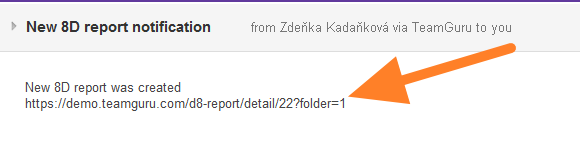
The supplier is notified of new 8Ds. Once a new 8D report has been created, the supplier’s contact person receives an email notification with a link to the TeamGuru instance.
-
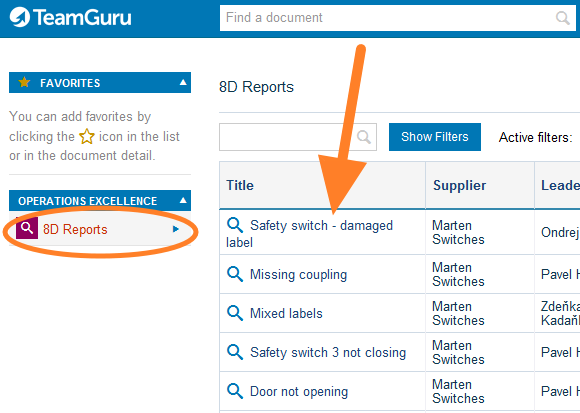
The supplier sees the 8Ds. After logging in, the supplier sees all the newly created 8Ds and their status.
Still need help?
Write to us. We usually reply within an hour on business days.