如何创建新供应商及其登录信息?
本文由英文机器翻译。 当前显示英文原文。
-
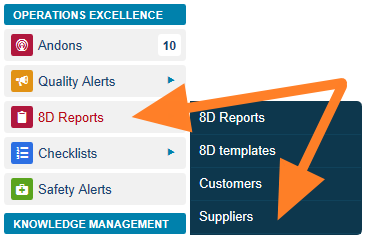
Open the suppliers. Go to the 8D Reports module and the Suppliers submenu.
-
Edit or add a supplier. The list of your suppliers is displayed. You can either edit an existing supplier by clicking the Edit icon

or create a new one by clicking the Add icon.

-
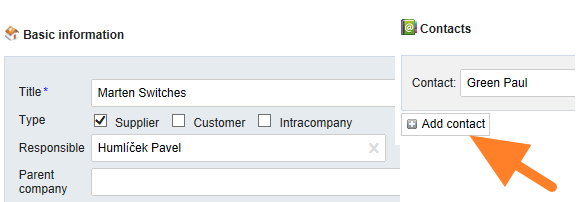
Fill in the company details. Fill in the company details and create a contact person.
-
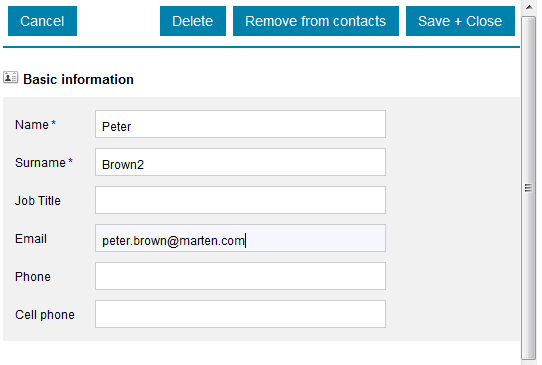
Fill in the contact person. Fill in the contact person’s details: name, surname and email.
-
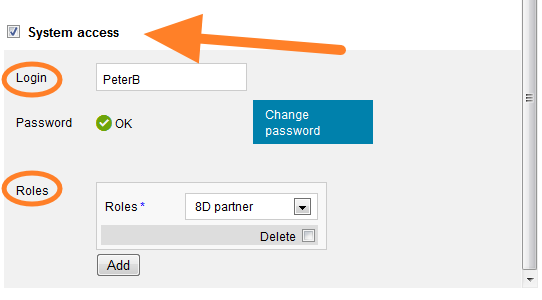
Give the contact system access. Tick the System access box and select 8D partner as the user’s role.
-
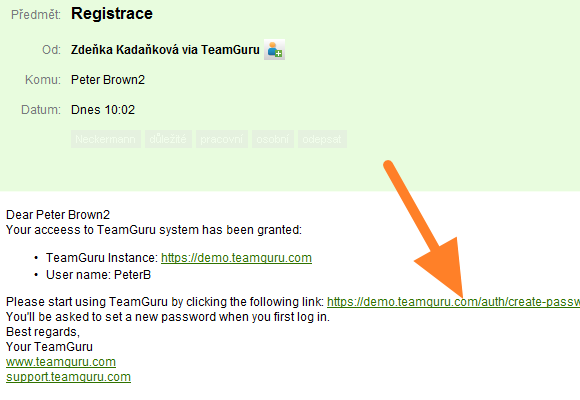
The supplier receives the login details. The supplier receives a registration email with the login details.
-
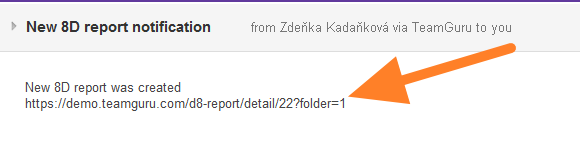
The supplier is notified of new 8Ds. Once a new 8D report has been created, the supplier’s contact person receives an email notification with a link to the TeamGuru instance.
-
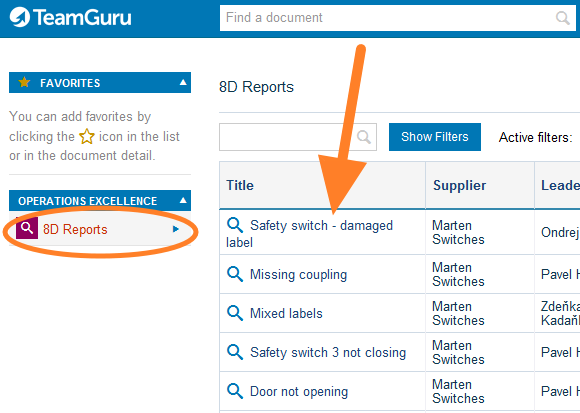
The supplier sees the 8Ds. After logging in, the supplier sees all the newly created 8Ds and their status.
-
打开供应商列表。 进入 8D报告 模块的 供应商 子菜单。
-
编辑或添加供应商。 系统会显示您的供应商列表。您可以点击 编辑 图标编辑现有供应商
或点击 添加 图标新建供应商。
-
填写公司信息。 填写公司信息并创建联系人。
-
填写联系人信息。 填写联系人的详细信息:名字、姓氏和电子邮件。
-
为联系人开通系统访问权限。 勾选 系统访问权限 复选框,并选择 8D合作伙伴 作为该用户的角色。
-
供应商收到登录信息。 供应商会收到一封包含登录信息的注册邮件。
-
供应商收到新8D的通知。 新的8D报告创建后,供应商的联系人会收到一封电子邮件通知,其中包含指向TeamGuru实例的链接。
-
供应商查看8D。 登录后,供应商可以看到所有新创建的8D及其状态。
还需要帮助吗?
请给我们留言。工作日我们通常会在一小时内回复。