Jak utworzyć nowego dostawcę i jego dane logowania?
Tłumaczenie maszynowe z angielskiego. Wyświetlany jest oryginał po angielsku.
-
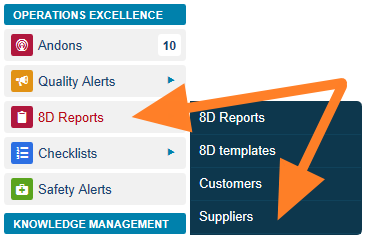
Open the suppliers. Go to the 8D Reports module and the Suppliers submenu.
-
Edit or add a supplier. The list of your suppliers is displayed. You can either edit an existing supplier by clicking the Edit icon

or create a new one by clicking the Add icon.

-
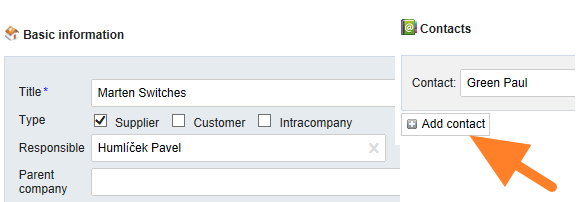
Fill in the company details. Fill in the company details and create a contact person.
-
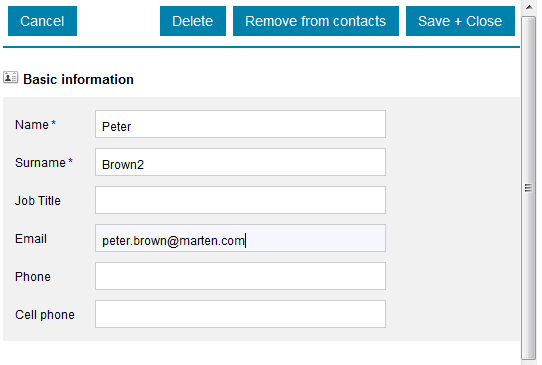
Fill in the contact person. Fill in the contact person’s details: name, surname and email.
-
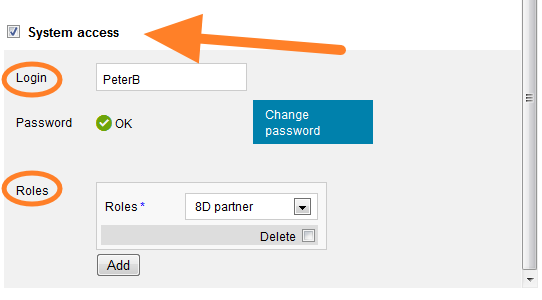
Give the contact system access. Tick the System access box and select 8D partner as the user’s role.
-
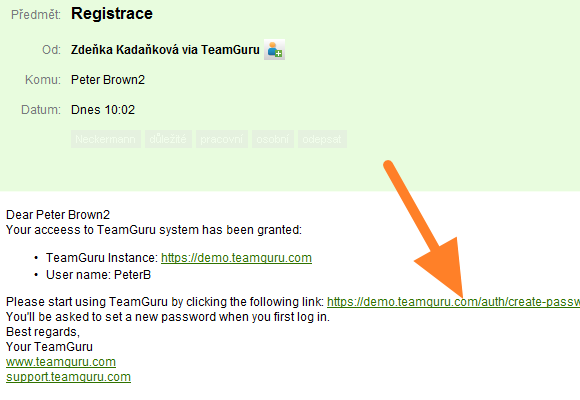
The supplier receives the login details. The supplier receives a registration email with the login details.
-
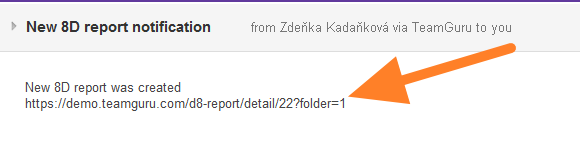
The supplier is notified of new 8Ds. Once a new 8D report has been created, the supplier’s contact person receives an email notification with a link to the TeamGuru instance.
-
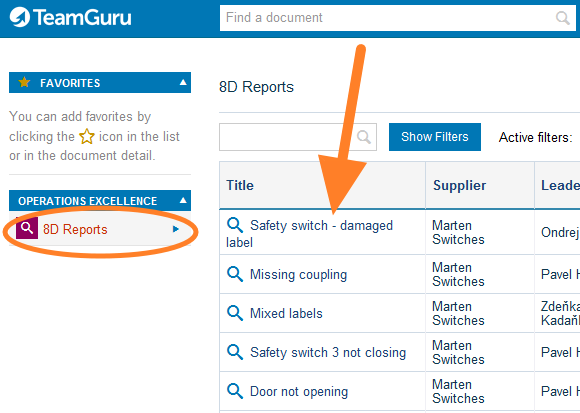
The supplier sees the 8Ds. After logging in, the supplier sees all the newly created 8Ds and their status.
-
Otwórz dostawców. Przejdź do modułu Raporty 8D i podmenu Dostawcy.
-
Edytuj lub dodaj dostawcę. Wyświetli się lista dostawców. Możesz edytować istniejącego dostawcę, klikając ikonę Edytuj
albo utworzyć nowego, klikając ikonę Dodaj.
-
Uzupełnij dane firmy. Wpisz dane firmy i utwórz osobę kontaktową.
-
Uzupełnij dane osoby kontaktowej. Wpisz dane osoby kontaktowej: imię, nazwisko i e-mail.
-
Daj osobie kontaktowej dostęp do systemu. Zaznacz pole Dostęp do systemu i jako rolę użytkownika wybierz Partner 8D.
-
Dostawca dostaje dane logowania. Dostawca otrzymuje e-mail rejestracyjny z danymi logowania.
-
Dostawca dostaje powiadomienia o nowych 8D. Po utworzeniu nowego raportu 8D osoba kontaktowa dostawcy otrzymuje e-mail z linkiem do instancji TeamGuru.
-
Dostawca widzi raporty 8D. Po zalogowaniu dostawca widzi wszystkie nowo utworzone raporty 8D i ich status.
Potrzebujesz dalszej pomocy?
Napisz do nas. W dni robocze zwykle odpowiadamy w ciągu godziny.