Action List, Checklist & Corrective Actions Templates
Manage your projects smoothly with predefined templates for action lists, checklists and corrective actions:
- Action list template: Action Lists, Standardized Meetings, LSW and other modules that use actions.
- Checklist template: the Checklists module.
- Corrective actions template: the Root Cause & Actions, 8D Reports, Quality Alerts, Safety Alerts and Problem Escalation modules.
Video guide (text instructions are included below):
Create an action list template
Open the template list
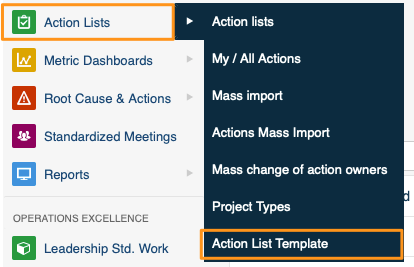
In the Action Lists module, select Action List Template from the submenu.
Create or edit a template
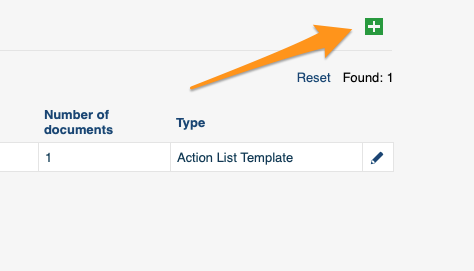
Click the green plus button in the upper right corner to create a template, or the edit pencil to edit an existing one.
Add tasks and subtasks
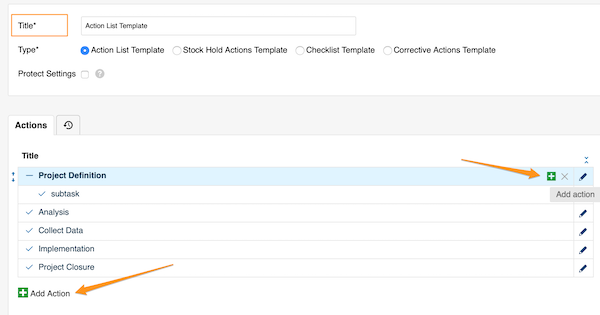
Define the template details and its actions. Add main tasks with the green plus button at the bottom, or add subtasks with the green plus button on the right side of each task (or subtask).
Fill in the action details
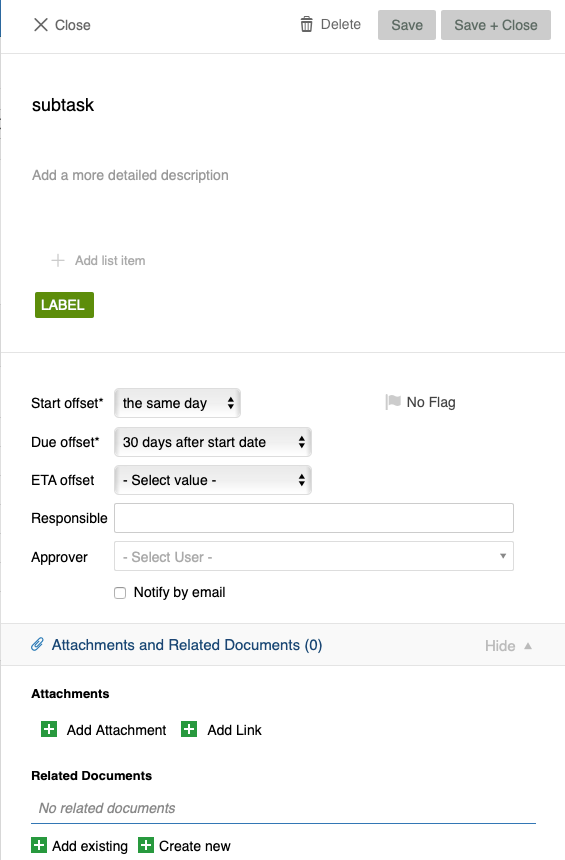
Add all the details you need: title, details, labels, flags, offset dates, responsible person and approvers, attachments, related documents and more.
Protect the template settings
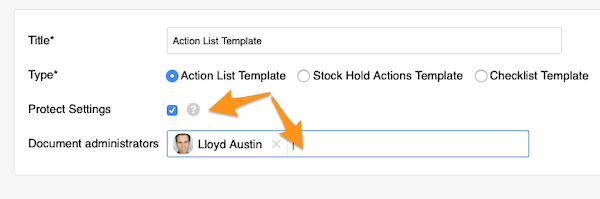
You can also protect the template settings and choose administrators, who will then be the only ones allowed to make changes to the template.
Save the template
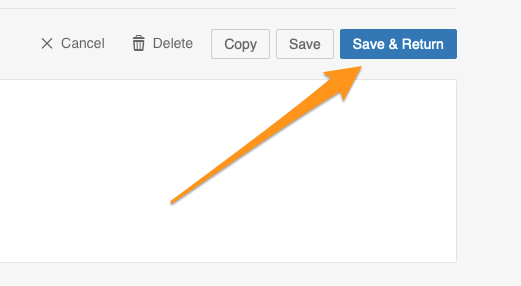
Save your template.
Use an action list template
Apply a template to a new action list
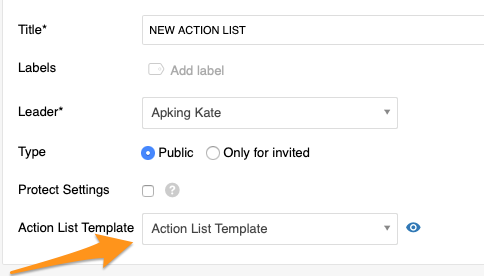
When you create a new action list, select your template from the submenu. This option is available only while you are creating a new document, and you need to complete it before you save any changes.
Preview the actions
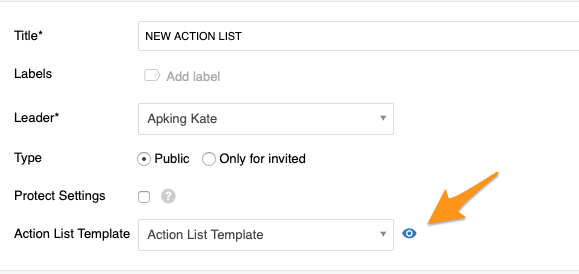
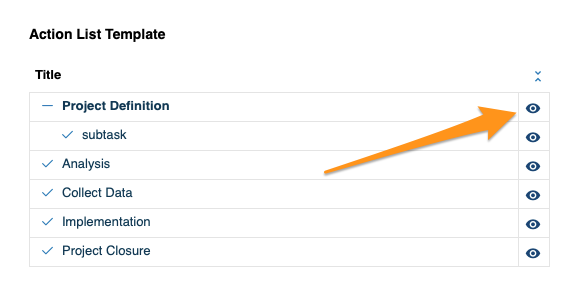
Click the eye icon to preview all the actions and their details before the import.
Import into an existing action list
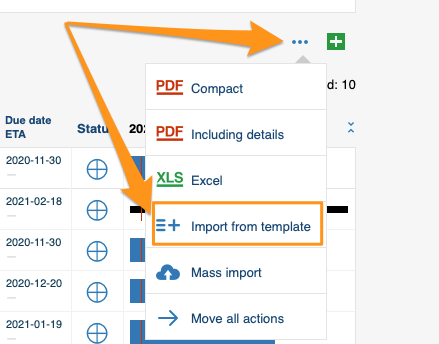
To add a template to an existing action list through the mass options menu, click the three blue dots icon on the right above your actions and select Import From Template.
Choose the template and position
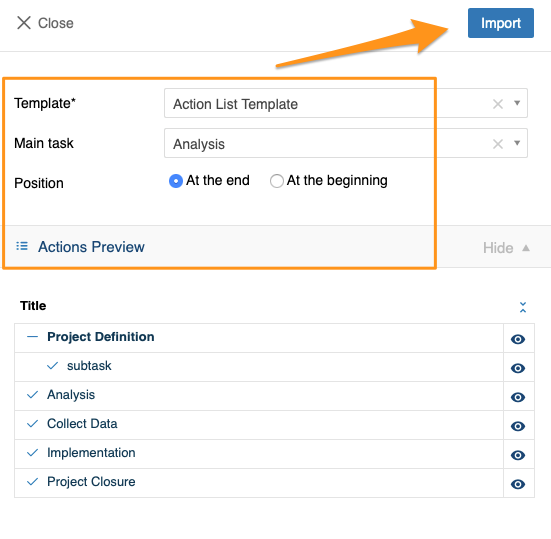
Choose the template, the main task and the position, and preview the actions and their details. Click Import once you have made your selection.
Import from a task or subtask
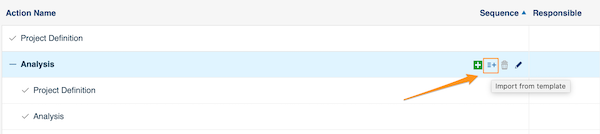
You can also click the Import From Template icon next to any task or subtask and follow the same steps. The only difference: the main task is already predefined, because you start from that specific task.
Create a checklist template
Open the checklist template list
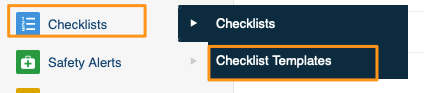
In the Checklists module, select Checklist Templates from the submenu. Then follow the same steps as for the action list template above.
Use the template in a new checklist
When you create a new checklist, select your template from the submenu.
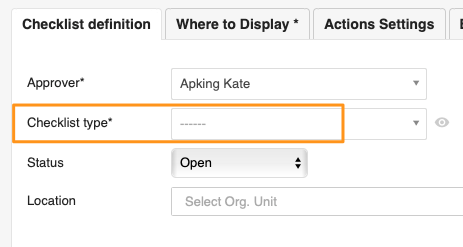
Please note that old templates have been automatically updated to this new setup.
Create a corrective actions template
Open the corrective actions template list
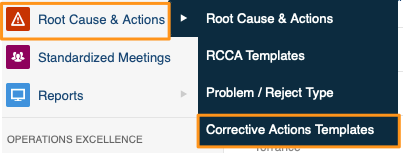
You can use corrective actions templates in the Root Cause & Actions, 8D Reports, Quality Alerts, Safety Alerts and Problem Escalation modules. In the module, select Corrective Actions Template from the submenu. Then follow the same steps as for the action list template above.
Import the template into a document
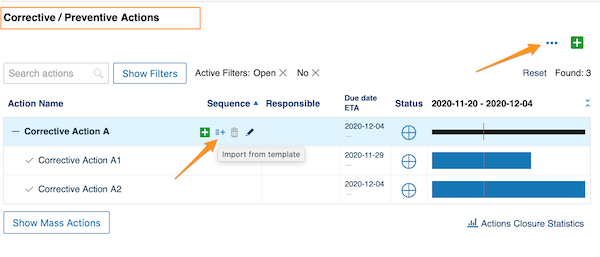
When you are ready to import the template, scroll down to the Corrective / Preventive Actions section and add it there, either with the three blue dots option or with the icon next to the tasks.
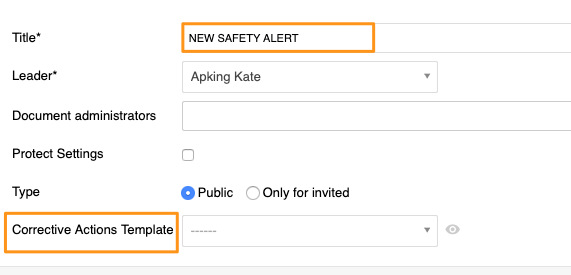
Add the template to a new safety alert
Please note that only in Safety Alerts can you add a corrective actions template directly while creating a new document.
Still need help?
Write to us. We usually reply within an hour on business days.