行动清单、清单和纠正措施模板
本文由英文机器翻译。 当前显示英文原文。
Manage your projects smoothly with predefined templates for action lists, checklists and corrective actions:
- Action list template: Action Lists, Standardized Meetings, LSW and other modules that use actions.
- Checklist template: the Checklists module.
- Corrective actions template: the Root Cause & Actions, 8D Reports, Quality Alerts, Safety Alerts and Problem Escalation modules.
Video guide (text instructions are included below):
Create an action list template
Open the template list
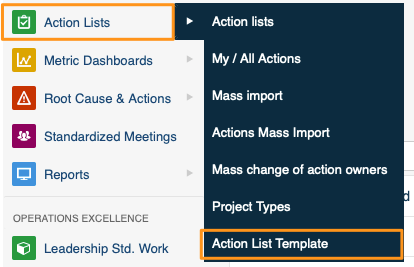
In the Action Lists module, select Action List Template from the submenu.
Create or edit a template
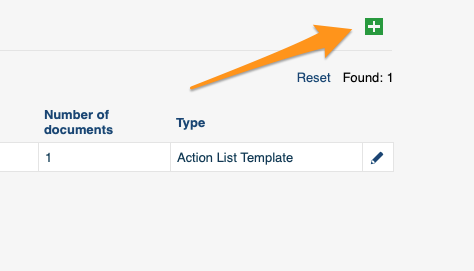
Click the green plus button in the upper right corner to create a template, or the edit pencil to edit an existing one.
Add tasks and subtasks
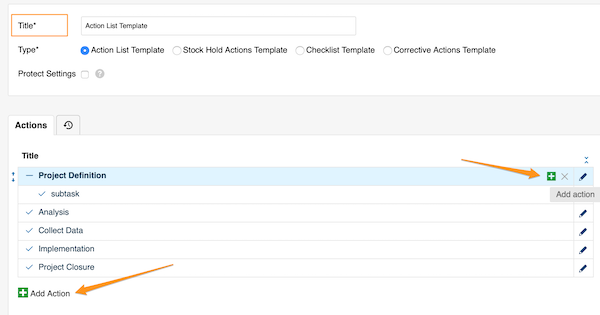
Define the template details and its actions. Add main tasks with the green plus button at the bottom, or add subtasks with the green plus button on the right side of each task (or subtask).
Fill in the action details
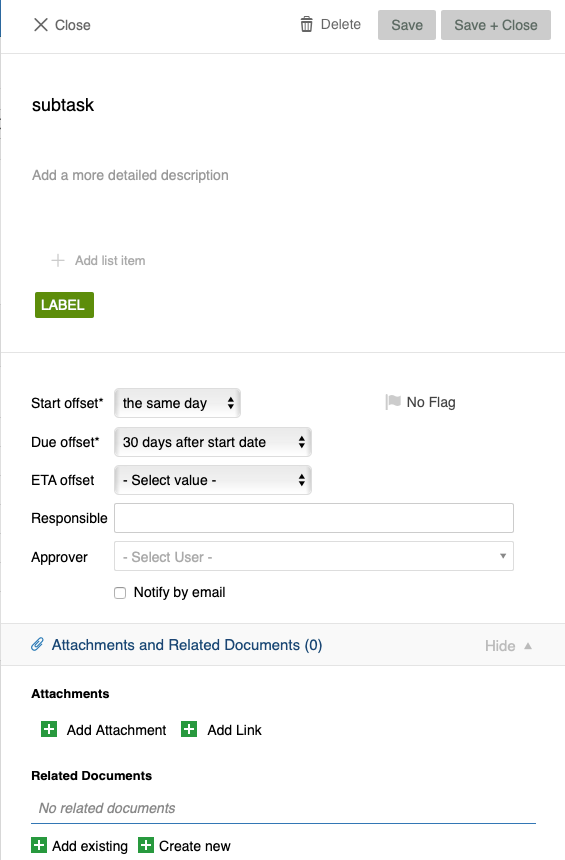
Add all the details you need: title, details, labels, flags, offset dates, responsible person and approvers, attachments, related documents and more.
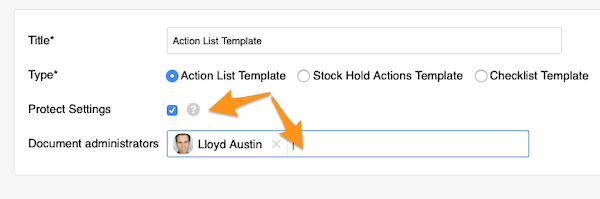
Protect the template settings
You can also protect the template settings and choose administrators, who will then be the only ones allowed to make changes to the template.
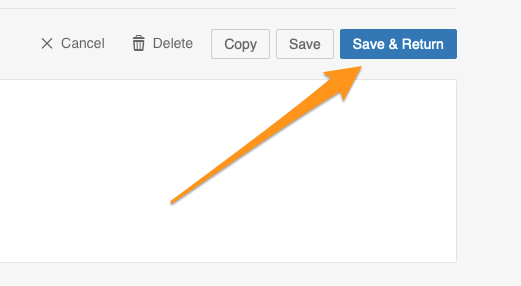
Save the template
Save your template.
Use an action list template
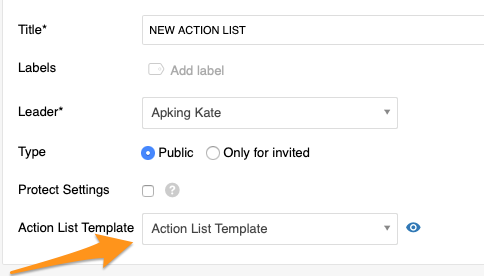
Apply a template to a new action list
When you create a new action list, select your template from the submenu. This option is available only while you are creating a new document, and you need to complete it before you save any changes.
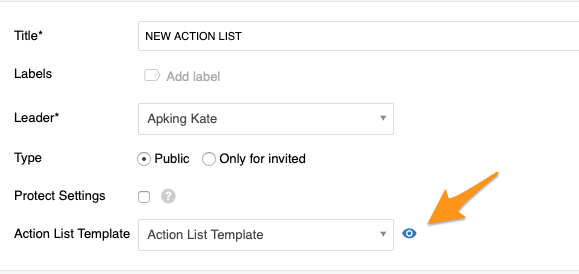
Preview the actions
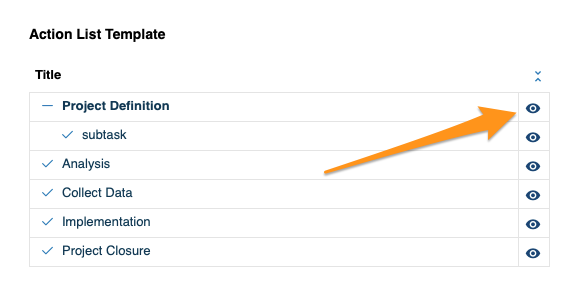
Click the eye icon to preview all the actions and their details before the import.
Import into an existing action list
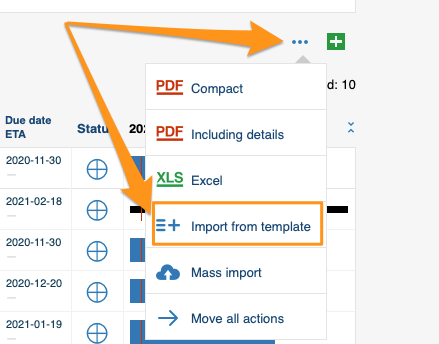
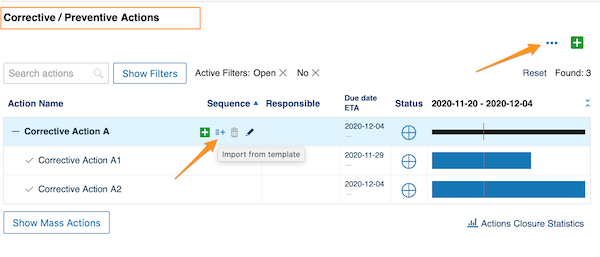
To add a template to an existing action list through the mass options menu, click the three blue dots icon on the right above your actions and select Import From Template.
Choose the template and position
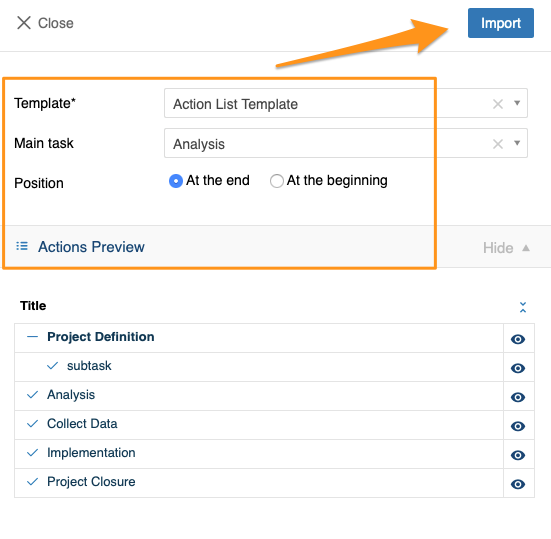
Choose the template, the main task and the position, and preview the actions and their details. Click Import once you have made your selection.
Import from a task or subtask
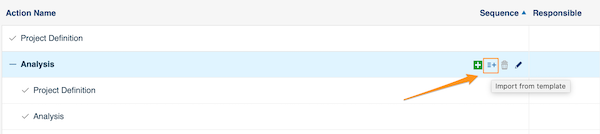
You can also click the Import From Template icon next to any task or subtask and follow the same steps. The only difference: the main task is already predefined, because you start from that specific task.
Create a checklist template
Open the checklist template list
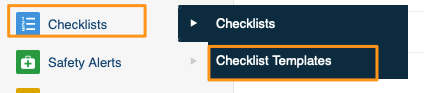
In the Checklists module, select Checklist Templates from the submenu. Then follow the same steps as for the action list template above.
Use the template in a new checklist
When you create a new checklist, select your template from the submenu.
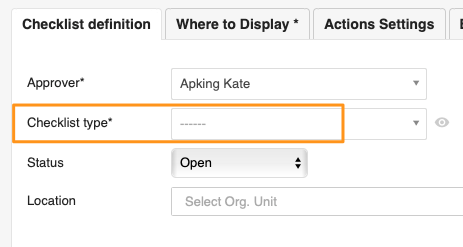
Please note that old templates have been automatically updated to this new setup.
Create a corrective actions template
Open the corrective actions template list
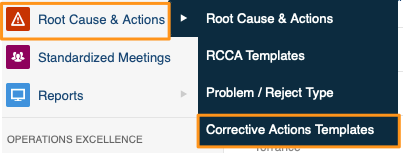
You can use corrective actions templates in the Root Cause & Actions, 8D Reports, Quality Alerts, Safety Alerts and Problem Escalation modules. In the module, select Corrective Actions Template from the submenu. Then follow the same steps as for the action list template above.
Import the template into a document
When you are ready to import the template, scroll down to the Corrective / Preventive Actions section and add it there, either with the three blue dots option or with the icon next to the tasks.
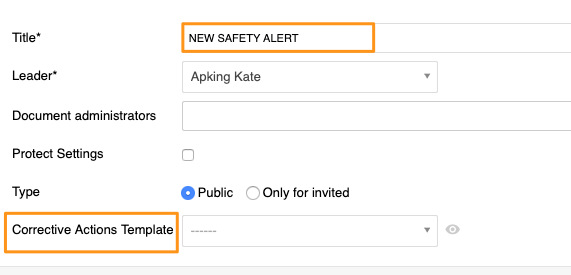
Add the template to a new safety alert
Please note that only in Safety Alerts can you add a corrective actions template directly while creating a new document.
使用行动清单、清单和纠正措施的预定义模板,让项目管理更顺畅:
- 行动清单模板:行动清单、标准化会议、领导标准工作以及其他使用行动的模块。
- 清单模板:清单模块。
- 纠正措施模板:根本原因和措施、8D报告、质量警报、安全警报和问题升级模块。
视频教程(文字说明见下文):
创建行动清单模板
打开模板列表
在行动清单模块中,从子菜单选择行动清单模板。
创建或编辑模板
点击右上角的绿色加号按钮创建模板,或点击编辑铅笔图标编辑现有模板。
添加任务和子任务
定义模板详情及其中的行动。使用底部的绿色加号按钮添加主任务,或使用每个任务(或子任务)右侧的绿色加号按钮添加子任务。
填写行动详情
添加所需的全部详情:标题、详情、标签、标记、偏移日期、负责人和审批人、附件、相关文档等。
保护模板设置
您还可以保护模板设置并指定管理员,之后只有这些管理员才能修改模板。
保存模板
保存模板。
使用行动清单模板
将模板应用于新行动清单
创建新行动清单时,从子菜单中选择模板。此选项仅在创建新文档时可用,并且必须在保存任何更改之前完成。
预览行动
导入前,点击眼睛图标预览所有行动及其详情。
导入到现有行动清单
要通过批量操作菜单将模板添加到现有行动清单,请点击行动上方右侧的三个蓝点图标,然后选择从模板导入。
选择模板和位置
选择模板、主任务和位置,并预览行动及其详情。选择完成后,点击导入。
从任务或子任务导入
您也可以点击任意任务或子任务旁的从模板导入图标,然后按相同步骤操作。唯一的区别是:主任务已预先确定,因为您是从该任务开始操作的。
创建清单模板
打开清单模板列表
在清单模块中,从子菜单选择清单模板。然后按照上述行动清单模板的步骤操作。
在新清单中使用模板
创建新清单时,从子菜单中选择模板。
请注意,旧模板已自动更新为新的设置方式。
创建纠正措施模板
打开纠正措施模板列表
纠正措施模板可用于根本原因和措施、8D报告、质量警报、安全警报和问题升级模块。在模块中,从子菜单选择纠正措施模板。然后按照上述行动清单模板的步骤操作。
将模板导入文档
准备导入模板时,向下滚动到纠正/预防措施部分,通过三个蓝点选项或任务旁的图标添加模板。
在新安全警报中添加模板
请注意,只有在安全警报中,才能在创建新文档时直接添加纠正措施模板。
还需要帮助吗?
请给我们留言。工作日我们通常会在一小时内回复。