Vorlagen für Maßnahmenlisten, Checklisten und Korrekturmaßnahmen
Maschinelle Übersetzung aus dem Englischen. Englisches Original wird angezeigt.
Manage your projects smoothly with predefined templates for action lists, checklists and corrective actions:
- Action list template: Action Lists, Standardized Meetings, LSW and other modules that use actions.
- Checklist template: the Checklists module.
- Corrective actions template: the Root Cause & Actions, 8D Reports, Quality Alerts, Safety Alerts and Problem Escalation modules.
Video guide (text instructions are included below):
Create an action list template
Open the template list
In the Action Lists module, select Action List Template from the submenu.
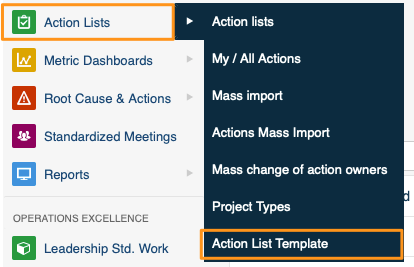
Create or edit a template
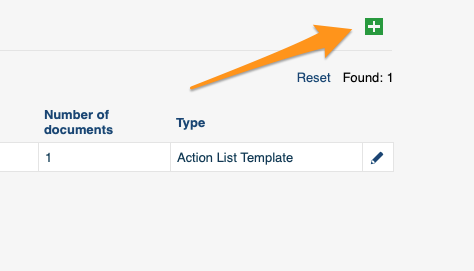
Click the green plus button in the upper right corner to create a template, or the edit pencil to edit an existing one.
Add tasks and subtasks
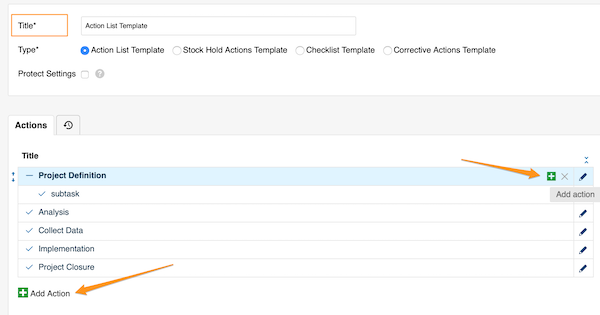
Define the template details and its actions. Add main tasks with the green plus button at the bottom, or add subtasks with the green plus button on the right side of each task (or subtask).
Fill in the action details
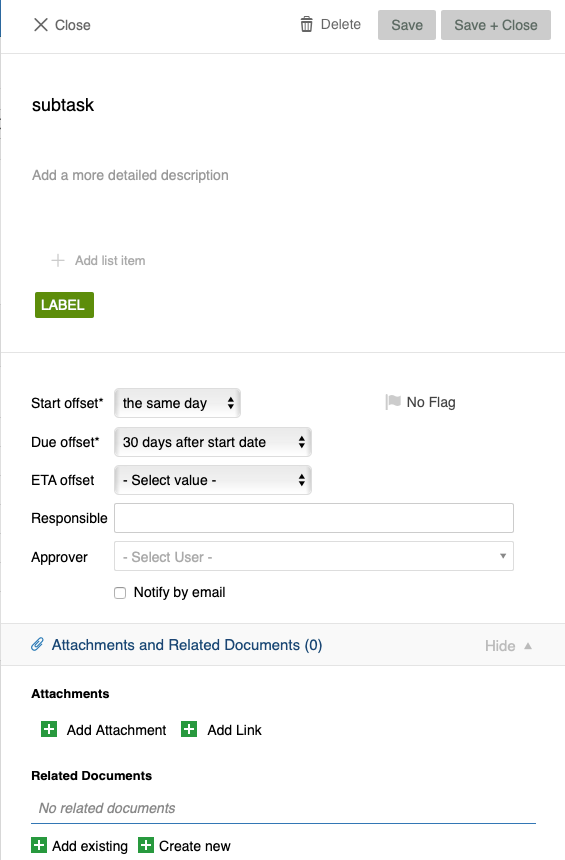
Add all the details you need: title, details, labels, flags, offset dates, responsible person and approvers, attachments, related documents and more.
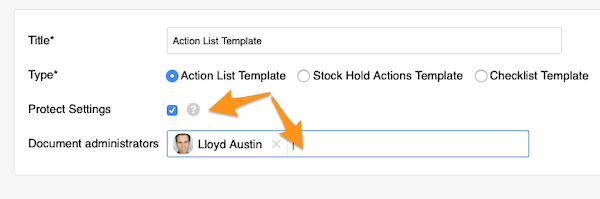
Protect the template settings
You can also protect the template settings and choose administrators, who will then be the only ones allowed to make changes to the template.
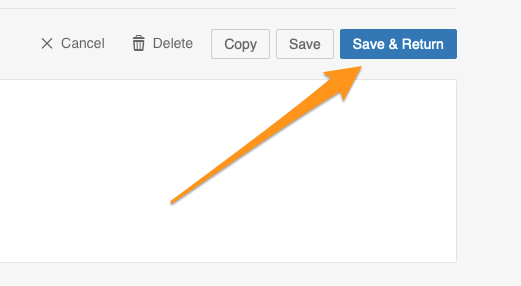
Save the template
Save your template.
Use an action list template
Apply a template to a new action list
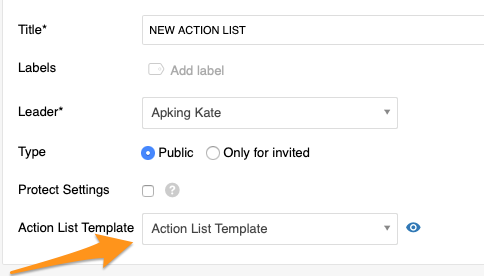
When you create a new action list, select your template from the submenu. This option is available only while you are creating a new document, and you need to complete it before you save any changes.
Preview the actions
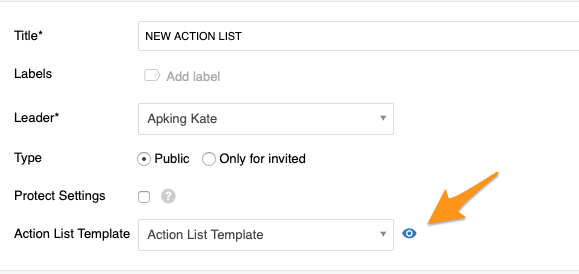
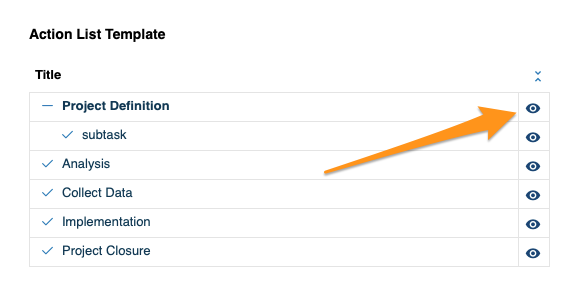
Click the eye icon to preview all the actions and their details before the import.
Import into an existing action list
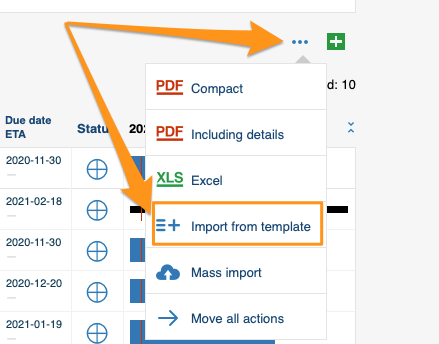
To add a template to an existing action list through the mass options menu, click the three blue dots icon on the right above your actions and select Import From Template.
Choose the template and position
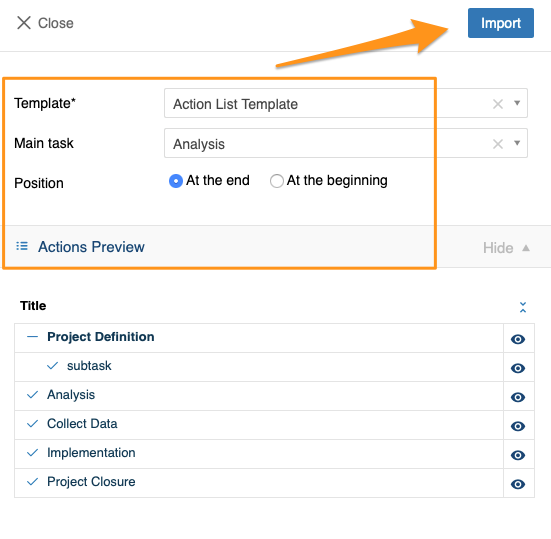
Choose the template, the main task and the position, and preview the actions and their details. Click Import once you have made your selection.
Import from a task or subtask
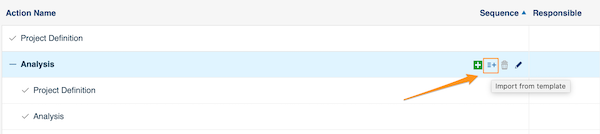
You can also click the Import From Template icon next to any task or subtask and follow the same steps. The only difference: the main task is already predefined, because you start from that specific task.
Create a checklist template
Open the checklist template list
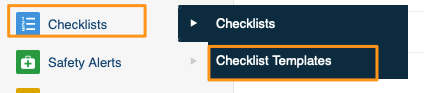
In the Checklists module, select Checklist Templates from the submenu. Then follow the same steps as for the action list template above.
Use the template in a new checklist
When you create a new checklist, select your template from the submenu.
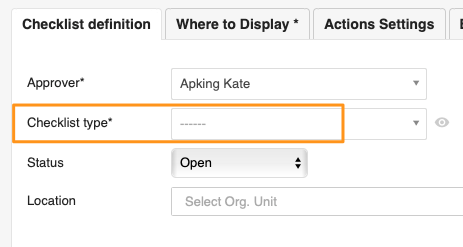
Please note that old templates have been automatically updated to this new setup.
Create a corrective actions template
Open the corrective actions template list
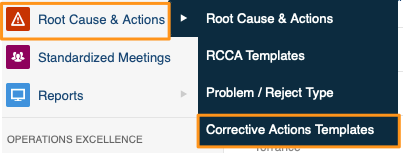
You can use corrective actions templates in the Root Cause & Actions, 8D Reports, Quality Alerts, Safety Alerts and Problem Escalation modules. In the module, select Corrective Actions Template from the submenu. Then follow the same steps as for the action list template above.
Import the template into a document
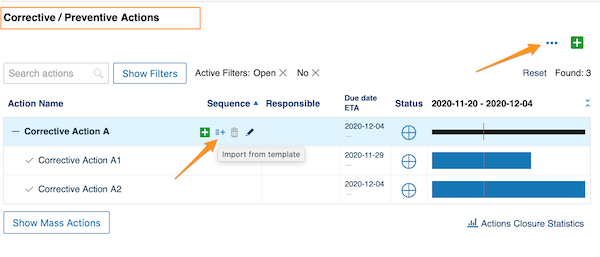
When you are ready to import the template, scroll down to the Corrective / Preventive Actions section and add it there, either with the three blue dots option or with the icon next to the tasks.
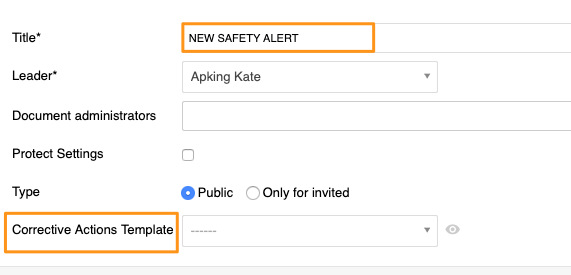
Add the template to a new safety alert
Please note that only in Safety Alerts can you add a corrective actions template directly while creating a new document.
Steuern Sie Ihre Projekte reibungslos mit vordefinierten Vorlagen für Maßnahmenlisten, Checklisten und Korrekturmaßnahmen:
- Maßnahmenlistenvorlage: Maßnahmenlisten, Standardisierte Meetings, LSW und weitere Module mit Maßnahmen.
- Checklistenvorlage: das Modul Checklisten.
- Vorlage für Korrekturmaßnahmen: die Module Ursachenanalyse und Maßnahmen, 8D-Reports, Qualitäts-Alerts, Arbeitsschutz-Alerts und Eskalation von Problemen.
Video-Anleitung (die Textanleitung finden Sie unten):
Maßnahmenlistenvorlage erstellen
Vorlagenliste öffnen
Wählen Sie im Modul Maßnahmenlisten im Untermenü Maßnahmenlistenvorlage.
Vorlage erstellen oder bearbeiten
Klicken Sie oben rechts auf die grüne Plus-Schaltfläche, um eine Vorlage zu erstellen, oder auf das Stiftsymbol, um eine vorhandene zu bearbeiten.
Aufgaben und Unteraufgaben hinzufügen
Legen Sie die Details der Vorlage und ihre Maßnahmen fest. Hauptaufgaben fügen Sie mit der grünen Plus-Schaltfläche unten hinzu, Unteraufgaben mit der grünen Plus-Schaltfläche rechts neben jeder Aufgabe (oder Unteraufgabe).
Details der Maßnahmen ausfüllen
Ergänzen Sie alle benötigten Angaben: Titel, Details, Labels, Flags, relative Termine, verantwortliche Person und Freigeber, Anhänge, zugehörige Dokumente und mehr.
Vorlageneinstellungen schützen
Sie können die Vorlageneinstellungen auch schützen und Administratoren festlegen, die dann als Einzige Änderungen an der Vorlage vornehmen dürfen.
Vorlage speichern
Speichern Sie Ihre Vorlage.
Maßnahmenlistenvorlage verwenden
Vorlage auf eine neue Maßnahmenliste anwenden
Wählen Sie beim Erstellen einer neuen Maßnahmenliste Ihre Vorlage im Untermenü aus. Diese Option gibt es nur beim Erstellen eines neuen Dokuments, und Sie müssen sie abschließen, bevor Sie Änderungen speichern.
Vorschau der Maßnahmen
Mit dem Augensymbol sehen Sie vor dem Import alle Maßnahmen und ihre Details in der Vorschau.
In eine vorhandene Maßnahmenliste importieren
Um eine Vorlage über das Menü für Massenoptionen zu einer vorhandenen Maßnahmenliste hinzuzufügen, klicken Sie rechts über Ihren Maßnahmen auf das Symbol mit den drei blauen Punkten und wählen Aus Vorlage importieren.
Vorlage und Position wählen
Wählen Sie die Vorlage, die Hauptaufgabe und die Position und sehen Sie sich die Maßnahmen und ihre Details in der Vorschau an. Klicken Sie nach Ihrer Auswahl auf Importieren.
Aus einer Aufgabe oder Unteraufgabe importieren
Sie können auch neben einer beliebigen Aufgabe oder Unteraufgabe auf das Symbol Aus Vorlage importieren klicken und genauso vorgehen. Einziger Unterschied: Die Hauptaufgabe ist bereits vorgegeben, weil Sie von dieser Aufgabe aus starten.
Checklistenvorlage erstellen
Liste der Checklistenvorlagen öffnen
Wählen Sie im Modul Checklisten im Untermenü Checklistenvorlagen. Gehen Sie dann wie oben bei der Maßnahmenlistenvorlage vor.
Vorlage in einer neuen Checkliste verwenden
Wählen Sie beim Erstellen einer neuen Checkliste Ihre Vorlage im Untermenü aus.
Bitte beachten Sie: Alte Vorlagen wurden automatisch auf diesen neuen Aufbau umgestellt.
Vorlage für Korrekturmaßnahmen erstellen
Liste der Vorlagen für Korrekturmaßnahmen öffnen
Vorlagen für Korrekturmaßnahmen können Sie in den Modulen Ursachenanalyse und Maßnahmen, 8D-Reports, Qualitäts-Alerts, Arbeitsschutz-Alerts und Eskalation von Problemen verwenden. Wählen Sie im Modul im Untermenü Vorlage für Korrekturmaßnahmen. Gehen Sie dann wie oben bei der Maßnahmenlistenvorlage vor.
Vorlage in ein Dokument importieren
Wenn Sie die Vorlage importieren möchten, scrollen Sie nach unten zum Abschnitt Korrektur-/Vorbeugemaßnahmen und fügen sie dort hinzu, entweder über die drei blauen Punkte oder über das Symbol neben den Aufgaben.
Vorlage zu einem neuen Arbeitsschutz-Alert hinzufügen
Bitte beachten Sie: Nur in Arbeitsschutz-Alerts können Sie eine Vorlage für Korrekturmaßnahmen direkt beim Erstellen eines neuen Dokuments hinzufügen.
Brauchen Sie weitere Hilfe?
Schreiben Sie uns. An Werktagen antworten wir meist innerhalb einer Stunde.