Plantillas de planes de acción, checklists y acciones correctivas
Traducción automática del inglés. Se muestra el original en inglés.
Manage your projects smoothly with predefined templates for action lists, checklists and corrective actions:
- Action list template: Action Lists, Standardized Meetings, LSW and other modules that use actions.
- Checklist template: the Checklists module.
- Corrective actions template: the Root Cause & Actions, 8D Reports, Quality Alerts, Safety Alerts and Problem Escalation modules.
Video guide (text instructions are included below):
Create an action list template
Open the template list
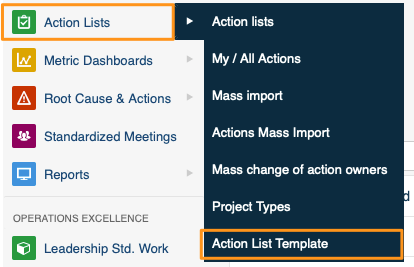
In the Action Lists module, select Action List Template from the submenu.
Create or edit a template
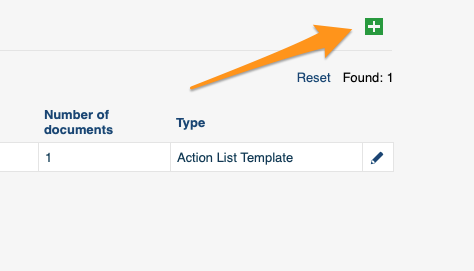
Click the green plus button in the upper right corner to create a template, or the edit pencil to edit an existing one.
Add tasks and subtasks
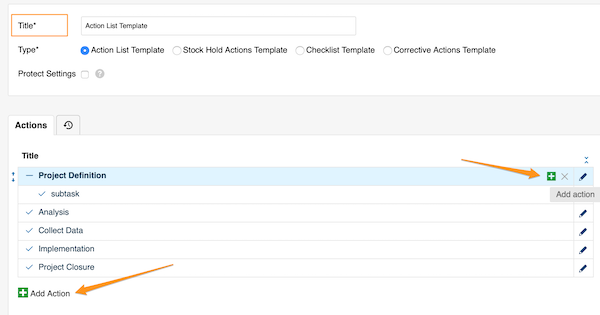
Define the template details and its actions. Add main tasks with the green plus button at the bottom, or add subtasks with the green plus button on the right side of each task (or subtask).
Fill in the action details
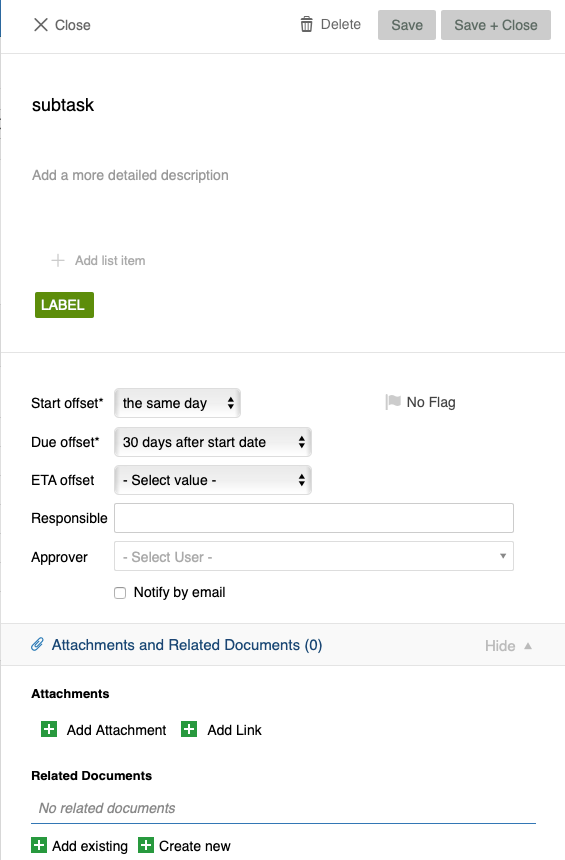
Add all the details you need: title, details, labels, flags, offset dates, responsible person and approvers, attachments, related documents and more.
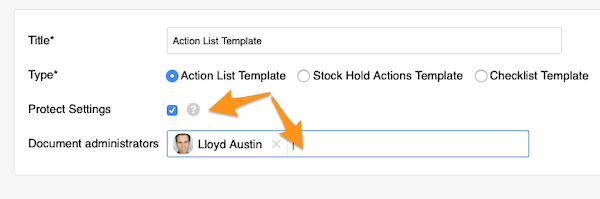
Protect the template settings
You can also protect the template settings and choose administrators, who will then be the only ones allowed to make changes to the template.
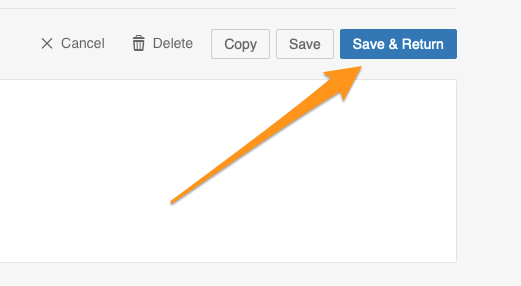
Save the template
Save your template.
Use an action list template
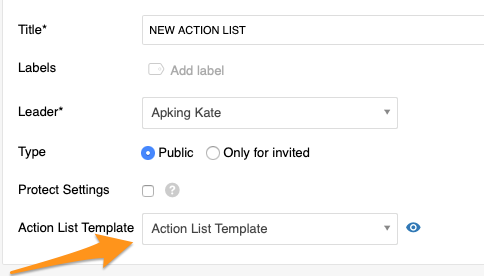
Apply a template to a new action list
When you create a new action list, select your template from the submenu. This option is available only while you are creating a new document, and you need to complete it before you save any changes.
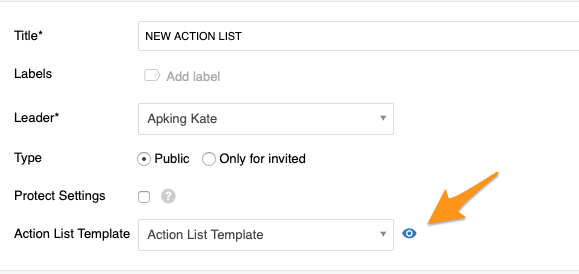
Preview the actions
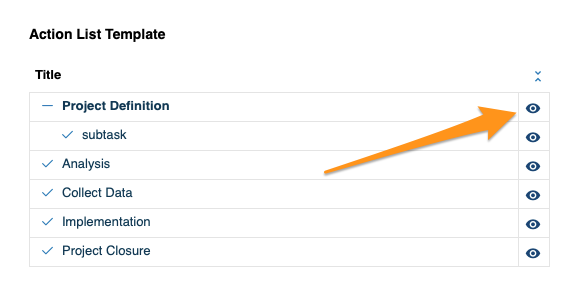
Click the eye icon to preview all the actions and their details before the import.
Import into an existing action list
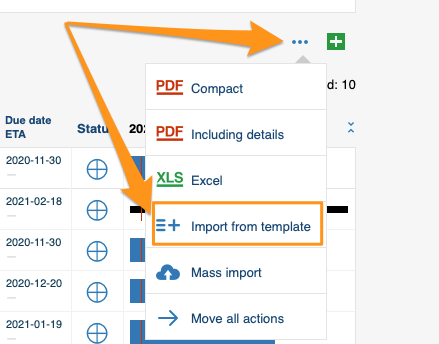
To add a template to an existing action list through the mass options menu, click the three blue dots icon on the right above your actions and select Import From Template.
Choose the template and position
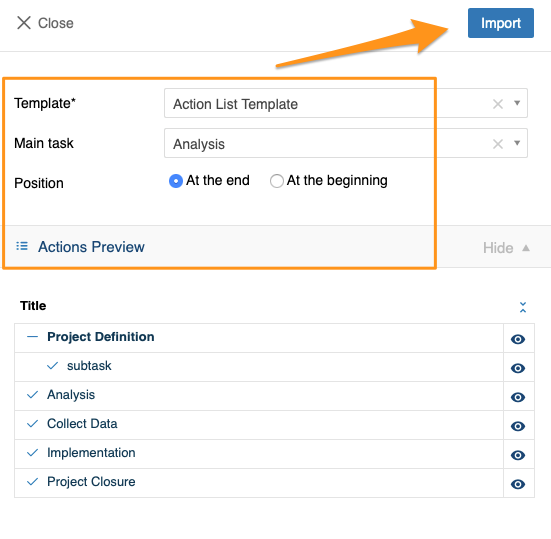
Choose the template, the main task and the position, and preview the actions and their details. Click Import once you have made your selection.
Import from a task or subtask
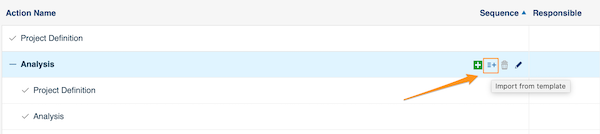
You can also click the Import From Template icon next to any task or subtask and follow the same steps. The only difference: the main task is already predefined, because you start from that specific task.
Create a checklist template
Open the checklist template list
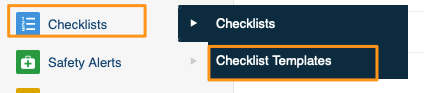
In the Checklists module, select Checklist Templates from the submenu. Then follow the same steps as for the action list template above.
Use the template in a new checklist
When you create a new checklist, select your template from the submenu.
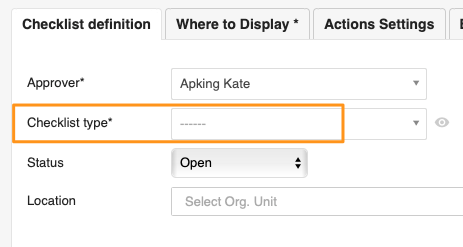
Please note that old templates have been automatically updated to this new setup.
Create a corrective actions template
Open the corrective actions template list
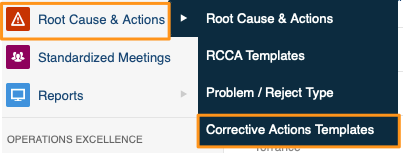
You can use corrective actions templates in the Root Cause & Actions, 8D Reports, Quality Alerts, Safety Alerts and Problem Escalation modules. In the module, select Corrective Actions Template from the submenu. Then follow the same steps as for the action list template above.
Import the template into a document
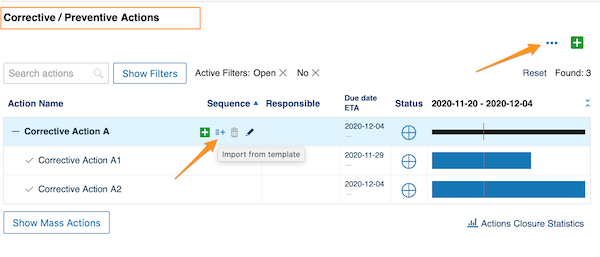
When you are ready to import the template, scroll down to the Corrective / Preventive Actions section and add it there, either with the three blue dots option or with the icon next to the tasks.
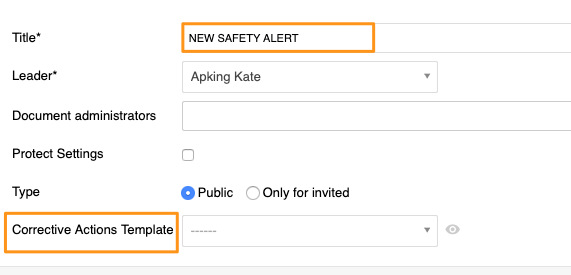
Add the template to a new safety alert
Please note that only in Safety Alerts can you add a corrective actions template directly while creating a new document.
Gestione sus proyectos con fluidez gracias a plantillas predefinidas para planes de acción, checklists y acciones correctivas:
- Plantilla de plan de acción: Planes de acción, Reuniones estandarizadas, Trabajo estándar del líder y otros módulos que usan acciones.
- Plantilla de checklist: el módulo Checklists.
- Plantilla de acciones correctivas: los módulos Causa raíz y acciones correctivas, Informes 8D, Alertas de calidad, Alertas de seguridad y salud y Escalación de problemas.
Video tutorial (las instrucciones por escrito están más abajo):
Crear una plantilla de plan de acción
Abrir la lista de plantillas
En el módulo Planes de acción, seleccione Plantilla de plan de acción en el submenú.
Crear o editar una plantilla
Haga clic en el botón verde de suma, en la esquina superior derecha, para crear una plantilla, o en el lápiz de edición para editar una existente.
Agregar tareas y subtareas
Defina los detalles de la plantilla y sus acciones. Agregue tareas principales con el botón verde de suma de la parte inferior, o subtareas con el botón verde de suma a la derecha de cada tarea (o subtarea).
Completar los detalles de las acciones
Agregue todos los detalles que necesite: título, detalles, etiquetas, indicadores, fechas relativas, responsable y aprobadores, archivos adjuntos, documentos relacionados y más.
Proteger la configuración de la plantilla
También puede proteger la configuración de la plantilla y elegir administradores, que serán los únicos que podrán modificarla.
Guardar la plantilla
Guarde la plantilla.
Usar una plantilla de plan de acción
Aplicar una plantilla a un nuevo plan de acción
Al crear un plan de acción, seleccione su plantilla en el submenú. Esta opción solo está disponible mientras crea un documento nuevo, y debe completarla antes de guardar cualquier cambio.
Ver una vista previa de las acciones
Haga clic en el icono del ojo para ver todas las acciones y sus detalles antes de importarlas.
Importar en un plan de acción existente
Para agregar una plantilla a un plan de acción existente desde el menú de opciones masivas, haga clic en el icono de los tres puntos azules, a la derecha sobre sus acciones, y seleccione Importar desde plantilla.
Elegir la plantilla y la posición
Elija la plantilla, la tarea principal y la posición, y revise la vista previa de las acciones y sus detalles. Cuando termine, haga clic en Importar.
Importar desde una tarea o subtarea
También puede hacer clic en el icono Importar desde plantilla junto a cualquier tarea o subtarea y seguir los mismos pasos. La única diferencia: la tarea principal ya viene definida, porque parte de esa tarea concreta.
Crear una plantilla de checklist
Abrir la lista de plantillas de checklist
En el módulo Checklists, seleccione Plantillas de checklist en el submenú. Después siga los mismos pasos que para la plantilla de plan de acción descrita arriba.
Usar la plantilla en un nuevo checklist
Al crear un checklist, seleccione su plantilla en el submenú.
Tenga en cuenta que las plantillas antiguas se han adaptado automáticamente a esta nueva configuración.
Crear una plantilla de acciones correctivas
Abrir la lista de plantillas de acciones correctivas
Puede usar plantillas de acciones correctivas en los módulos Causa raíz y acciones correctivas, Informes 8D, Alertas de calidad, Alertas de seguridad y salud y Escalación de problemas. En el módulo, seleccione Plantilla de acciones correctivas en el submenú. Después siga los mismos pasos que para la plantilla de plan de acción descrita arriba.
Importar la plantilla en un documento
Cuando quiera importar la plantilla, desplácese hasta la sección Acciones correctivas / preventivas y agréguela ahí, con la opción de los tres puntos azules o con el icono junto a las tareas.
Agregar la plantilla a una nueva alerta de seguridad
Tenga en cuenta que solo en Alertas de seguridad y salud puede agregar una plantilla de acciones correctivas directamente al crear un documento nuevo.
¿Necesita más ayuda?
Escríbanos. En días laborables solemos responder en menos de una hora.