Šablóny akčných zoznamov, checklistov a nápravných opatrení
Strojový preklad z angličtiny. Zobrazený je anglický originál.
Manage your projects smoothly with predefined templates for action lists, checklists and corrective actions:
- Action list template: Action Lists, Standardized Meetings, LSW and other modules that use actions.
- Checklist template: the Checklists module.
- Corrective actions template: the Root Cause & Actions, 8D Reports, Quality Alerts, Safety Alerts and Problem Escalation modules.
Video guide (text instructions are included below):
Create an action list template
Open the template list
In the Action Lists module, select Action List Template from the submenu.
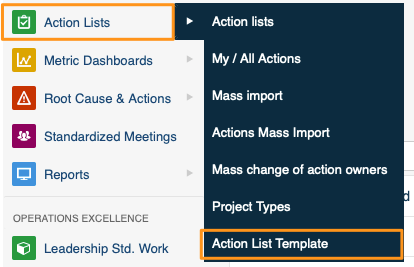
Create or edit a template
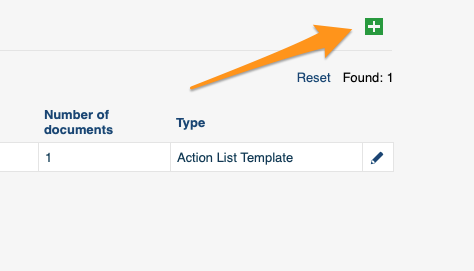
Click the green plus button in the upper right corner to create a template, or the edit pencil to edit an existing one.
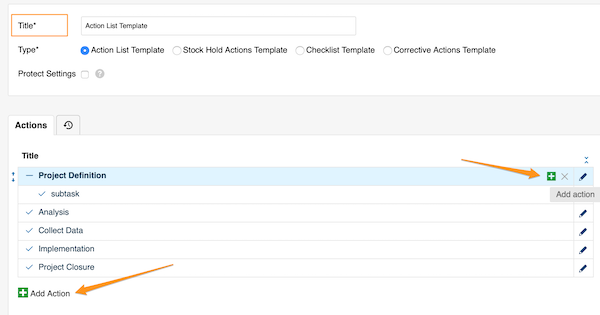
Add tasks and subtasks
Define the template details and its actions. Add main tasks with the green plus button at the bottom, or add subtasks with the green plus button on the right side of each task (or subtask).
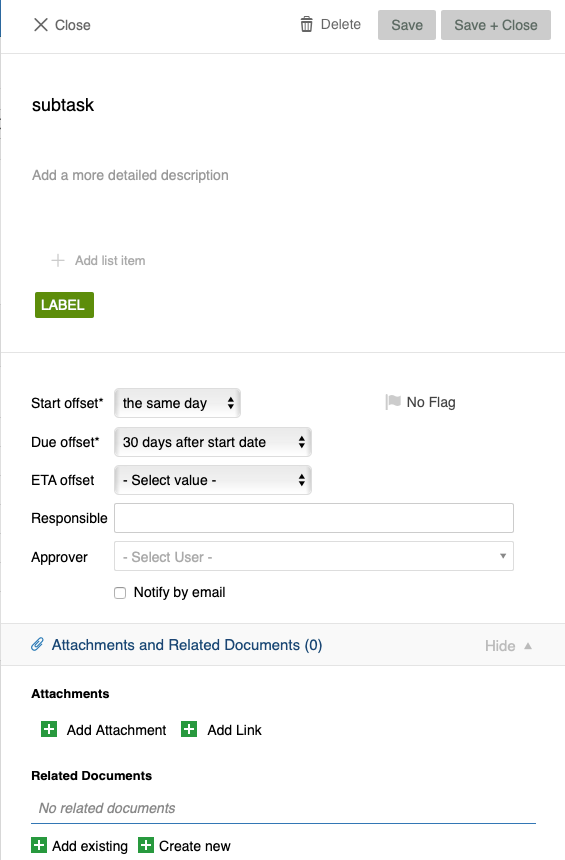
Fill in the action details
Add all the details you need: title, details, labels, flags, offset dates, responsible person and approvers, attachments, related documents and more.
Protect the template settings
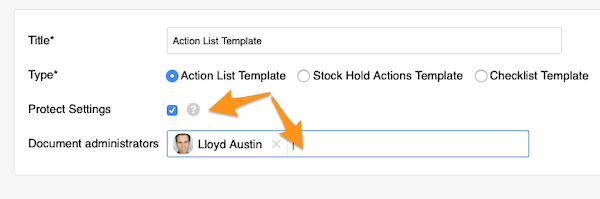
You can also protect the template settings and choose administrators, who will then be the only ones allowed to make changes to the template.
Save the template
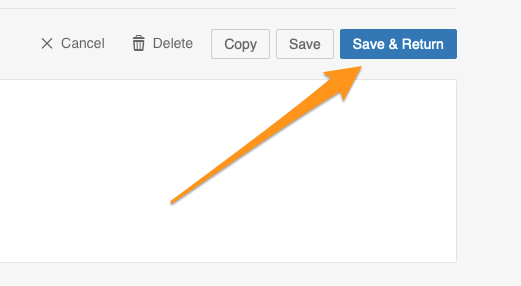
Save your template.
Use an action list template
Apply a template to a new action list
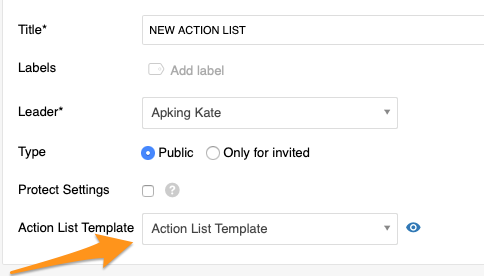
When you create a new action list, select your template from the submenu. This option is available only while you are creating a new document, and you need to complete it before you save any changes.
Preview the actions
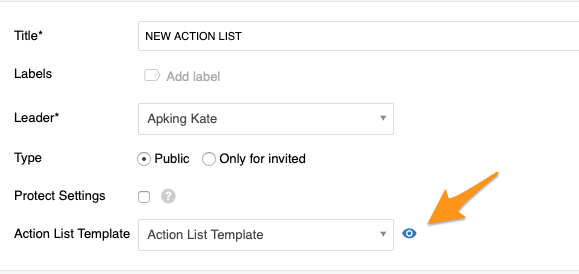
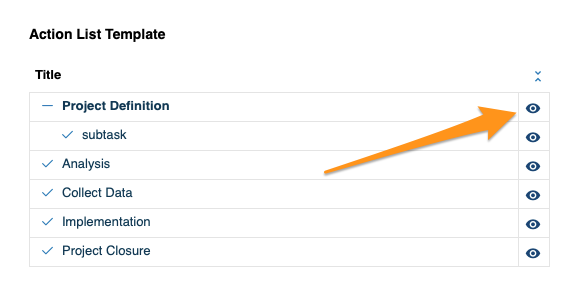
Click the eye icon to preview all the actions and their details before the import.
Import into an existing action list
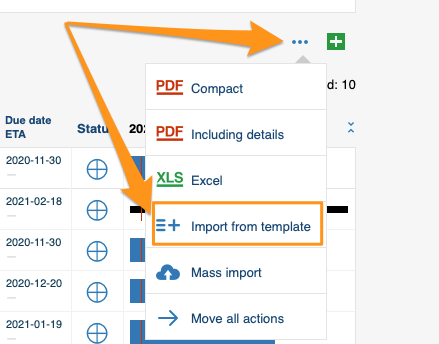
To add a template to an existing action list through the mass options menu, click the three blue dots icon on the right above your actions and select Import From Template.
Choose the template and position
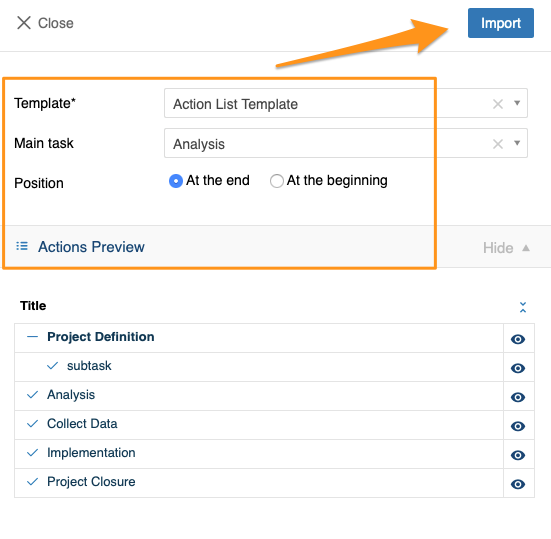
Choose the template, the main task and the position, and preview the actions and their details. Click Import once you have made your selection.
Import from a task or subtask
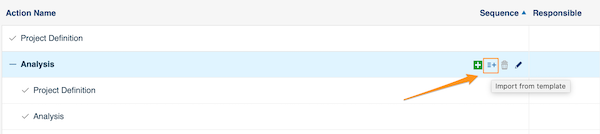
You can also click the Import From Template icon next to any task or subtask and follow the same steps. The only difference: the main task is already predefined, because you start from that specific task.
Create a checklist template
Open the checklist template list
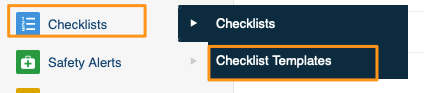
In the Checklists module, select Checklist Templates from the submenu. Then follow the same steps as for the action list template above.
Use the template in a new checklist
When you create a new checklist, select your template from the submenu.
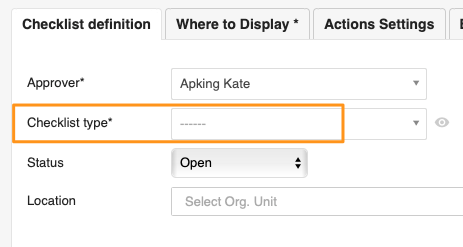
Please note that old templates have been automatically updated to this new setup.
Create a corrective actions template
Open the corrective actions template list
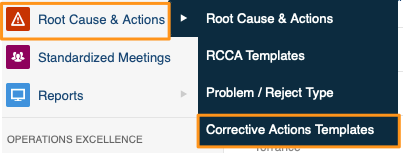
You can use corrective actions templates in the Root Cause & Actions, 8D Reports, Quality Alerts, Safety Alerts and Problem Escalation modules. In the module, select Corrective Actions Template from the submenu. Then follow the same steps as for the action list template above.
Import the template into a document
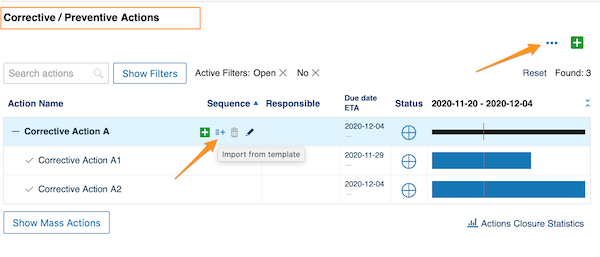
When you are ready to import the template, scroll down to the Corrective / Preventive Actions section and add it there, either with the three blue dots option or with the icon next to the tasks.
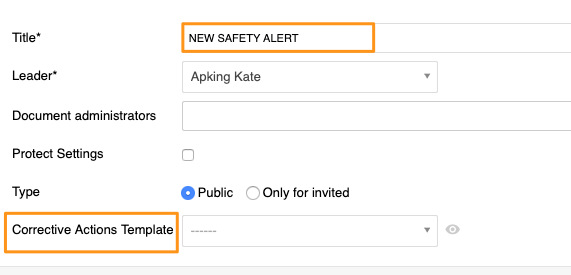
Add the template to a new safety alert
Please note that only in Safety Alerts can you add a corrective actions template directly while creating a new document.
S pripravenými šablónami akčných zoznamov, checklistov a nápravných opatrení budete projekty riadiť bez námahy:
- Šablóna akčného zoznamu: Akčné zoznamy, Štandardizované porady, Štandard práce vedúcich a ďalšie moduly, ktoré pracujú s akciami.
- Šablóna checklistu: modul Checklisty.
- Šablóna nápravných opatrení: moduly Analýza príčin a nápravné opatrenia, 8D reporty, Alerty kvality, Alerty BOZP a Eskalácia problémov.
Video návod (textový návod nájdete nižšie):
Vytvorenie šablóny akčného zoznamu
Otvorte zoznam šablón
V module Akčné zoznamy vyberte v podmenu Šablóna akčného zoznamu.
Vytvorte alebo upravte šablónu
Novú šablónu vytvoríte zeleným tlačidlom plus v pravom hornom rohu, existujúcu upravíte ceruzkou.
Pridajte úlohy a podúlohy
Vyplňte podrobnosti šablóny a jej akcie. Hlavné úlohy pridáte zeleným tlačidlom plus dole, podúlohy zeleným tlačidlom plus vpravo pri každej úlohe (alebo podúlohe).
Vyplňte podrobnosti akcií
Doplňte všetko, čo potrebujete: názov, podrobnosti, štítky, vlajky, posun termínov, zodpovednú osobu a schvaľovateľov, prílohy, súvisiace dokumenty a ďalšie.
Chráňte nastavenia šablóny
Nastavenia šablóny môžete aj zamknúť a určiť správcov. Šablónu potom budú môcť meniť len oni.
Uložte šablónu
Šablónu uložte.
Použitie šablóny akčného zoznamu
Použite šablónu v novom akčnom zozname
Pri vytváraní nového akčného zoznamu vyberte šablónu v podmenu. Táto možnosť je dostupná len počas vytvárania nového dokumentu a musíte ju zvoliť ešte pred prvým uložením zmien.
Pozrite si náhľad akcií
Kliknutím na ikonu oka si pred importom prezriete všetky akcie a ich podrobnosti.
Importujte šablónu do existujúceho akčného zoznamu
Ak chcete šablónu pridať do existujúceho akčného zoznamu cez menu hromadných možností, kliknite na ikonu troch modrých bodiek vpravo nad akciami a vyberte Importovať zo šablóny.
Vyberte šablónu a pozíciu
Zvoľte šablónu, hlavnú úlohu a pozíciu a pozrite si náhľad akcií a ich podrobností. Po výbere kliknite na Importovať.
Import z úlohy alebo podúlohy
Môžete tiež kliknúť na ikonu Importovať zo šablóny pri ktorejkoľvek úlohe alebo podúlohe a postupovať rovnako. Jediný rozdiel: hlavná úloha je už vopred určená, pretože začínate z konkrétnej úlohy.
Vytvorenie šablóny checklistu
Otvorte zoznam šablón checklistov
V module Checklisty vyberte v podmenu Šablóny checklistov. Ďalej postupujte rovnako ako pri šablóne akčného zoznamu vyššie.
Použite šablónu v novom checkliste
Pri vytváraní nového checklistu vyberte šablónu v podmenu.
Staré šablóny sa automaticky previedli na toto nové nastavenie.
Vytvorenie šablóny nápravných opatrení
Otvorte zoznam šablón nápravných opatrení
Šablóny nápravných opatrení môžete používať v moduloch Analýza príčin a nápravné opatrenia, 8D reporty, Alerty kvality, Alerty BOZP a Eskalácia problémov. V module vyberte v podmenu Šablóna nápravných opatrení. Ďalej postupujte rovnako ako pri šablóne akčného zoznamu vyššie.
Importujte šablónu do dokumentu
Keď ste pripravení šablónu importovať, posuňte sa nadol do časti Nápravné / preventívne opatrenia a pridajte ju tam, buď cez tri modré bodky, alebo ikonou pri úlohách.
Pridajte šablónu do nového alertu BOZP
Len v module Alerty BOZP môžete šablónu nápravných opatrení pridať priamo pri vytváraní nového dokumentu.
Potrebujete ďalšiu pomoc?
Napíšte nám. V pracovné dni zvyčajne odpovedáme do hodiny.