How to set up Project stages
Predefine lists of project stages to suit your needs and assign them to your action lists.
Learn more about how to create an automatic project dashboard based on the project stage.
Create a list of project stages
Open the project stages
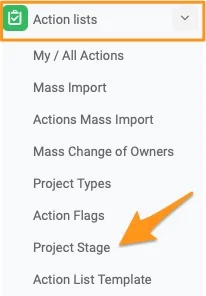
Go to the Action Lists module and select Project Stages from the submenu. Please note that only users with sufficient rights can add a project stage.
Create or edit a list
To create a new list, click the green plus button. To modify an existing list, click the edit pencil.

Add the stages
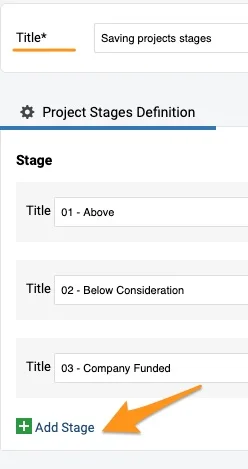
Define the title of the list and add specific stages with the green plus button.
Set up your action list with a project stage
Edit the action list settings
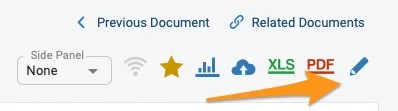
Open your action list settings with the edit pencil.
Choose the list of project stages
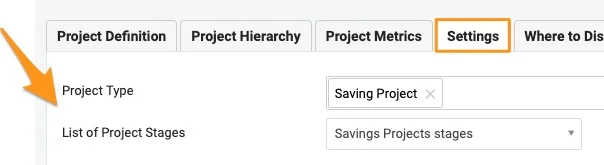
Scroll down to the Settings tab and choose a List of Project Stages from the submenu. You can select from the existing options.
Select the project stage
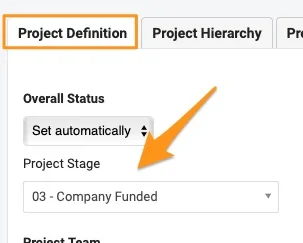
To set the project stage, go to the Project Definition tab and select it from the submenu. It offers the options set up in the List of Project Stages. If the project stage submenu is not displayed, follow the step below.
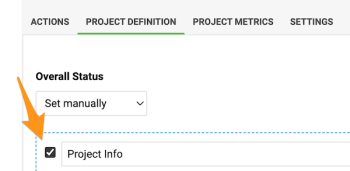
Enable Project Info in the template
Please note: If an action list template is used, the template’s Project Info field needs to be enabled for the Project Stage submenu to appear.
See the stage in the header
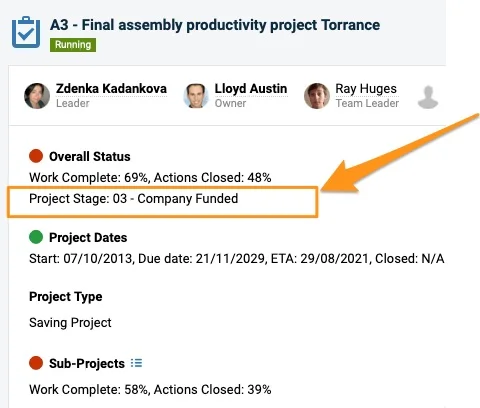
The project stage is displayed in the action list header.
Please note: If you need to create a new project type or list of project stages, or add a project stage to a list, please contact your system administrator or support@teamguru.com.
Still need help?
Write to us. We usually reply within an hour on business days.