Jak ustawić etapy projektu
Tłumaczenie maszynowe z angielskiego. Wyświetlany jest oryginał po angielsku.
Predefine lists of project stages to suit your needs and assign them to your action lists.
Learn more about how to create an automatic project dashboard based on the project stage.
Create a list of project stages
Open the project stages
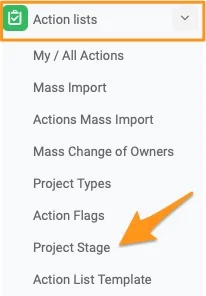
Go to the Action Lists module and select Project Stages from the submenu. Please note that only users with sufficient rights can add a project stage.
Create or edit a list
To create a new list, click the green plus button. To modify an existing list, click the edit pencil.

Add the stages
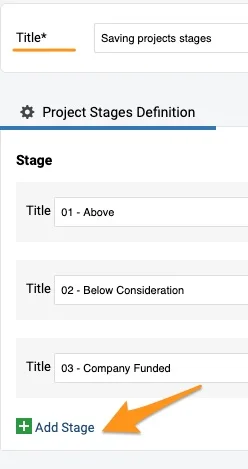
Define the title of the list and add specific stages with the green plus button.
Set up your action list with a project stage
Edit the action list settings
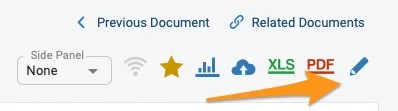
Open your action list settings with the edit pencil.
Choose the list of project stages
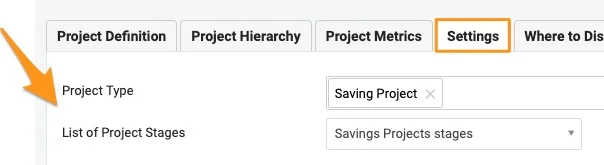
Scroll down to the Settings tab and choose a List of Project Stages from the submenu. You can select from the existing options.
Select the project stage
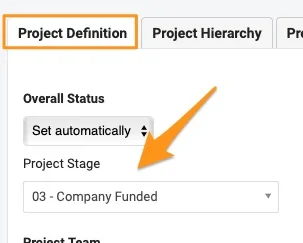
To set the project stage, go to the Project Definition tab and select it from the submenu. It offers the options set up in the List of Project Stages. If the project stage submenu is not displayed, follow the step below.
Enable Project Info in the template
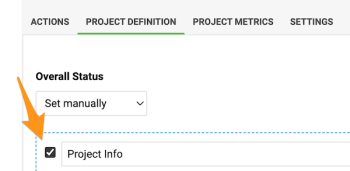
Please note: If an action list template is used, the template’s Project Info field needs to be enabled for the Project Stage submenu to appear.
See the stage in the header
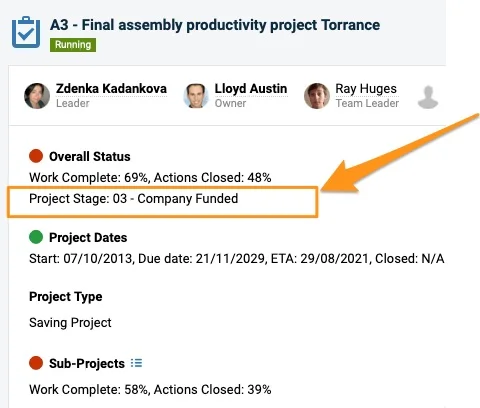
The project stage is displayed in the action list header.
Please note: If you need to create a new project type or list of project stages, or add a project stage to a list, please contact your system administrator or support@teamguru.com.
Przygotuj własne listy etapów projektu i przypisz je do list działań.
Dowiedz się, jak utworzyć automatyczny dashboard projektów na podstawie etapu projektu.
Utwórz listę etapów projektu
Otwórz etapy projektu
Przejdź do modułu Listy działań i wybierz z podmenu Etapy projektu. Etap projektu mogą dodać tylko użytkownicy z odpowiednimi uprawnieniami.
Utwórz lub edytuj listę
Aby utworzyć nową listę, kliknij zielony przycisk z plusem. Aby zmienić istniejącą listę, kliknij ołówek edycji.
Dodaj etapy
Wpisz nazwę listy i dodaj kolejne etapy zielonym przyciskiem z plusem.
Przypisz etap projektu do listy działań
Edytuj ustawienia listy działań
Otwórz ustawienia listy działań ołówkiem edycji.
Wybierz listę etapów projektu
Przewiń w dół do karty Ustawienia i wybierz z podmenu Listę etapów projektu. Możesz wybrać jedną z istniejących opcji.
Wybierz etap projektu
Aby ustawić etap projektu, przejdź na kartę Definicja projektu i wybierz etap z podmenu. Podmenu zawiera opcje ustawione w Liście etapów projektu. Jeśli podmenu etapu projektu się nie wyświetla, wykonaj krok poniżej.
Włącz informacje o projekcie w szablonie
Uwaga: jeśli używasz szablonu listy działań, w szablonie musi być włączone pole Informacje o projekcie, żeby pojawiło się podmenu Etap projektu.
Zobacz etap w nagłówku
Etap projektu wyświetla się w nagłówku listy działań.
Uwaga: jeśli potrzebujesz nowego typu projektu lub nowej listy etapów projektu albo chcesz dodać etap do listy, skontaktuj się z administratorem systemu lub napisz na support@teamguru.com.
Potrzebujesz dalszej pomocy?
Napisz do nas. W dni robocze zwykle odpowiadamy w ciągu godziny.