How to share one action in multiple documents. Related Actions.
Sometimes you need to show one action in two different documents.
Share an action
-
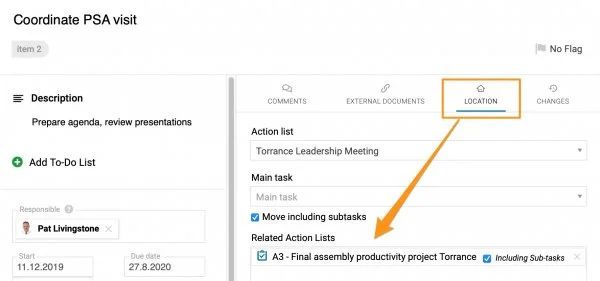
Select the related document. When creating a new action, go to the Action Location section and select Related Action Lists, as shown below. The related document can be an action list, a standardized meeting or any other document where you can assign an action.
-
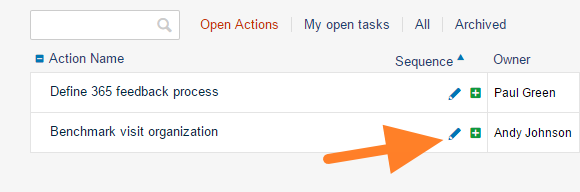
Share an existing action. To share an existing action, click the action’s edit icon and continue as described in step 1.
-
Save the action. Click Save + Close.
-
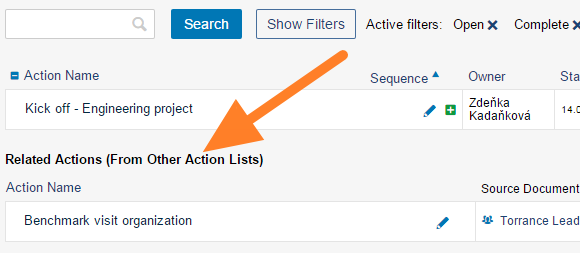
Find it in the related document. The action is shown in the Related Actions section of the related document.
-
Update it in either document. You can update the action either in the source document or in the related document. Both documents are updated.
Share a main task with its subtasks
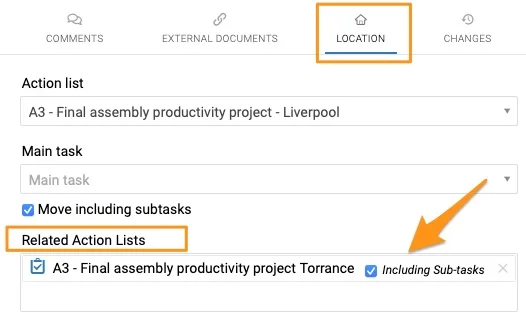
Please note that when you share a main task, you can also include all its subtasks. In that case, you only set up the related document in the main task; you don’t need to set up each subtask individually. When you create a new sub-action, it automatically appears in the related action list.
Still need help?
Write to us. We usually reply within an hour on business days.