Partager une action dans plusieurs documents (actions liées)
Traduction automatique de l'anglais. Original en anglais affiché.
Sometimes you need to show one action in two different documents.
Share an action
-
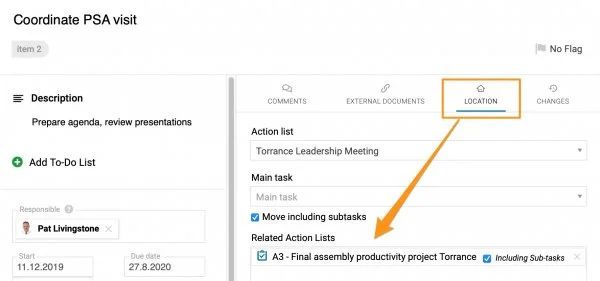
Select the related document. When creating a new action, go to the Action Location section and select Related Action Lists, as shown below. The related document can be an action list, a standardized meeting or any other document where you can assign an action.
-
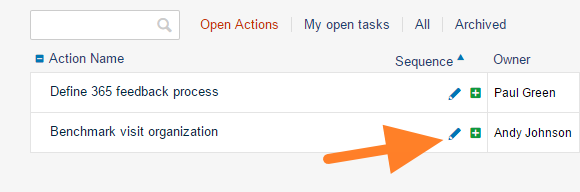
Share an existing action. To share an existing action, click the action’s edit icon and continue as described in step 1.
-
Save the action. Click Save + Close.
-
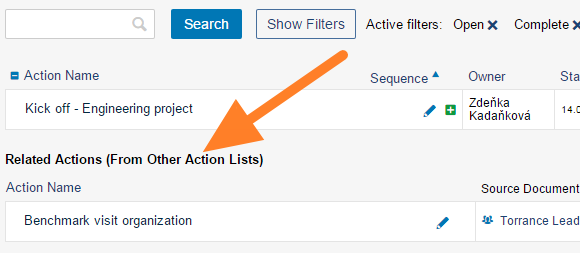
Find it in the related document. The action is shown in the Related Actions section of the related document.
-
Update it in either document. You can update the action either in the source document or in the related document. Both documents are updated.
Share a main task with its subtasks
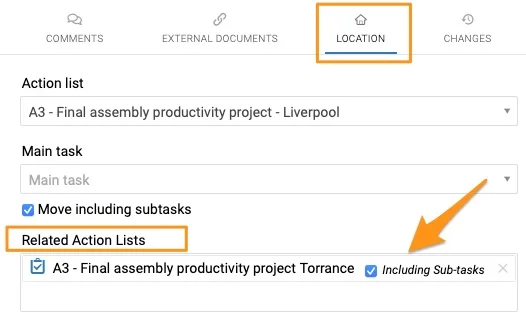
Please note that when you share a main task, you can also include all its subtasks. In that case, you only set up the related document in the main task; you don’t need to set up each subtask individually. When you create a new sub-action, it automatically appears in the related action list.
Il arrive qu’une même action doive figurer dans deux documents différents.
Partager une action
-
Choisissez le document lié. Lors de la création d’une action, allez dans la section Emplacement de l’action et sélectionnez Plans d’action liés, comme ci-dessous. Le document lié peut être un plan d’action, une réunion standardisée ou tout autre document où l’on peut affecter une action.
-
Partagez une action existante. Pour partager une action existante, cliquez sur son icône de modification, puis procédez comme à l’étape 1.
-
Enregistrez l’action. Cliquez sur Enregistrer + Fermer.
-
Retrouvez-la dans le document lié. L’action apparaît dans la section Actions liées du document lié.
-
Mettez-la à jour dans l’un ou l’autre document. Vous pouvez modifier l’action dans le document source ou dans le document lié. Les deux documents sont mis à jour.
Partager une tâche principale avec ses sous-tâches
Remarque : lorsque vous partagez une tâche principale, vous pouvez y inclure toutes ses sous-tâches. Il suffit alors de définir le document lié dans la tâche principale, sans le faire pour chaque sous-tâche. Toute nouvelle sous-action apparaît automatiquement dans le plan d’action lié.
Besoin d'aide supplémentaire ?
Écrivez-nous. Les jours ouvrés, nous répondons en général en moins d'une heure.