How can I get a list of user rights for a particular folder? User Rights Inspector.
To get a quick overview of who has the rights to view or edit a particular folder in your organization structure, use the User Rights Inspector.
-
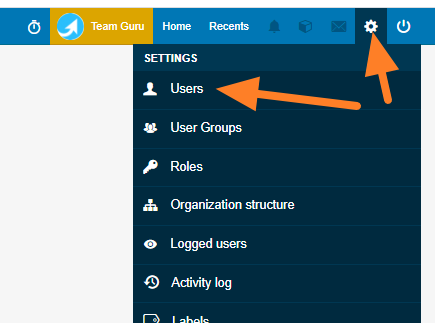
Open the user list. Go to Settings and select Users from the submenu.
-
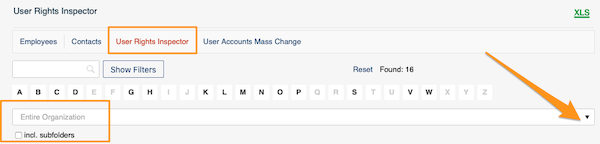
Select the organization unit. Click User Rights Inspector and select an organization unit from the organization structure. Tick incl. subfolders if needed.
-
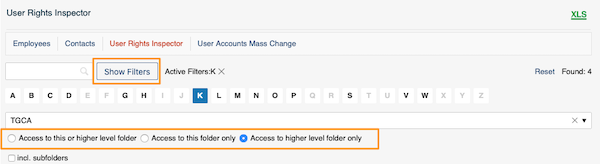
Filter by more options. Click Show Filters to search by other options. You can also specify the level of access to the folder.
-
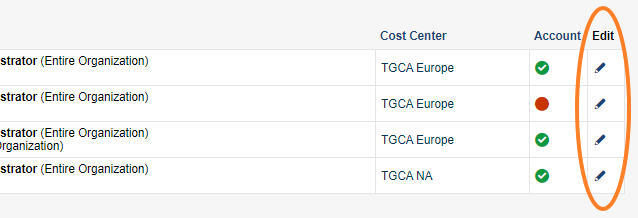
Review the users and their rights. You get a list of users and their rights. Click the edit icon for more information.
-
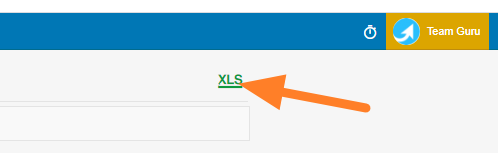
Export the table. The table can be exported to an MS Excel file.

Still need help?
Write to us. We usually reply within an hour on business days.