如何获取某个文件夹的用户权限列表?用户权限检查器
本文由英文机器翻译。 当前显示英文原文。
To get a quick overview of who has the rights to view or edit a particular folder in your organization structure, use the User Rights Inspector.
-
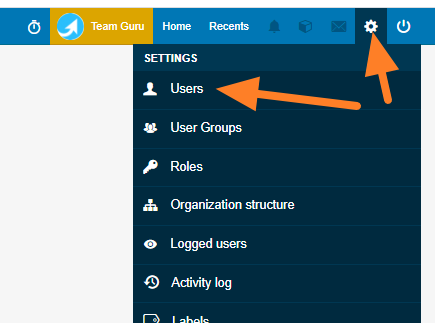
Open the user list. Go to Settings and select Users from the submenu.
-
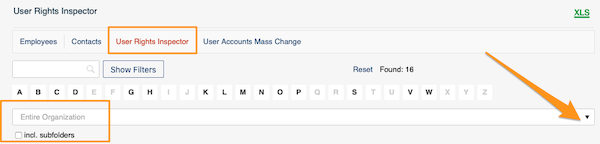
Select the organization unit. Click User Rights Inspector and select an organization unit from the organization structure. Tick incl. subfolders if needed.
-
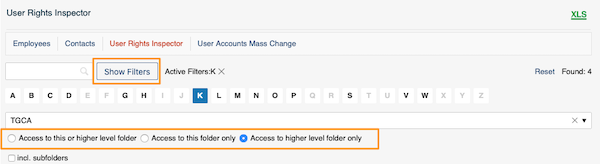
Filter by more options. Click Show Filters to search by other options. You can also specify the level of access to the folder.
-
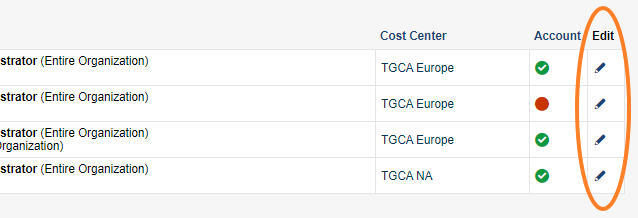
Review the users and their rights. You get a list of users and their rights. Click the edit icon for more information.
-
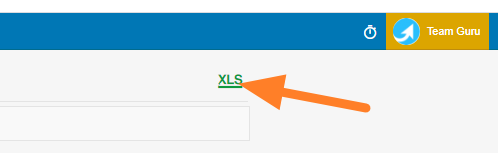
Export the table. The table can be exported to an MS Excel file.

要快速了解谁有权查看或编辑组织结构中的某个文件夹,请使用 用户权限检查器。
-
打开用户列表。 进入 设置,在子菜单中选择 用户。
-
选择组织单元。 点击 用户权限检查器,从组织结构中选择一个组织单元。如有需要,勾选 包含子文件夹。
-
使用更多筛选条件。 点击 显示筛选,按其他条件搜索。您还可以指定对该文件夹的访问级别。
-
查看用户及其权限。 系统会列出用户及其权限。点击编辑图标可查看更多信息。
-
导出表格。 可以将表格导出为MS Excel文件。
还需要帮助吗?
请给我们留言。工作日我们通常会在一小时内回复。