Como obter a lista de permissões de uma pasta? Inspetor de permissões
Tradução automática do inglês. Exibindo o original em inglês.
To get a quick overview of who has the rights to view or edit a particular folder in your organization structure, use the User Rights Inspector.
-
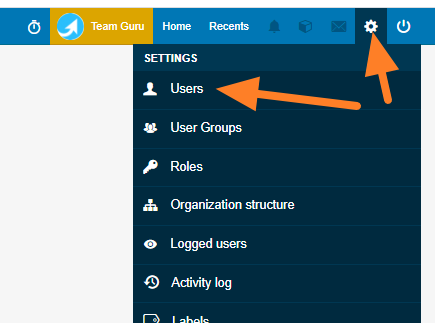
Open the user list. Go to Settings and select Users from the submenu.
-
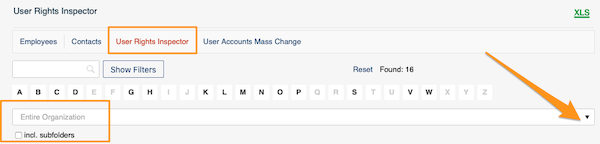
Select the organization unit. Click User Rights Inspector and select an organization unit from the organization structure. Tick incl. subfolders if needed.
-
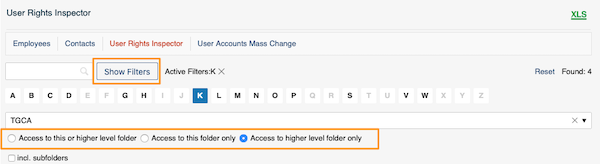
Filter by more options. Click Show Filters to search by other options. You can also specify the level of access to the folder.
-
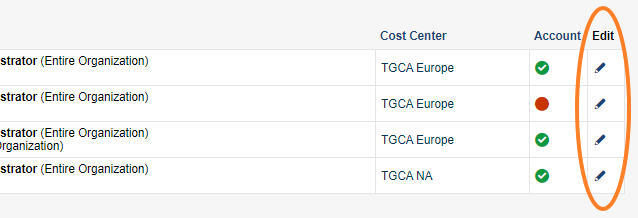
Review the users and their rights. You get a list of users and their rights. Click the edit icon for more information.
-
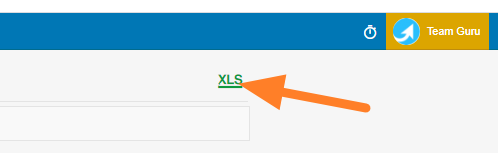
Export the table. The table can be exported to an MS Excel file.

Para ver rapidamente quem tem permissão para ver ou editar uma pasta da estrutura organizacional, use o Inspetor de permissões.
-
Abra a lista de usuários. Acesse Configurações e selecione Usuários no submenu.
-
Selecione a unidade organizacional. Clique em Inspetor de permissões e selecione uma unidade da estrutura organizacional. Se precisar, marque incl. subpastas.
-
Filtre por outras opções. Clique em Mostrar filtros para pesquisar por outras opções. Você também pode definir o nível de acesso à pasta.
-
Revise os usuários e as permissões. Você obtém a lista de usuários e das permissões de cada um. Clique no ícone de edição para ver mais informações.
-
Exporte a tabela. A tabela pode ser exportada para um arquivo do MS Excel.
Precisa de mais ajuda?
Escreva para nós. Em dias úteis, costumamos responder em até uma hora.