Mass management of changes in documents
Make changes to several documents, metric dashboards and metrics at once and take full advantage of the Show Mass Actions functionality.
It is available only in the Action Lists and Documents modules, Metric Dashboards and Metrics, but it will be extended to other modules in the future. To use this functionality, you need a sufficient role.
Show the mass actions
Under the list of your action lists, documents or metrics, click Show Mass Actions.
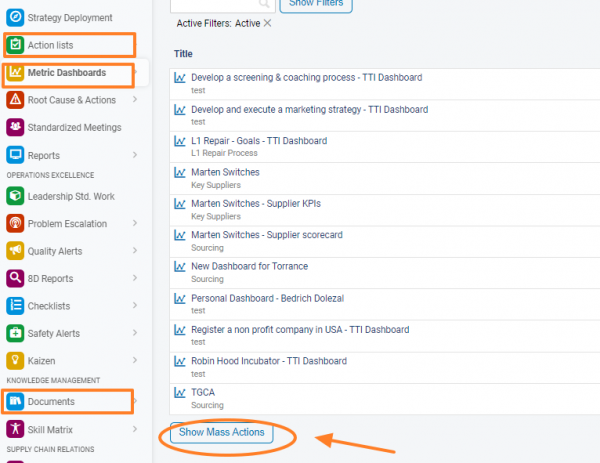
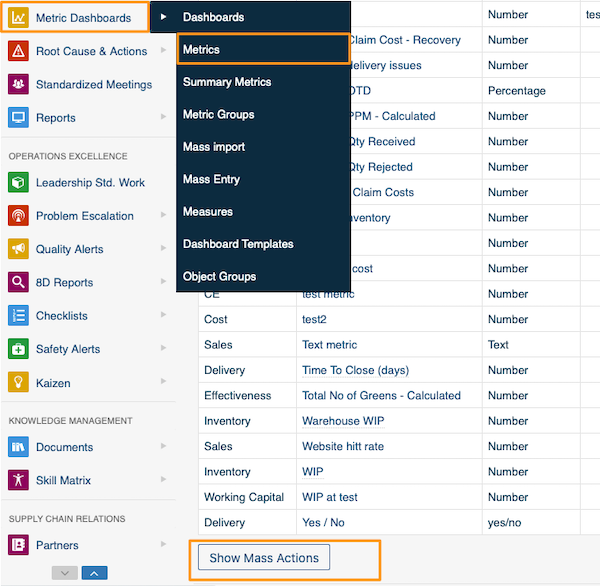
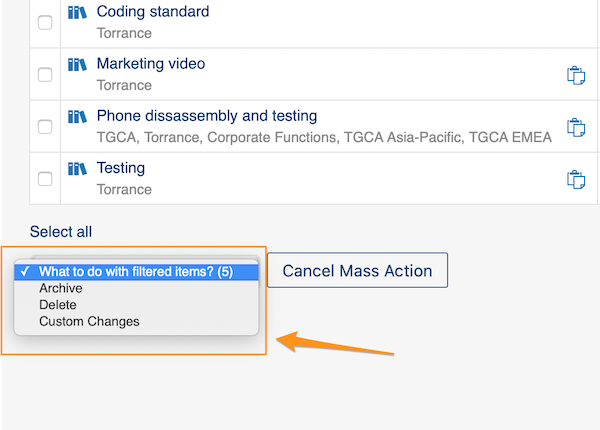
Choose the action and the items
You can choose Archive, Delete or Custom Changes. You can also select the specific documents, metrics or metric dashboards you want to modify.
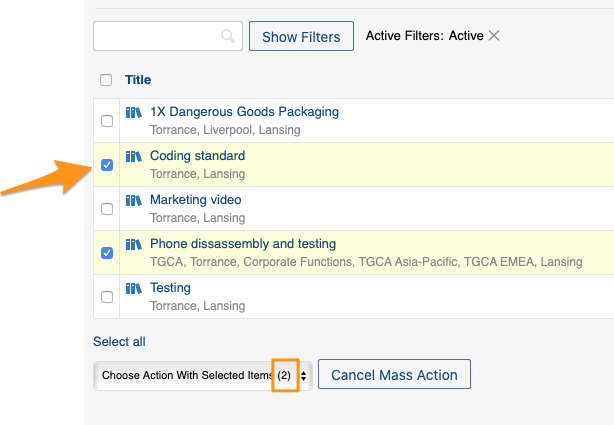
Changes without a selection
If you don’t select a specific document by ticking the box next to it, the system automatically makes the modifications to all documents in that location.
Define custom changes
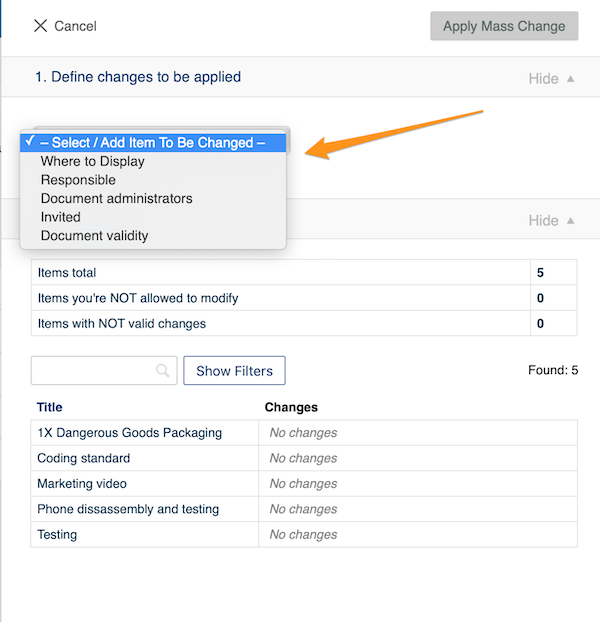
When you choose Custom Changes from the Show Mass Actions submenu, you have to define your changes. The options vary depending on their relevance (metric dashboards have different options than metrics, etc.).
For example, under Documents you can choose from these options:
Apply the mass change
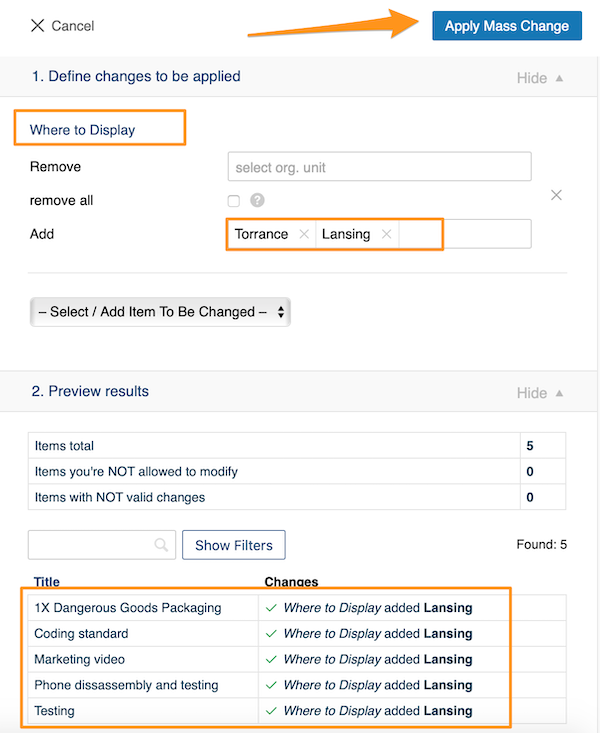
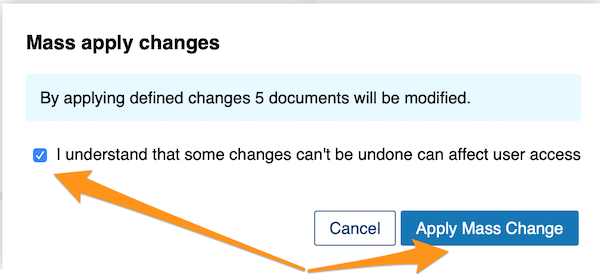
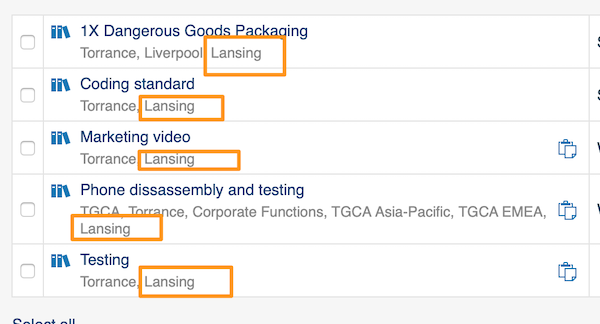
Once you have made your selection, click the Apply Mass Change button and confirm your changes in the notification message. Your modifications are then applied to the selected documents.
Still need help?
Write to us. We usually reply within an hour on business days.