批量修改文档
本文由英文机器翻译。 当前显示英文原文。
Make changes to several documents, metric dashboards and metrics at once and take full advantage of the Show Mass Actions functionality.
It is available only in the Action Lists and Documents modules, Metric Dashboards and Metrics, but it will be extended to other modules in the future. To use this functionality, you need a sufficient role.
Show the mass actions
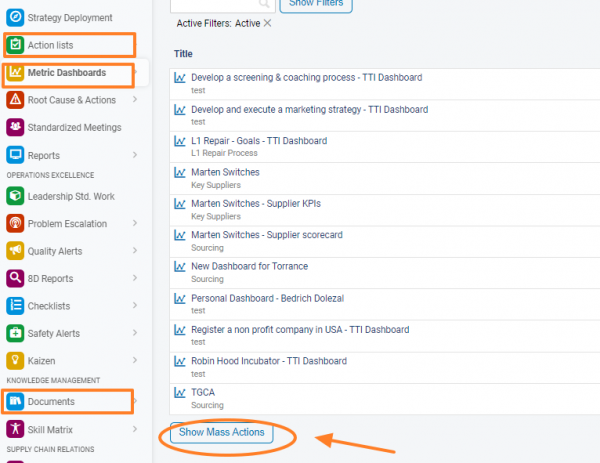
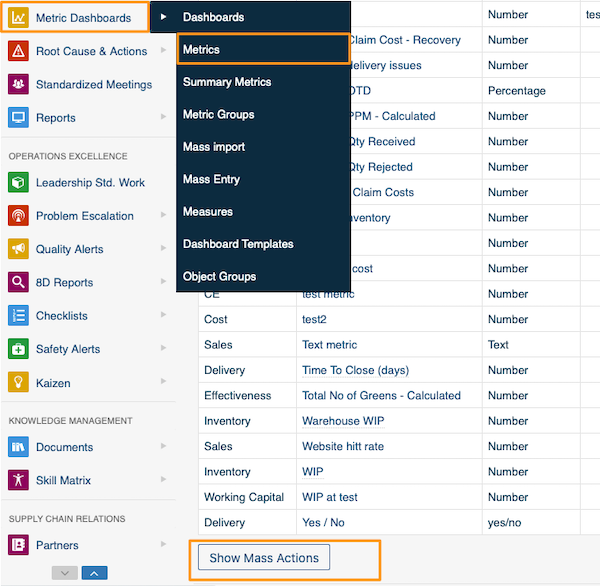
Under the list of your action lists, documents or metrics, click Show Mass Actions.
Choose the action and the items
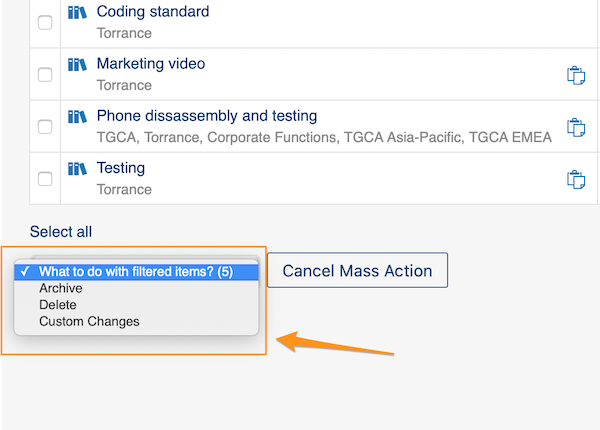
You can choose Archive, Delete or Custom Changes. You can also select the specific documents, metrics or metric dashboards you want to modify.
Changes without a selection
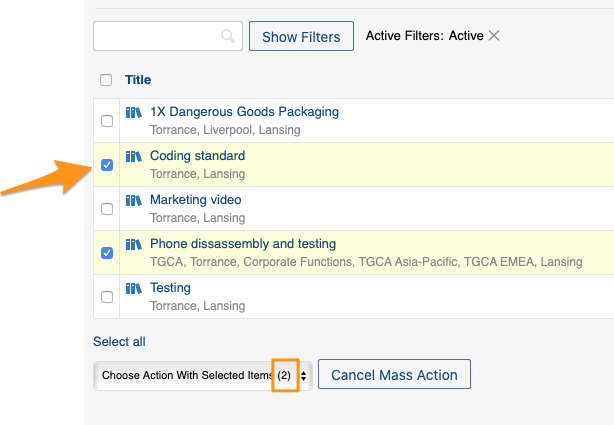
If you don’t select a specific document by ticking the box next to it, the system automatically makes the modifications to all documents in that location.
Define custom changes
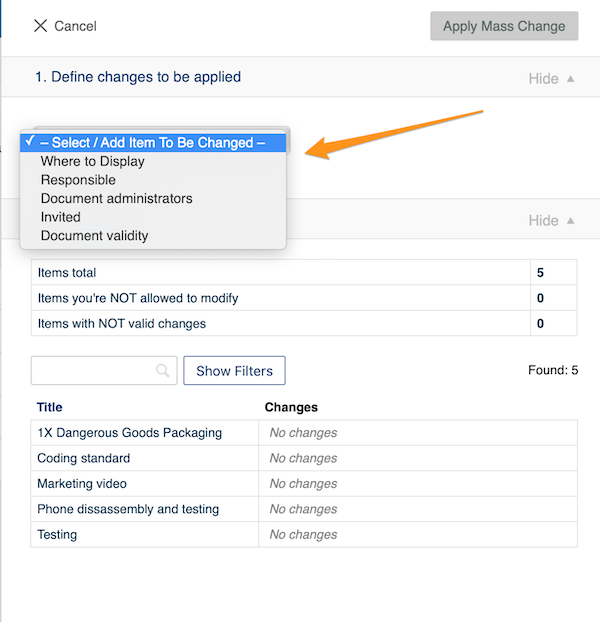
When you choose Custom Changes from the Show Mass Actions submenu, you have to define your changes. The options vary depending on their relevance (metric dashboards have different options than metrics, etc.).
For example, under Documents you can choose from these options:
Apply the mass change
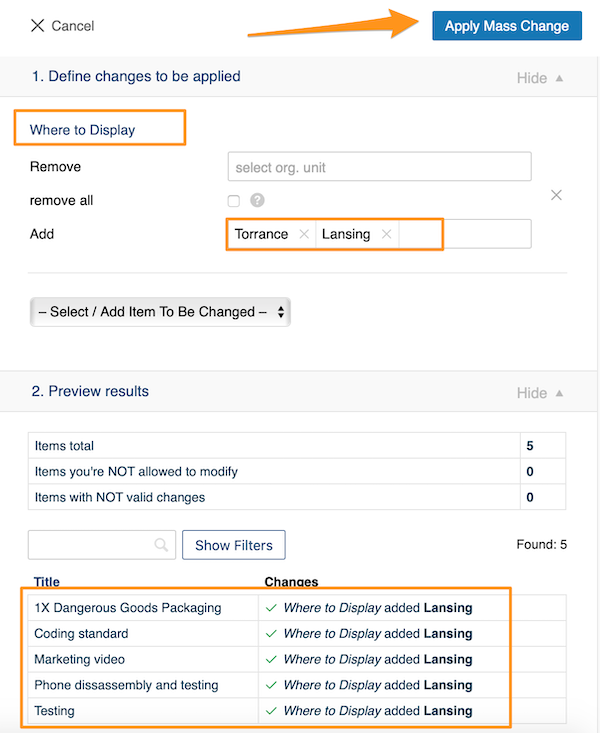
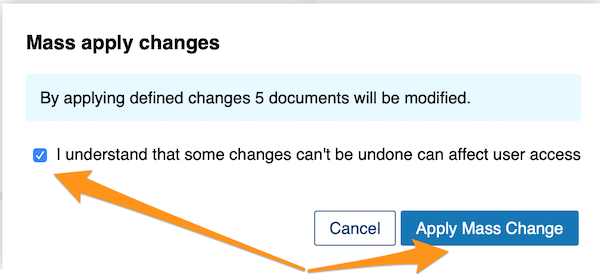
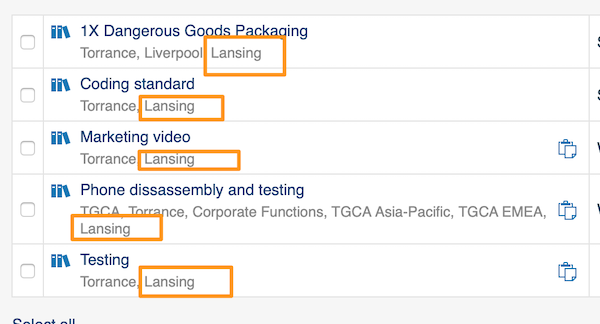
Once you have made your selection, click the Apply Mass Change button and confirm your changes in the notification message. Your modifications are then applied to the selected documents.
使用显示批量操作功能,一次性修改多个文档、指标仪表板和指标。
此功能目前仅适用于行动清单和文档模块、指标仪表板和指标,今后将扩展到其他模块。使用此功能需要具备相应的角色。
显示批量操作
在行动清单、文档或指标列表下方,点击显示批量操作。
选择操作和项目
您可以选择归档、删除或自定义更改,也可以选择要修改的具体文档、指标或指标仪表板。
不选择项目时的更改
如果您没有勾选文档旁的复选框来选择具体文档,系统会自动修改该位置下的所有文档。
定义自定义更改
在显示批量操作子菜单中选择自定义更改后,您需要定义具体的更改。可用选项因对象而异(例如,指标仪表板与指标的选项不同)。
例如,在文档中,您可以从以下选项中选择:
应用批量更改
选择完成后,点击应用批量更改按钮,并在通知消息中确认更改。这些修改随即应用到所选文档。
还需要帮助吗?
请给我们留言。工作日我们通常会在一小时内回复。