Hromadné změny v dokumentech
Strojový překlad z angličtiny. Zobrazen anglický originál.
Make changes to several documents, metric dashboards and metrics at once and take full advantage of the Show Mass Actions functionality.
It is available only in the Action Lists and Documents modules, Metric Dashboards and Metrics, but it will be extended to other modules in the future. To use this functionality, you need a sufficient role.
Show the mass actions
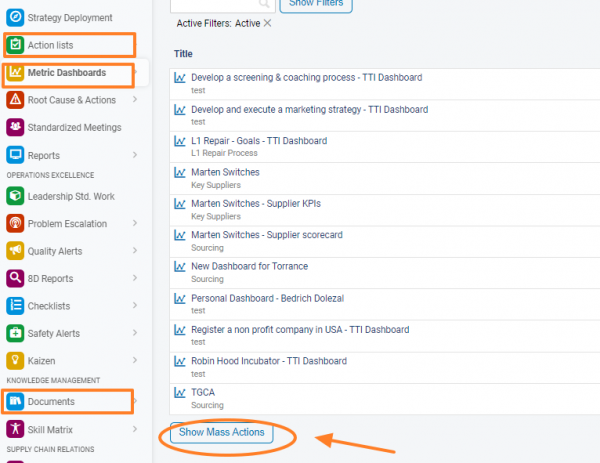
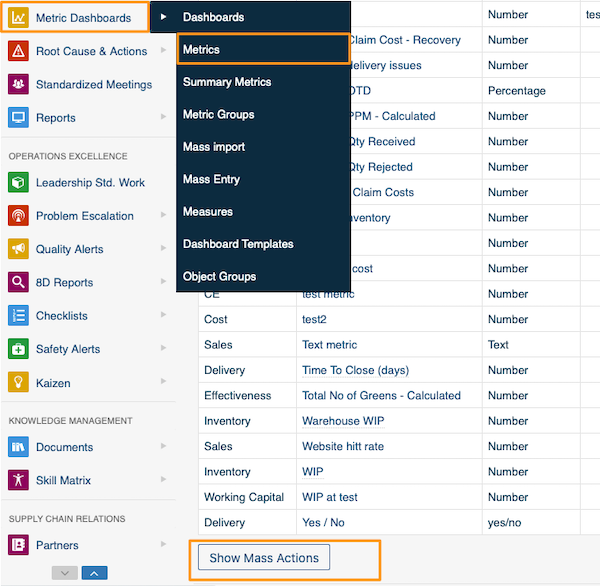
Under the list of your action lists, documents or metrics, click Show Mass Actions.
Choose the action and the items
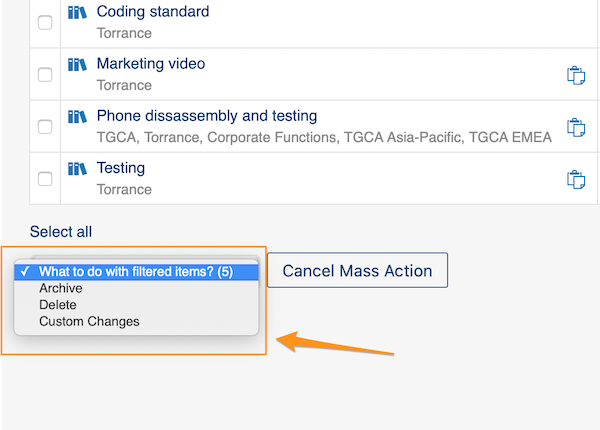
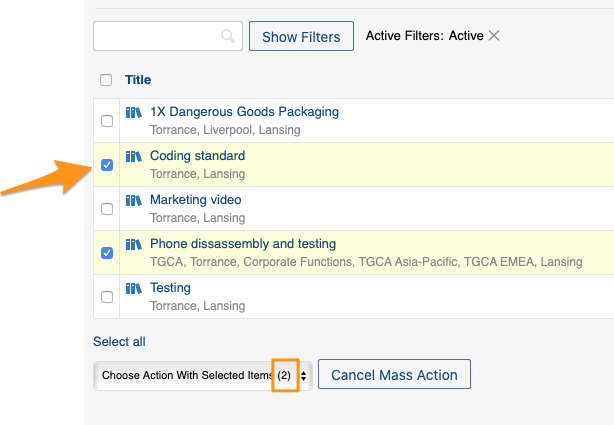
You can choose Archive, Delete or Custom Changes. You can also select the specific documents, metrics or metric dashboards you want to modify.
Changes without a selection
If you don’t select a specific document by ticking the box next to it, the system automatically makes the modifications to all documents in that location.
Define custom changes
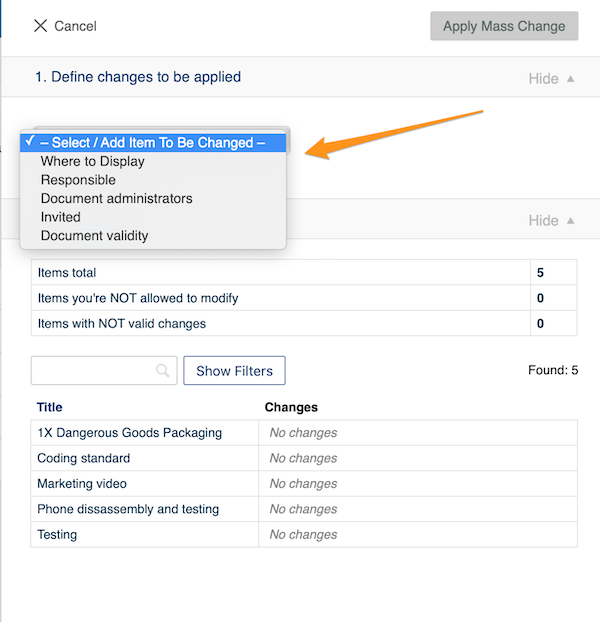
When you choose Custom Changes from the Show Mass Actions submenu, you have to define your changes. The options vary depending on their relevance (metric dashboards have different options than metrics, etc.).
For example, under Documents you can choose from these options:
Apply the mass change
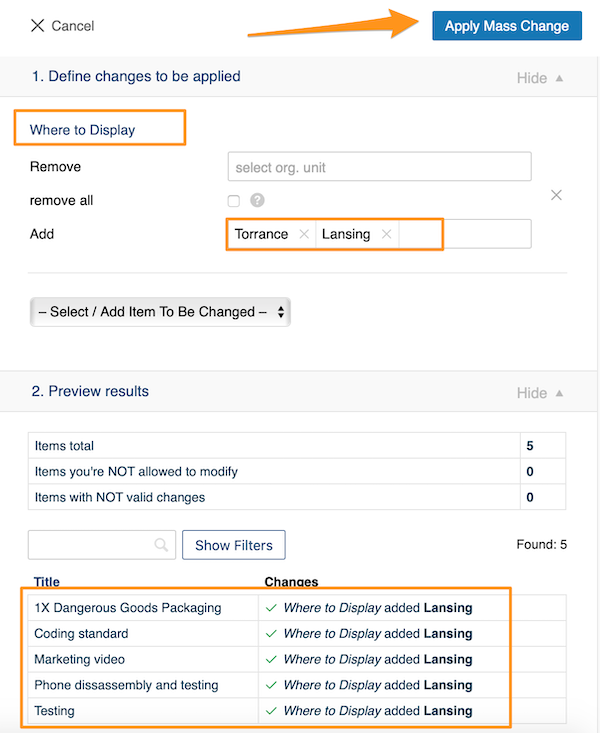
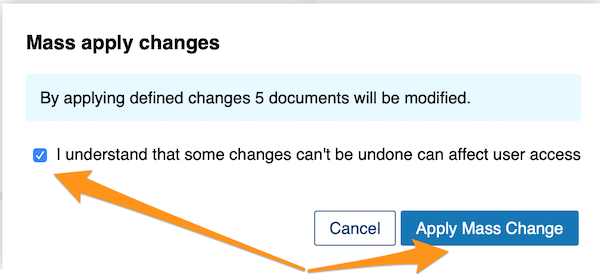
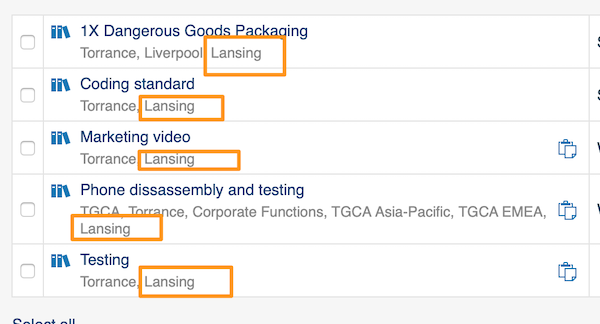
Once you have made your selection, click the Apply Mass Change button and confirm your changes in the notification message. Your modifications are then applied to the selected documents.
Upravte několik dokumentů, metrikových dashboardů a metrik najednou pomocí funkce Zobrazit hromadné akce.
Funkce je zatím dostupná jen v modulech Akční listy a Dokumenty, v Metrikových dashboardech a u metrik, později ji rozšíříme i do dalších modulů. K jejímu použití potřebujete dostatečnou roli.
Zobrazení hromadných akcí
Pod seznamem akčních listů, dokumentů nebo metrik klikněte na Zobrazit hromadné akce.
Výběr akce a položek
Můžete zvolit Archivovat, Smazat nebo Vlastní změny. Zároveň můžete vybrat konkrétní dokumenty, metriky nebo metrikové dashboardy, které chcete upravit.
Změny bez výběru
Pokud nezaškrtnete políčko u žádného konkrétního dokumentu, systém provede změny u všech dokumentů v daném umístění.
Nastavení vlastních změn
Když v podnabídce Zobrazit hromadné akce zvolíte Vlastní změny, musíte změny nadefinovat. Nabízené možnosti se liší podle typu položek (metrikové dashboardy mají jiné možnosti než metriky atd.).
Například u dokumentů můžete vybírat z těchto možností:
Provedení hromadné změny
Po výběru klikněte na tlačítko Použít hromadnou změnu a změny potvrďte v oznámení. Úpravy se pak provedou u vybraných dokumentů.
Potřebujete další pomoc?
Napište nám. V pracovní dny obvykle odpovídáme do hodiny.