Cambios masivos en documentos
Traducción automática del inglés. Se muestra el original en inglés.
Make changes to several documents, metric dashboards and metrics at once and take full advantage of the Show Mass Actions functionality.
It is available only in the Action Lists and Documents modules, Metric Dashboards and Metrics, but it will be extended to other modules in the future. To use this functionality, you need a sufficient role.
Show the mass actions
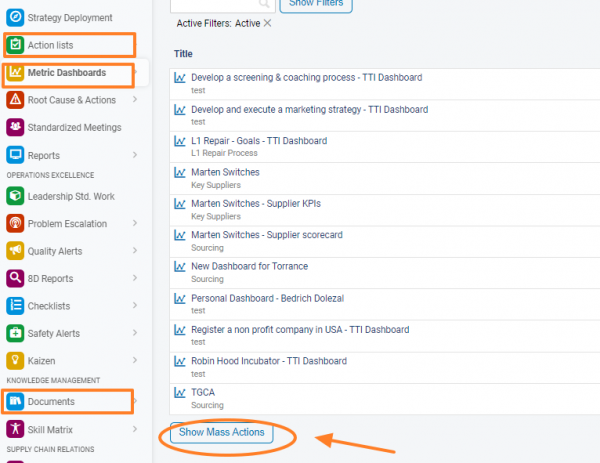
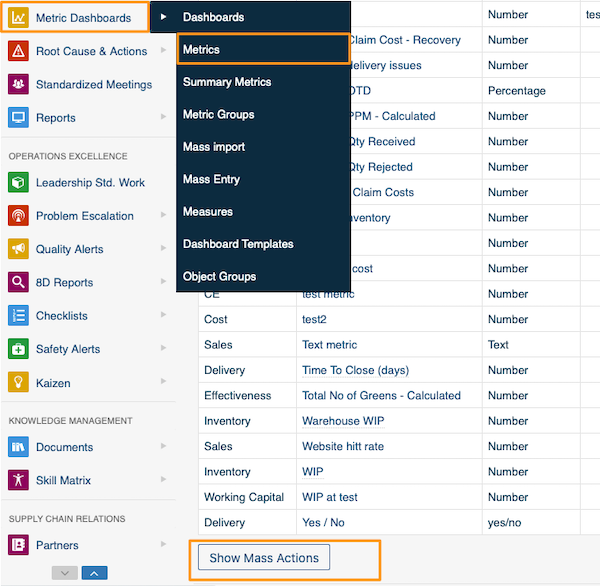
Under the list of your action lists, documents or metrics, click Show Mass Actions.
Choose the action and the items
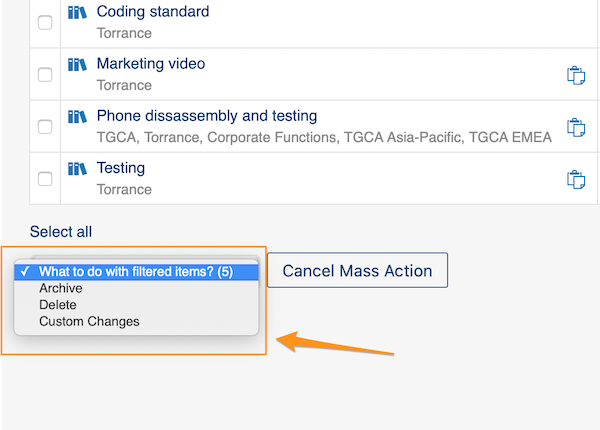
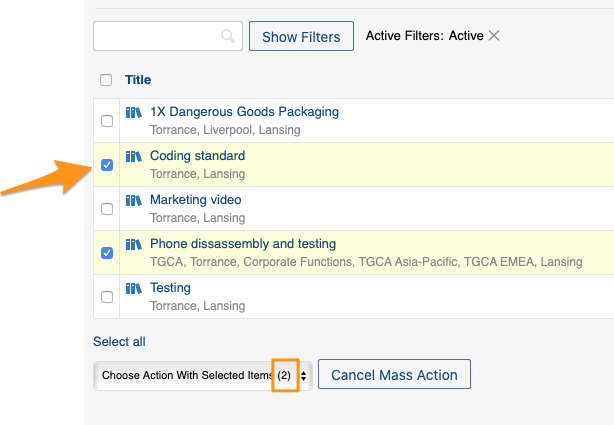
You can choose Archive, Delete or Custom Changes. You can also select the specific documents, metrics or metric dashboards you want to modify.
Changes without a selection
If you don’t select a specific document by ticking the box next to it, the system automatically makes the modifications to all documents in that location.
Define custom changes
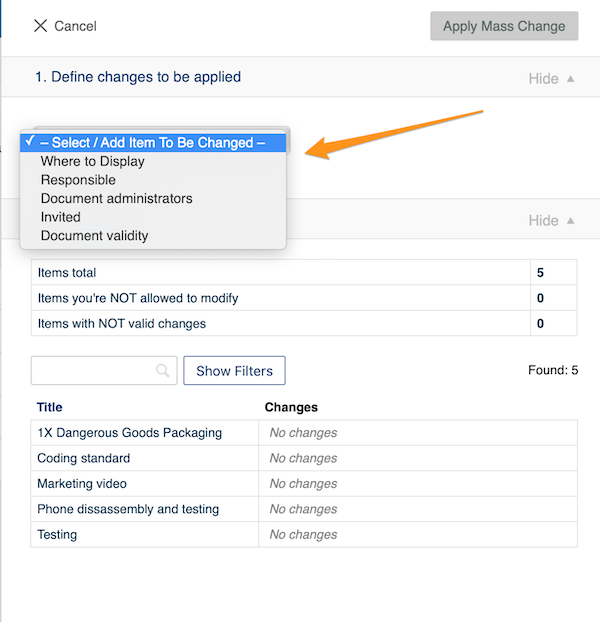
When you choose Custom Changes from the Show Mass Actions submenu, you have to define your changes. The options vary depending on their relevance (metric dashboards have different options than metrics, etc.).
For example, under Documents you can choose from these options:
Apply the mass change
Once you have made your selection, click the Apply Mass Change button and confirm your changes in the notification message. Your modifications are then applied to the selected documents.
Modifique varios documentos, dashboards de KPI y métricas a la vez con la función Mostrar acciones masivas.
Por ahora solo está disponible en los módulos Planes de acción y Documentos, Dashboards de KPI y Métricas, pero se ampliará a otros módulos más adelante. Para usarla, necesita un rol con permisos suficientes.
Mostrar las acciones masivas
Debajo de la lista de planes de acción, documentos o métricas, haga clic en Mostrar acciones masivas.
Elegir la acción y los elementos
Puede elegir Archivar, Eliminar o Cambios personalizados. También puede seleccionar los documentos, métricas o dashboards de KPI concretos que quiere modificar.
Cambios sin selección
Si no selecciona ningún documento marcando la casilla junto a él, el sistema aplica automáticamente los cambios a todos los documentos de esa ubicación.
Definir los cambios personalizados
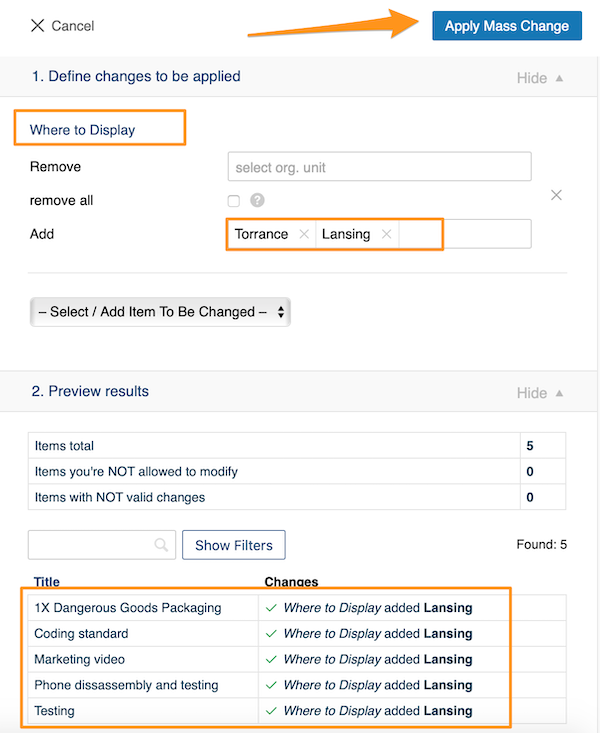
Si elige Cambios personalizados en el submenú Mostrar acciones masivas, debe definir los cambios. Las opciones dependen de lo que tenga sentido en cada caso (los dashboards de KPI tienen opciones distintas a las de las métricas, etc.).
Por ejemplo, en Documentos puede elegir entre estas opciones:
Aplicar el cambio masivo
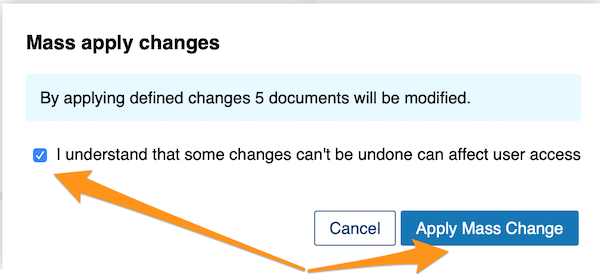
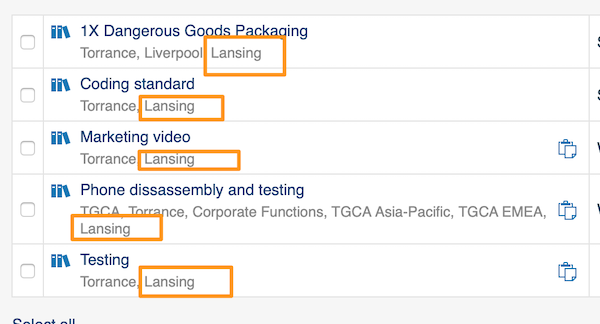
Cuando haya hecho su selección, haga clic en el botón Aplicar cambio masivo y confirme los cambios en el mensaje de aviso. Los cambios se aplican entonces a los documentos seleccionados.
¿Necesita más ayuda?
Escríbanos. En días laborables solemos responder en menos de una hora.