Hromadné zmeny v dokumentoch
Strojový preklad z angličtiny. Zobrazený je anglický originál.
Make changes to several documents, metric dashboards and metrics at once and take full advantage of the Show Mass Actions functionality.
It is available only in the Action Lists and Documents modules, Metric Dashboards and Metrics, but it will be extended to other modules in the future. To use this functionality, you need a sufficient role.
Show the mass actions
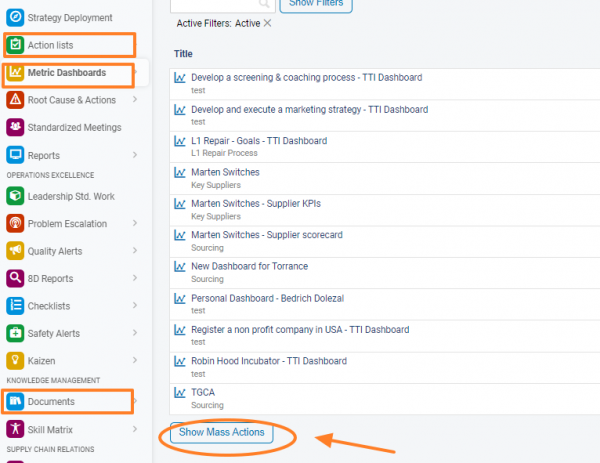
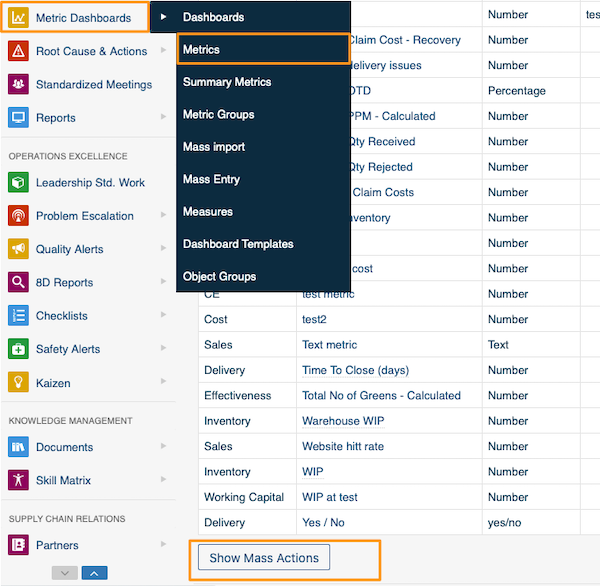
Under the list of your action lists, documents or metrics, click Show Mass Actions.
Choose the action and the items
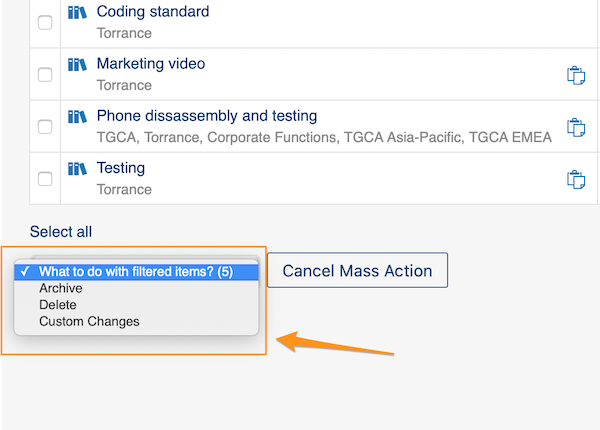
You can choose Archive, Delete or Custom Changes. You can also select the specific documents, metrics or metric dashboards you want to modify.
Changes without a selection
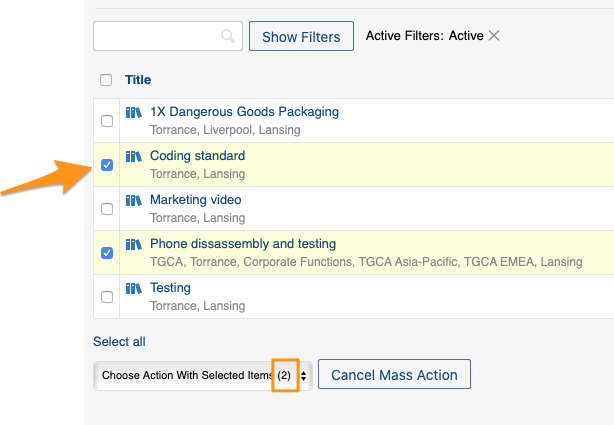
If you don’t select a specific document by ticking the box next to it, the system automatically makes the modifications to all documents in that location.
Define custom changes
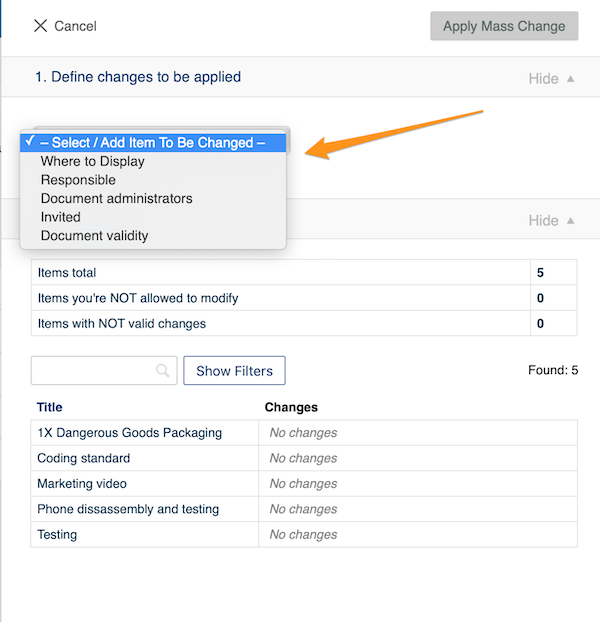
When you choose Custom Changes from the Show Mass Actions submenu, you have to define your changes. The options vary depending on their relevance (metric dashboards have different options than metrics, etc.).
For example, under Documents you can choose from these options:
Apply the mass change
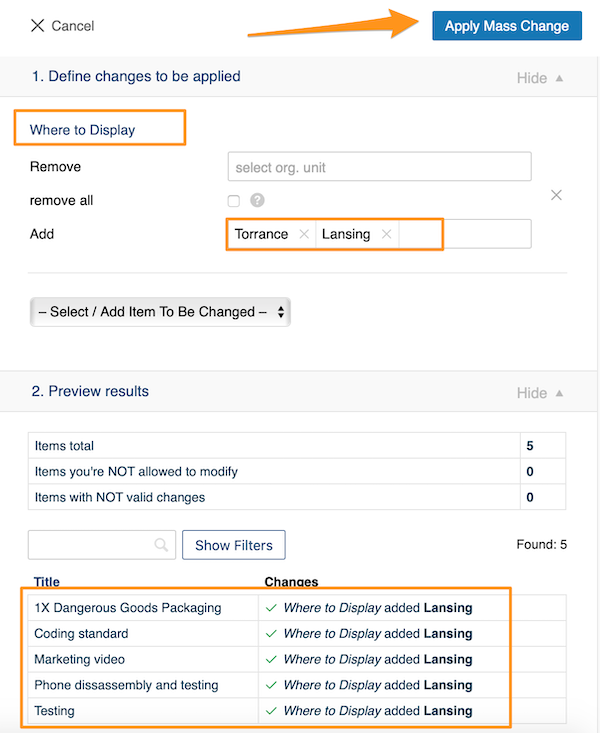
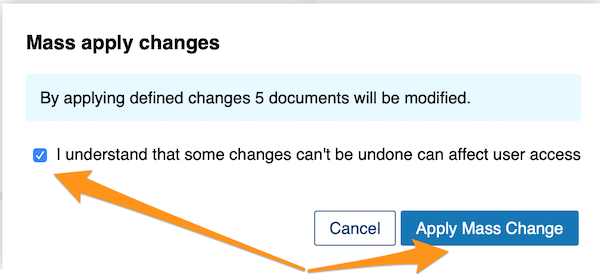
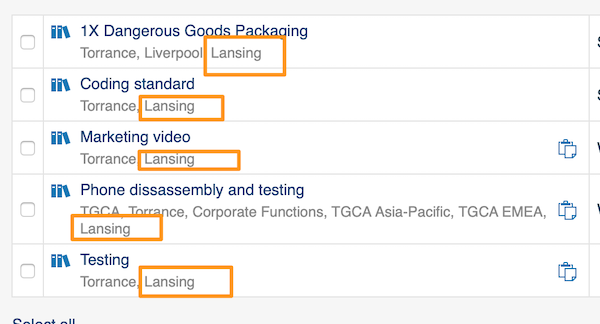
Once you have made your selection, click the Apply Mass Change button and confirm your changes in the notification message. Your modifications are then applied to the selected documents.
Upravte naraz viacero dokumentov, KPI dashboardov a metrík a naplno využite funkciu Zobraziť hromadné akcie.
Funkcia je zatiaľ dostupná len v moduloch Akčné zoznamy a Dokumenty, v KPI dashboardoch a v metrikách, v budúcnosti ju však rozšírime aj do ďalších modulov. Na jej použitie potrebujete dostatočnú rolu.
Zobrazte hromadné akcie
Pod zoznamom akčných zoznamov, dokumentov alebo metrík kliknite na Zobraziť hromadné akcie.
Vyberte akciu a položky
Môžete zvoliť Archivovať, Odstrániť alebo Vlastné zmeny. Zároveň môžete vybrať konkrétne dokumenty, metriky alebo KPI dashboardy, ktoré chcete upraviť.
Zmeny bez výberu
Ak nezačiarknete políčko pri žiadnom konkrétnom dokumente, systém automaticky upraví všetky dokumenty v danom umiestnení.
Definujte vlastné zmeny
Keď v podmenu Zobraziť hromadné akcie zvolíte Vlastné zmeny, musíte zmeny definovať. Ponúknuté možnosti závisia od typu položiek (KPI dashboardy majú iné možnosti ako metriky atď.).
Napríklad v Dokumentoch máte na výber tieto možnosti:
Použite hromadnú zmenu
Po výbere kliknite na tlačidlo Použiť hromadnú zmenu a zmeny potvrďte v hlásení. Úpravy sa potom prejavia vo vybraných dokumentoch.
Potrebujete ďalšiu pomoc?
Napíšte nám. V pracovné dni zvyčajne odpovedáme do hodiny.