How to set up an RCCA template
Standardize your RCCA documents across your company with a template. You can modify the system’s default template or create and customize your own. Sufficient rights are required.
Create the template
Open the template list
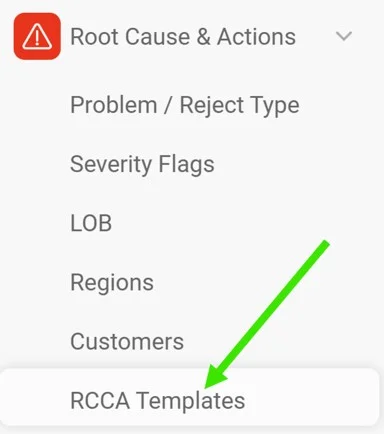
In the Root Cause & Actions module, select RCCA Templates from the submenu.
Create or edit a template
Click the green Create New icon in the upper right corner to create a new template. To modify an existing template, click its edit pencil.


Define the template settings
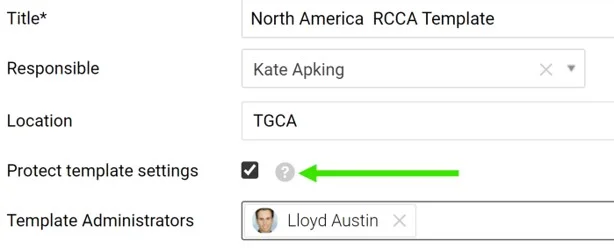
Fill in the title, the responsible person and the other settings.
Location can be set for each template: the template then becomes the default one for that structure. Tick Protect template settings to lock the template, so that only the responsible person and the Template administrators can modify it.
Adjust the sections
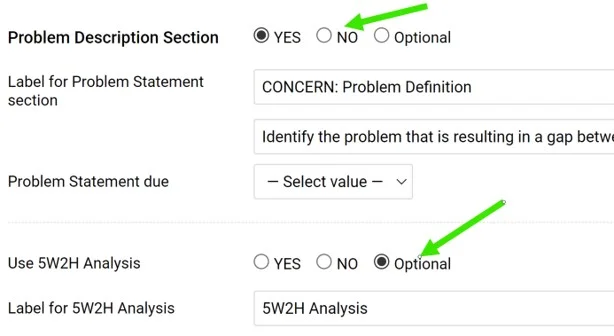
Show, hide or make sections optional
Choose which sections to display or hide, or set them to Optional, so that each RCCA document decides whether to use them.
Rename the section titles
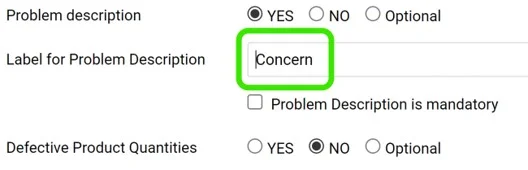
Rename the titles as needed.
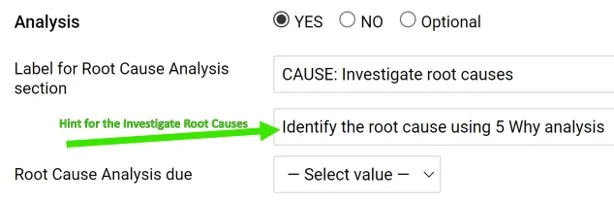
Add hints
Help your team understand what a field is intended for by entering a hint.
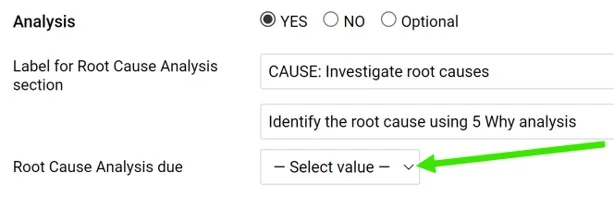
Require a due date
Select the due date if a section requires one (it is optional).
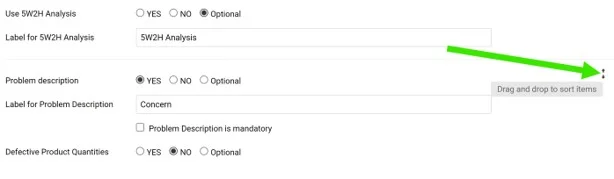
Reorder the sections
Change the order of the sections by drag and drop: the handle appears when you hover over the right side of a section.
Save the template
Click the green Save & Return icon in the upper right corner.
Use the template
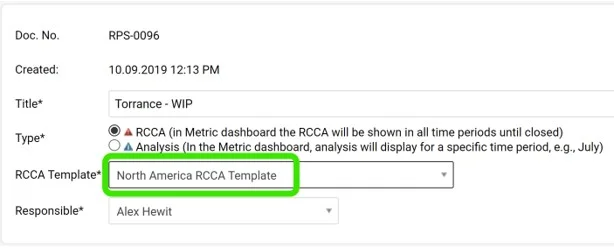
Pick the template for a new RCCA
When you create an RCCA document, you are prompted to select a template.
Filter documents by template
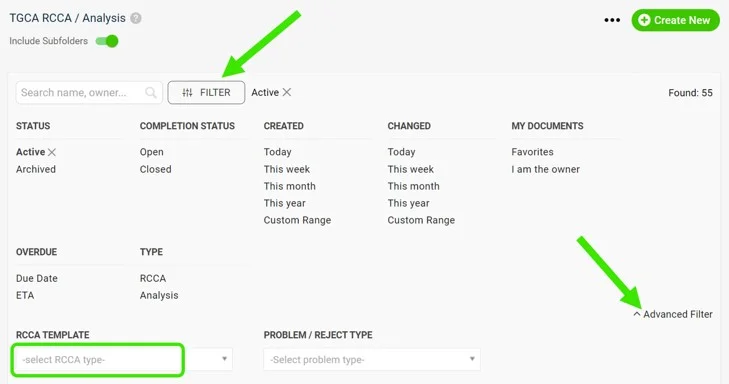
Use the advanced filter in your document list to see the documents based on a specific template.
Text entered in a field of an RCCA document is kept when you switch to another template, even if that template names the field differently. If the field is not activated in the new template, its text is hidden, and it appears again once the field is activated.
Please contact us if you need any assistance. We are ready to help.
Still need help?
Write to us. We usually reply within an hour on business days.