Cómo configurar una plantilla RCCA
Traducción automática del inglés. Se muestra el original en inglés.
Standardize your RCCA documents across your company with a template. You can modify the system’s default template or create and customize your own. Sufficient rights are required.
Create the template
Open the template list
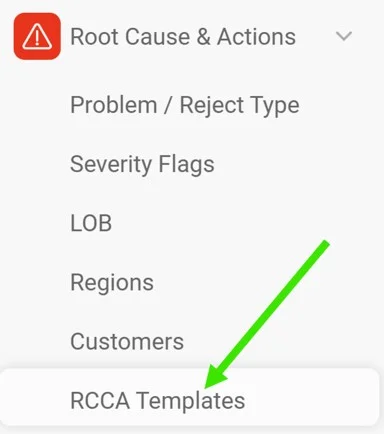
In the Root Cause & Actions module, select RCCA Templates from the submenu.
Create or edit a template
Click the green Create New icon in the upper right corner to create a new template. To modify an existing template, click its edit pencil.


Define the template settings
Fill in the title, the responsible person and the other settings.
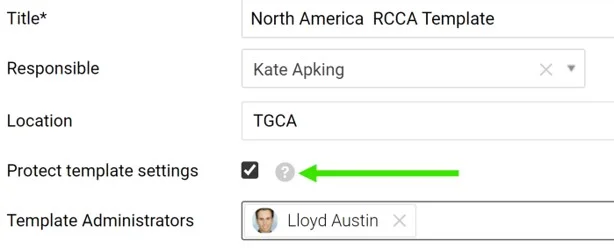
Location can be set for each template: the template then becomes the default one for that structure. Tick Protect template settings to lock the template, so that only the responsible person and the Template administrators can modify it.
Adjust the sections
Show, hide or make sections optional
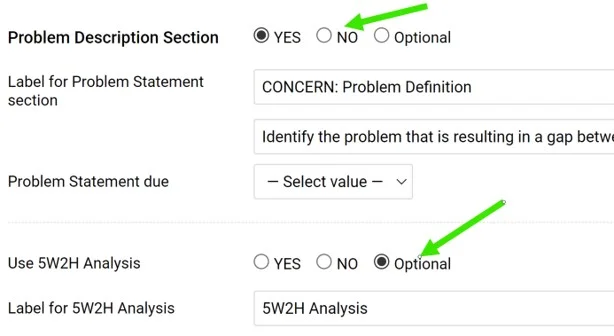
Choose which sections to display or hide, or set them to Optional, so that each RCCA document decides whether to use them.
Rename the section titles
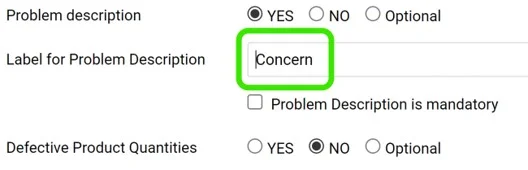
Rename the titles as needed.
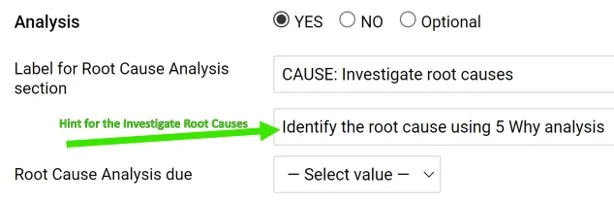
Add hints
Help your team understand what a field is intended for by entering a hint.
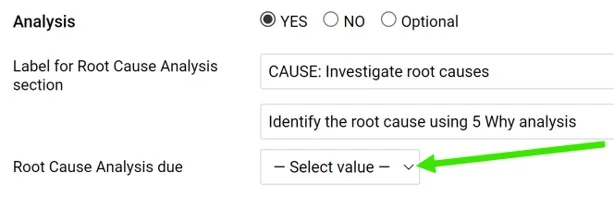
Require a due date
Select the due date if a section requires one (it is optional).
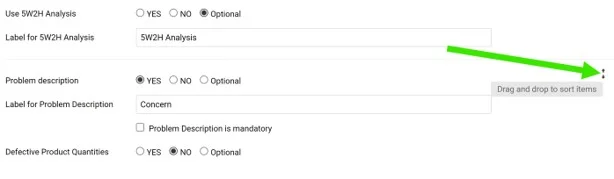
Reorder the sections
Change the order of the sections by drag and drop: the handle appears when you hover over the right side of a section.
Save the template
Click the green Save & Return icon in the upper right corner.
Use the template
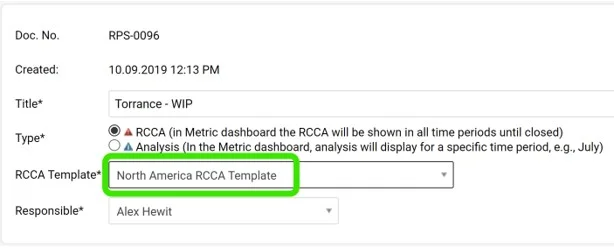
Pick the template for a new RCCA
When you create an RCCA document, you are prompted to select a template.
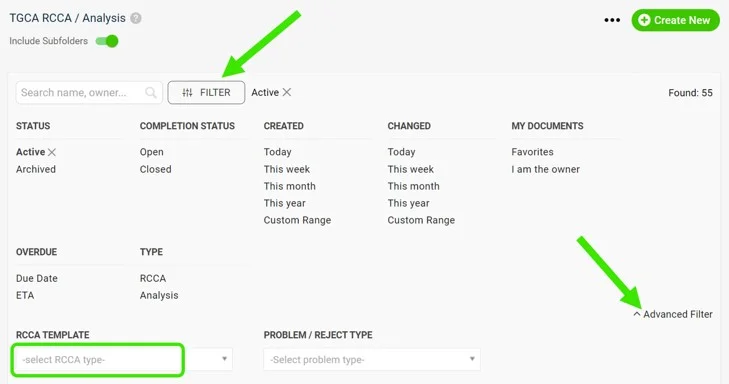
Filter documents by template
Use the advanced filter in your document list to see the documents based on a specific template.
Text entered in a field of an RCCA document is kept when you switch to another template, even if that template names the field differently. If the field is not activated in the new template, its text is hidden, and it appears again once the field is activated.
Please contact us if you need any assistance. We are ready to help.
Estandarice los documentos RCCA de toda su empresa con una plantilla. Puede modificar la plantilla predeterminada del sistema o crear y personalizar la suya. Se necesitan los permisos adecuados.
Crear la plantilla
Abrir la lista de plantillas
En el módulo Causa raíz y acciones correctivas, seleccione Plantillas RCCA en el submenú.
Crear o editar una plantilla
Haga clic en el icono verde Crear nuevo en la esquina superior derecha para crear una plantilla nueva. Para modificar una plantilla existente, haga clic en su lápiz de edición.
Definir la configuración de la plantilla
Complete el título, el responsable y el resto de la configuración.
Ubicación se puede definir para cada plantilla: la plantilla pasa a ser la predeterminada de esa estructura. Marque Proteger configuración de la plantilla para bloquearla, de modo que solo el responsable y los Administradores de plantillas puedan modificarla.
Ajustar las secciones
Mostrar, ocultar o hacer opcionales las secciones
Elija qué secciones mostrar u ocultar, o márquelas como Opcional para que cada documento RCCA decida si las usa.
Cambiar los títulos de las secciones
Cambie los títulos según lo necesite.
Agregar sugerencias
Ayude a su equipo a entender para qué sirve un campo escribiendo una sugerencia.
Exigir una fecha límite
Seleccione la fecha límite si una sección la requiere (es opcional).
Reordenar las secciones
Cambie el orden de las secciones arrastrándolas y soltándolas: el controlador aparece al pasar el cursor por el lado derecho de una sección.
Guardar la plantilla
Haga clic en el icono verde Guardar y volver en la esquina superior derecha.
Usar la plantilla
Elegir la plantilla para un nuevo RCCA
Al crear un documento RCCA, se le pide que seleccione una plantilla.
Filtrar los documentos por plantilla
Use el filtro avanzado de su lista de documentos para ver los documentos basados en una plantilla concreta.
El texto escrito en un campo de un documento RCCA se conserva al cambiar a otra plantilla, aunque esa plantilla le dé otro nombre al campo. Si el campo no está activado en la nueva plantilla, su texto se oculta y vuelve a aparecer cuando se activa el campo.
Contáctenos si necesita ayuda. Con gusto le ayudamos.
¿Necesita más ayuda?
Escríbanos. En días laborables solemos responder en menos de una hora.