So richten Sie eine RCCA-Vorlage ein
Maschinelle Übersetzung aus dem Englischen. Englisches Original wird angezeigt.
Standardize your RCCA documents across your company with a template. You can modify the system’s default template or create and customize your own. Sufficient rights are required.
Create the template
Open the template list
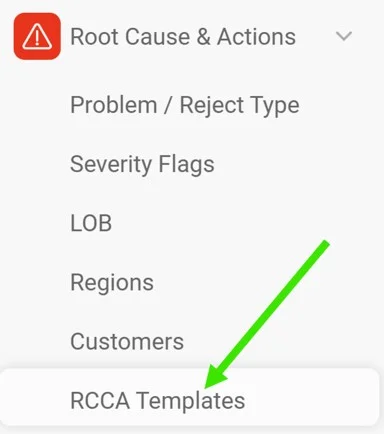
In the Root Cause & Actions module, select RCCA Templates from the submenu.
Create or edit a template
Click the green Create New icon in the upper right corner to create a new template. To modify an existing template, click its edit pencil.


Define the template settings
Fill in the title, the responsible person and the other settings.
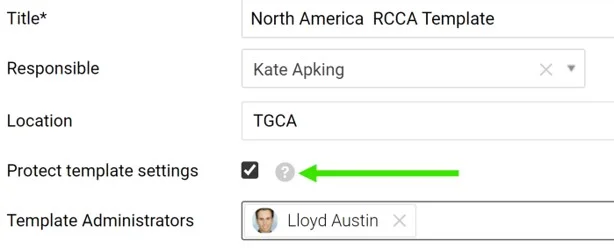
Location can be set for each template: the template then becomes the default one for that structure. Tick Protect template settings to lock the template, so that only the responsible person and the Template administrators can modify it.
Adjust the sections
Show, hide or make sections optional
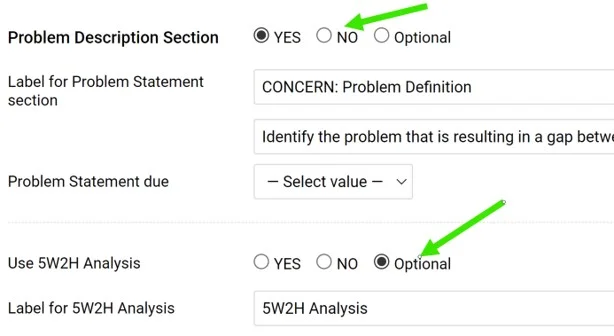
Choose which sections to display or hide, or set them to Optional, so that each RCCA document decides whether to use them.
Rename the section titles
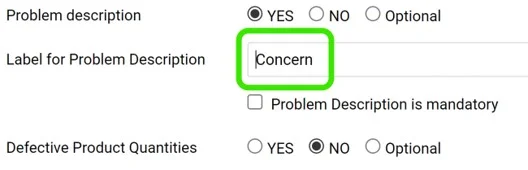
Rename the titles as needed.
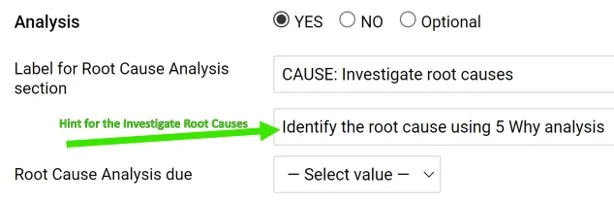
Add hints
Help your team understand what a field is intended for by entering a hint.
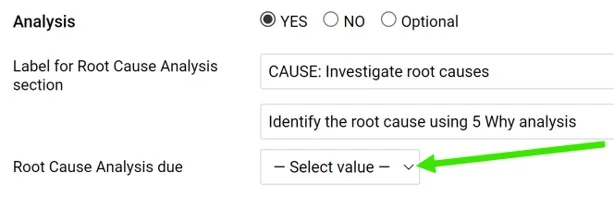
Require a due date
Select the due date if a section requires one (it is optional).
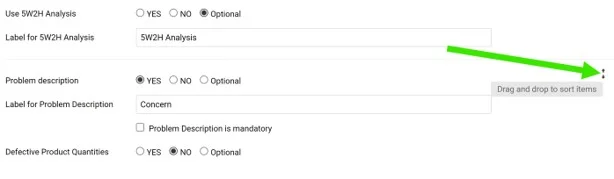
Reorder the sections
Change the order of the sections by drag and drop: the handle appears when you hover over the right side of a section.
Save the template
Click the green Save & Return icon in the upper right corner.
Use the template
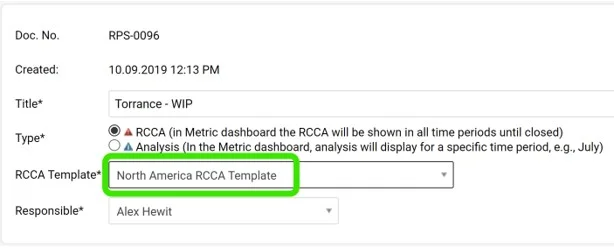
Pick the template for a new RCCA
When you create an RCCA document, you are prompted to select a template.
Filter documents by template
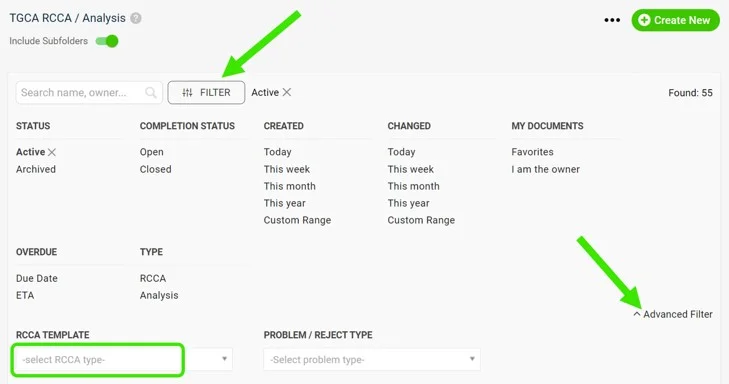
Use the advanced filter in your document list to see the documents based on a specific template.
Text entered in a field of an RCCA document is kept when you switch to another template, even if that template names the field differently. If the field is not activated in the new template, its text is hidden, and it appears again once the field is activated.
Please contact us if you need any assistance. We are ready to help.
Vereinheitlichen Sie Ihre RCCA-Dokumente im gesamten Unternehmen mit einer Vorlage. Sie können die Standardvorlage des Systems anpassen oder eine eigene Vorlage erstellen und gestalten. Dafür benötigen Sie ausreichende Berechtigungen.
Vorlage erstellen
Vorlagenliste öffnen
Wählen Sie im Modul Ursachenanalyse und Maßnahmen im Untermenü RCCA-Vorlagen.
Vorlage erstellen oder bearbeiten
Eine neue Vorlage erstellen Sie mit dem grünen Symbol Neu erstellen oben rechts. Um eine vorhandene Vorlage zu ändern, klicken Sie auf ihr Stiftsymbol.
Vorlageneinstellungen festlegen
Geben Sie den Titel, die verantwortliche Person und die weiteren Einstellungen ein.
Für jede Vorlage lässt sich ein Standort festlegen: Die Vorlage wird dann zur Standardvorlage für diesen Teil der Struktur. Aktivieren Sie Vorlageneinstellungen schützen, um die Vorlage zu sperren. Dann können nur die verantwortliche Person und die Vorlagenadministratoren sie ändern.
Abschnitte anpassen
Abschnitte anzeigen, ausblenden oder optional machen
Legen Sie fest, welche Abschnitte angezeigt oder ausgeblendet werden, oder setzen Sie sie auf Optional. Dann entscheidet jedes RCCA-Dokument selbst, ob es sie verwendet.
Abschnittstitel umbenennen
Benennen Sie die Titel nach Bedarf um.
Hinweise hinzufügen
Mit einem Hinweis erklären Sie Ihrem Team, wofür ein Feld gedacht ist.
Fälligkeitsdatum verlangen
Wählen Sie das Fälligkeitsdatum, wenn ein Abschnitt eines benötigt (optional).
Abschnitte neu anordnen
Die Reihenfolge der Abschnitte ändern Sie per Drag & Drop: Der Griff erscheint, wenn Sie mit der Maus über die rechte Seite eines Abschnitts fahren.
Vorlage speichern
Klicken Sie oben rechts auf das grüne Symbol Speichern und zurück.
Vorlage verwenden
Vorlage für ein neues RCCA-Dokument wählen
Wenn Sie ein RCCA-Dokument erstellen, werden Sie aufgefordert, eine Vorlage auszuwählen.
Dokumente nach Vorlage filtern
Mit dem erweiterten Filter in Ihrer Dokumentliste sehen Sie die Dokumente, die auf einer bestimmten Vorlage basieren.
Text in einem Feld eines RCCA-Dokuments bleibt erhalten, wenn Sie zu einer anderen Vorlage wechseln, auch wenn das Feld dort anders heißt. Ist das Feld in der neuen Vorlage nicht aktiviert, wird sein Text ausgeblendet und erscheint wieder, sobald das Feld aktiviert wird.
Wenn Sie Unterstützung brauchen, kontaktieren Sie uns. Wir helfen Ihnen gern.
Brauchen Sie weitere Hilfe?
Schreiben Sie uns. An Werktagen antworten wir meist innerhalb einer Stunde.